Start from a queue template
Create a queue from a ready-made pipeline — receiving, fulfilment, returns, support, approvals or document review — or copy an existing one.
Start a queue from a ready-made pipeline instead of building stages by hand, then adjust it to how you work.
Before you start: creating a queue needs Full control on Work queues.
Steps
- Open Work Queues › Templates (or click From a template at the top of any section).
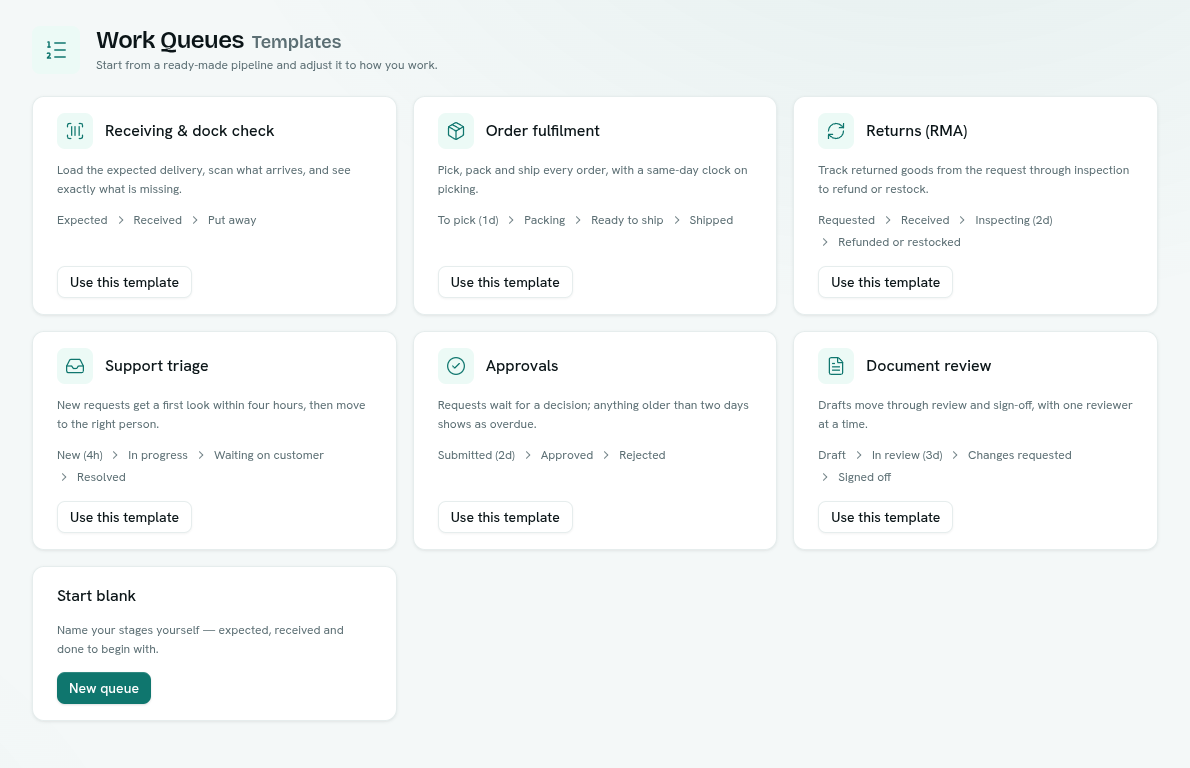
- Read the stages on each card. A stage with a time limit shows it in brackets, for example To pick (1d).
- Click Use this template. The queue editor opens with the name, stages, time limits and settings filled in.
- Change anything you like — rename stages, add or remove them, attach a record type. See Create a queue.
- Click Create queue.
To build from scratch, use Start blank › New queue.
The templates
| Template | Stages | Good for |
|---|---|---|
| Receiving & dock check | Expected › Received › Put away | Load the expected delivery, scan what arrives, and see exactly what is missing. |
| Order fulfilment | To pick (1d) › Packing › Ready to ship › Shipped | Pick, pack and ship every order, with a same-day clock on picking. |
| Returns (RMA) | Requested › Received › Inspecting (2d) › Refunded or restocked | Track returned goods from the request through inspection to refund or restock. |
| Support triage | New (4h) › In progress › Waiting on customer › Resolved | New requests get a first look within four hours, then move to the right person. |
| Approvals | Submitted (2d) › Approved › Rejected | Requests wait for a decision; anything older than two days shows as overdue. |
| Document review | Draft › In review (3d) › Changes requested › Signed off | Drafts move through review and sign-off, with one reviewer at a time. |
Copy an existing queue
In Queues, right-click a card (or click its ⋯) › Duplicate. The editor opens with a copy of its stages and settings, named " (copy)". Items are not copied.