Create a queue and its stages
Set up a queue, define its stages and their rules, and choose what happens when an item arrives.
You will create a queue with stages, and learn what each stage setting does.
Before you start: you need Full control on Work queues (the Roles page). To attach the queue to records, create the record type first. To run code when items arrive, create the function first. See Functions.
Steps
- Open Work Queues.
- Click New queue. If you have none yet, click Create a queue.
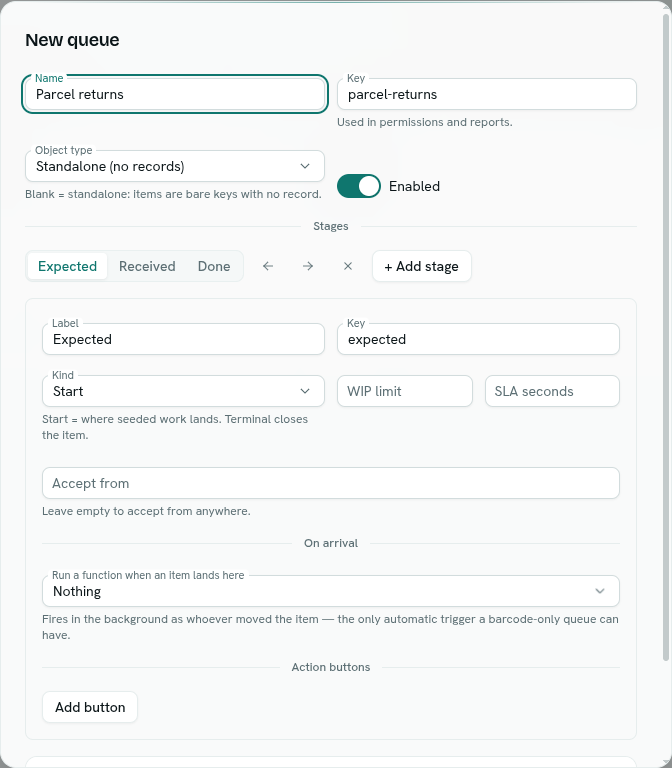
- Enter a Name, for example "Inbound dock".
- Check the Key. It is made from the name. It allows lowercase letters, digits, dashes and underscores (1 to 60 characters). Permissions and reports use it. It cannot be changed after the queue is created.
- Choose an Object type:
- Standalone (no records) — items are plain codes, like barcodes.
- A record type — items can link to records, and you can use an intake rule and record updates.
- Leave Enabled on. An off queue shows a Paused badge.
- Set up the stages. The queue starts with Expected (start), Received and Done (terminal).
- Optional: open Intake rule — auto-add matching records (see Intake rules) and Settings.
- Click Create queue. The queue opens on its board.
Work with stages
Under Stages, the buttons across the top pick which stage you are editing.
- + Add stage adds another. A queue can have up to 40.
- The left and right arrows (Move stage earlier / Move stage later) change the order. Order matters: scanning moves an item to the next stage in this order.
- Remove stage deletes the one you are editing. It is shown when there is more than one stage.
Stage settings
| Setting | What it does |
|---|---|
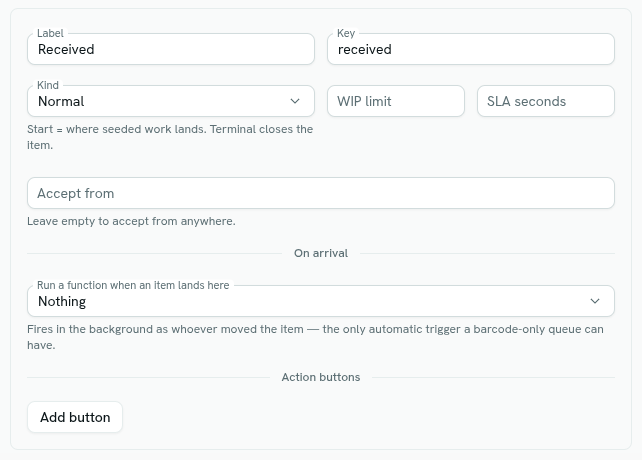
| Label | The name people see. |
| Key | Its internal name (lowercase letters, digits, dashes, underscores). It follows the label until you edit it. Keep it stable once items use it. |
| Kind | Start is where loaded and intake items land. Normal is an ordinary step. Terminal closes the item when it arrives. |
| WIP limit | The most open items allowed in this stage at once. 0 means no limit. Moves into a full stage are refused. Loading a manifest is never limited. |
| SLA seconds | How long an item may stay before it counts as Overdue. 0 means no limit. The clock starts when the item enters the stage. |
| Accept from | Which stages may send items here. Empty means any stage. |
| Write onto the linked record when an item enters this stage | Only for queues with a record type. Add record update sets a field on the item's record to a value. true, false and numbers are understood. |
| Run a function when an item lands here | Runs a function in the background when an item arrives. See below. |
| Action buttons | Buttons on the board for this stage. Each has a Button label and a function. Up to 10 per stage. |
Details:
- Terminal stages mark an item done and free its key, so the same code can be loaded again later.
- If a move is refused you see a sentence such as "'Received' does not accept items from 'Expected'" or "'Packing' is at its limit of 5".
- A record update runs first, with the permissions of the person moving the item. If it fails, the move does not happen, so the record and the queue never disagree.
- The on-arrival function runs as the person who moved the item. A failure is logged and does not undo the move. It is the only automation a barcode-only queue can have.
- An action button runs its function once for each item you pick, up to 25 at a time. You need permission to move items and Can run on Custom code. The result shows as "Ran on N items", or "k/N ok" with the first error.
Settings
| Setting | What it does |
|---|---|
| Unknown scan | Reject it reports a scanned code that is not in the queue. Use this to check deliveries against a list. Create an item accepts it as new work, for open intake. |
| Lease seconds | How long a claim holds an item before it is free again. 0 to 86400. The default is 300. |
| Allow duplicate keys | Lets two open items share a key. Off by default, which makes loading and scanning safe to repeat. |
Edit or delete a queue
- From the queue's page click Edit, or use Edit on the card or its right-click menu. Change anything except the key.
- You cannot remove a stage that still holds items. You see "stage '' still holds N open item(s) — move them first".
- Delete asks you to confirm "Delete queue". Its items and history go with it.
- The right-click menu on a card also has Open, Open in new tab and Copy key.
Tips
- For a delivery check, keep the defaults: load the list into Expected, scan into Received, and finish in Done. Leave Unknown scan on Reject it or choose Create an item to catch extra items.
- Use SLA seconds for deadlines: 3600 is one hour.
- A workspace can have up to 200 queues.
Troubleshooting
use lowercase letters, digits, - or _ (1-60 chars) Fix the Key.
a queue with that key already exists Pick a different key.
Give the queue a name. / A queue needs at least one stage. / Every stage needs a label. Fill them in and try again.