Use Sheets on your phone
Read, edit and check spreadsheet rows from a phone — tap a cell to edit it, or see a whole row as a card.
Sheets works on a phone screen: the grid scrolls with your finger, and tapping a cell opens it in a panel at the bottom of the screen where you can read or change it.
Before you start: Can view on Sheets on the Roles page opens a workbook; Can edit lets you change cells.
Open and move around a workbook
- Open Sheets and tap a workbook.
- Swipe to scroll the grid. Column letters stay at the top, and any frozen rows (such as a header row) stay in view.
- Switch sheets with the tabs at the bottom of the screen. Swipe the tab strip sideways if there are many.
- The toolbar keeps the essentials: Undo, Redo, Sort A → Z, Sort Z → A, Filter, Freeze (when you can edit) and Find and replace.
- Tap ⋯ at the top right for Comments, Print or PDF… and Download .xlsx.
Edit a cell
- Tap the cell. A panel opens at the bottom showing the cell's address and column name.
- Change the value in Value. To enter a formula, start with
=— for example=SUM(C2:C20). The field label changes to Formula, and once saved the panel shows the result under it. - Tap Save. Tap Cancel to leave the cell as it was.
Columns with a fixed list of options show a picker, and date columns show a date picker.
See a whole row as a card
- Tap any cell in the row.
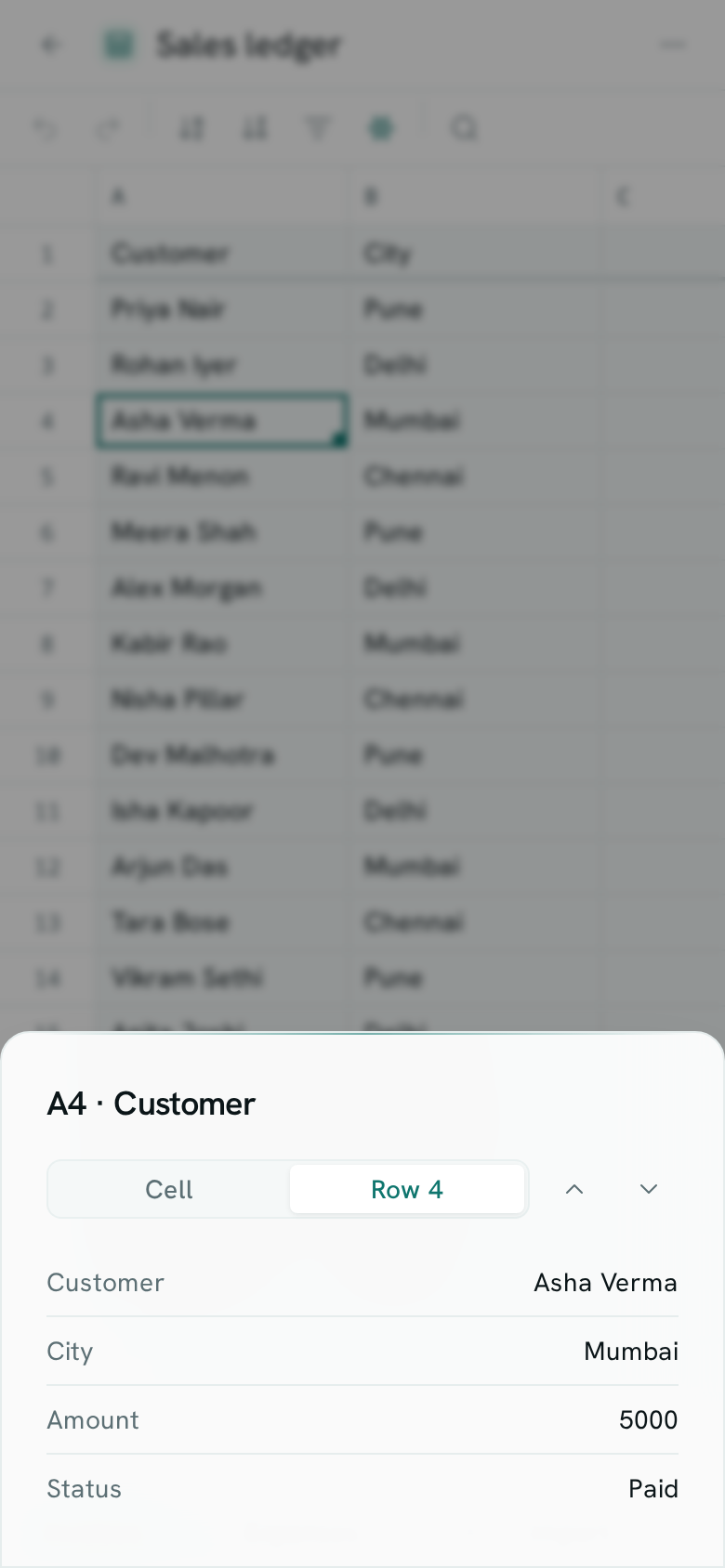
- Tap Row (for example Row 4). The panel lists the row's columns and their values — handy for customer, order or stock lists where one row is one record.
- Tap a line in the card to edit that cell.
- Use the up and down arrows beside Cell and Row to move to the previous or next row.
If the first row of the sheet holds headings (or is frozen), the card uses them as labels. Otherwise it uses the column names. Columns with nothing in this row are left out.
Comment on a cell
- Tap the cell.
- Tap Comment. The comments panel opens on that cell.
Good to know
- Formatting (colours, borders, number formats, merge), charts, pivot tables and protected ranges are set on a larger screen. On a phone, formatting you already applied still shows.
- Copy and paste between cells and the fill handle work best on a larger screen with a keyboard.
- Cells that are calculated for you (for example from linked records) show their value but can't be edited — the panel shows Close instead of Save. A workbook you can only view works the same way.
- Protected cells behave the same as on a computer: you may be asked to confirm, or the change may be refused.