Comment on cells and mention teammates
Start a discussion on any cell, reply in threads, @mention teammates so they get notified, and resolve threads when the question is answered.
Comments let your team talk about a number right where it sits. Each comment starts a thread on one cell, anyone who can open the workbook can reply, and an @mention tells a teammate there is something for them to look at.
Before you start: you need permission to view the workbook to read, add and reply to comments. Resolving someone else's thread needs permission to edit the workbook. Comments are written by people, not by API keys.
Add a comment
- Open the workbook from Sheets.
- Right-click the cell and choose Comment, or select it and press Ctrl+Alt+M (⌘+Alt+M on a Mac).
- Write your comment in the Comments panel. Type @ and pick a name to mention someone.
- Click Comment.
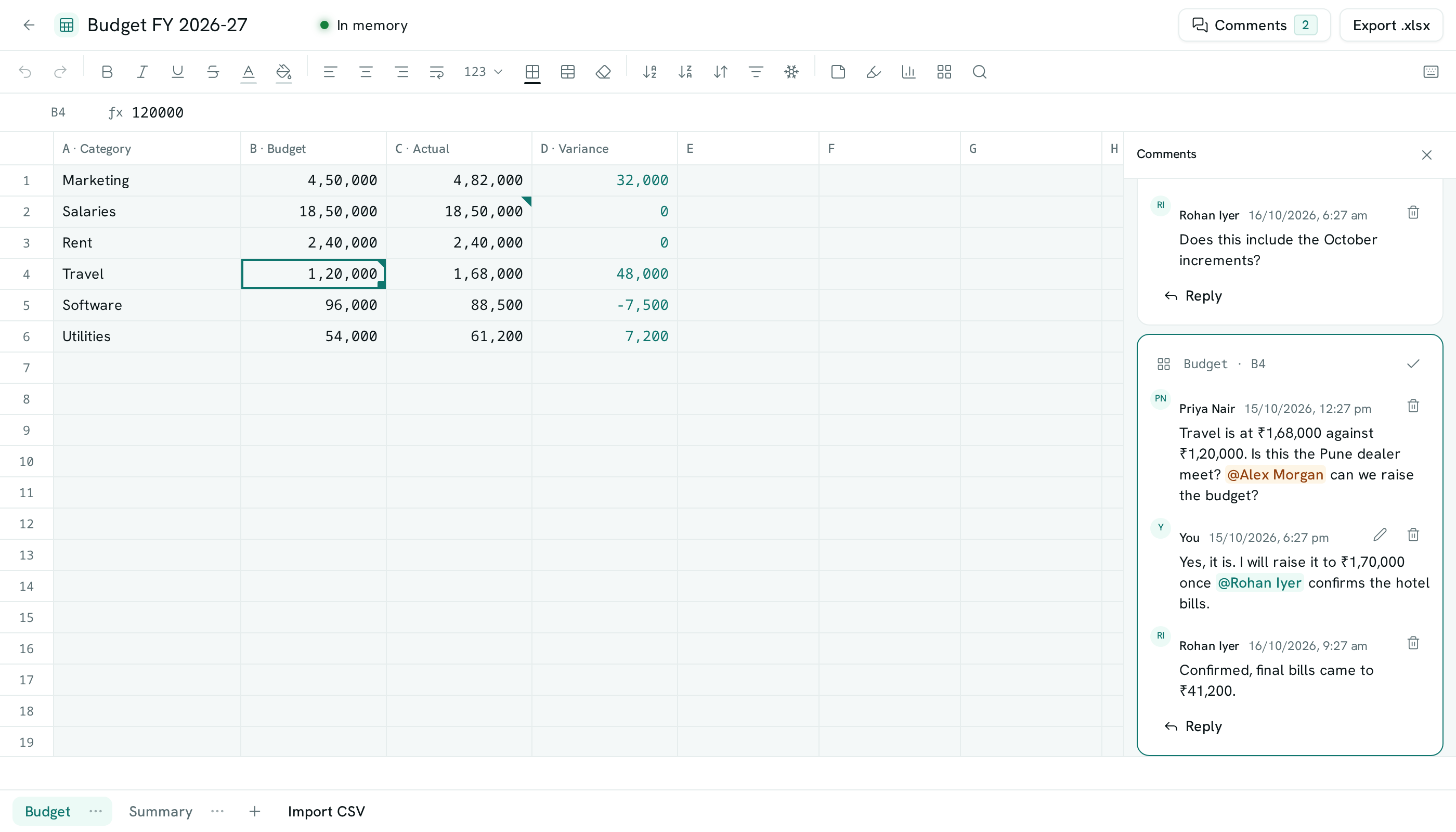
The cell now shows a teal triangle in its top-right corner. If the cell also has a note, the note's amber corner sits inside it.
Read and reply
- Click Comments in the bar at the top of the workbook. The number on the button is how many threads are still open.
- Threads are grouped by sheet, in cell order. Click the cell reference on a thread (for example Budget · B4) to jump to that cell, even on another sheet.
- Click Reply, write your answer and click Reply again.
Right-click a cell that already has a thread and choose Show comments to go straight to it.
Mention a teammate
Type @ in any comment or reply and choose a person from the list. Only people who can open the workbook are offered.
Mentioned teammates get a notification in their inbox, and by email, WhatsApp or push if they have turned those on in their notification settings. When someone replies to a thread, everyone who already wrote in it is notified too. Opening the notification takes them to the workbook with the thread highlighted.
Resolve a thread
- On the thread, click the check mark (Resolve).
- The thread leaves Open and moves to Resolved (the switch at the top of the panel), and the marker on the cell disappears.
To bring it back, open Resolved and click the undo arrow (Reopen), or click Reply and reopen — a reply reopens the thread.
Edit or delete
- Click the pencil on your own comment to change it. It shows as edited afterwards. People you newly mention in the edit are notified.
- Click the bin to delete your own comment. Deleting the first comment of a thread deletes the whole thread with its replies. The workspace owner can delete any comment.
Good to know
- Comments stay with their cell when you insert or delete rows above it and when you sort. Deleting the row or column a comment is on deletes the comment.
- Copying, cutting and pasting a cell does not move its comments.
- Comments are separate from notes. A note is a single line of text on a cell; a comment is a conversation.
- Everyone with the workbook open sees new comments and replies as they are posted.
- A comment is up to 5,000 characters. A workbook holds up to 2,000 threads and a thread up to 200 replies.
- If someone loses access to the workbook, they are no longer offered for mentions and no longer notified about its threads.