Computed fields
Calculate a field from other fields with a spreadsheet-style formula that updates on every save.
A computed field works out its own value from other fields on the same record, for example price - cost for profit. You never type into it. It updates every time the record is saved.
Before you start: You need the Business records permission at Full control. Computed fields can only be custom fields. Built-in (base) fields stay manual, so add a custom field to hold the calculation.
Create a computed field
- Open the app, click Settings, then the record type's tab.
- Click Add field.
- Enter the Label and pick a Type for the result:
string,text,number,currency,bool,dateordatetime. Other types do not show the Computed checkbox. - Tick Computed. The rules for the type disappear because a computed field carries none, apart from the currency unit.
- Type the Formula, for example
price - cost. The field keys you can use are the other fields of the type. - Click Add field.
Every existing record gets its value worked out straight away.
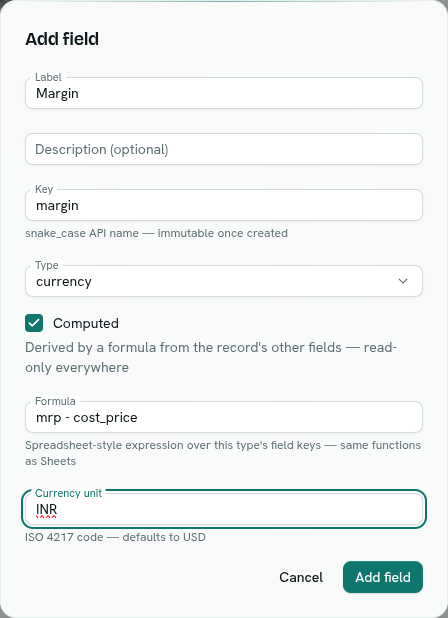
Make an existing field computed
- Open the field from the table in Settings.
- In Computed value, type a Formula.
- Click Save formula. You see
"<field>" is now computed.
The Computed value section only offers a formula when the field is a custom field of an allowed type and is not required, unique, immutable or auto-numbered. Otherwise it explains why: "Base fields stay manual…", "Not available for … fields.", or "Not available on auto-generated, required, unique or immutable fields."
Examples
| Goal | Formula |
|---|---|
| Profit | price - cost |
| Margin with 2 decimals | ROUND((price - cost) / price, 2) |
| Paid amount only | IF(status="paid", total, 0) |
| Full name | CONCAT(first_name, " ", last_name) |
| Year of a date field | YEAR(order_date) |
| Larger of two amounts | MAX(quote, estimate) |
The full list of functions is in the Formula reference.
How computed fields behave
- They are read-only everywhere: record forms, CSV import, flows, forms, Sheets and Ask Axis. A value sent to a computed field is ignored without an error.
- On the record form a computed field shows with
ƒbefore its label, greyed out. It does not appear on the New form because there is nothing to type yet. - In the field table they have a ƒ computed badge and the Rules column shows
= <formula>. - If the formula cannot be worked out for a record (for example it divides by zero or a field is empty), the value is empty. The save still works.
- A formula can use another computed field. AxisIQ updates them in the right order. Circular references are refused.
- A computed currency field uses your workspace's default currency code, or the field's currency unit if you set one.
- A formula may only use fields you are allowed to read. Otherwise you get
references "<key>", which you cannot read.
Note: Values for existing records are filled in right after you save the formula. For a short time you may see old values, so refresh if a list looks stale.
Turn it back into a normal field
Open the field and click Remove formula. The field becomes editable again and keeps the last calculated values. You see "<field>" is entered manually again.
Troubleshooting
references unknown field "x" The formula uses a name that is not a field key on this type. Check the list under the box, labelled Fields:.
function X is not supported in computed fields Only the functions in the Formula reference work.
TODAY is not supported in computed fields — a stored value would freeze the clock Computed values are stored, so formulas that depend on today's date are not allowed.
circular formula references Two computed fields use each other. Change one of them.
cannot reference list field "x"
Fields that hold several values (multiselect, refs) cannot be used in a formula.
a computed field cannot be type "select" Pick one of the result types listed above.
base fields cannot be computed — add a custom field instead Add a new custom field and compute that one.