Record activity
See who created, changed or deleted a record and a before-and-after view of each field.
The Activity tab of a record shows every change made to it: who, when, and what the values were before and after.
Before you start: You need the Audit trail permission at Can view on the Roles page. Without it the tab shows "Couldn't load activity."
Steps
- Open a record by clicking its row.
- Click the Activity tab at the top of the dialog (next to Details, Documents, Messages and Events).
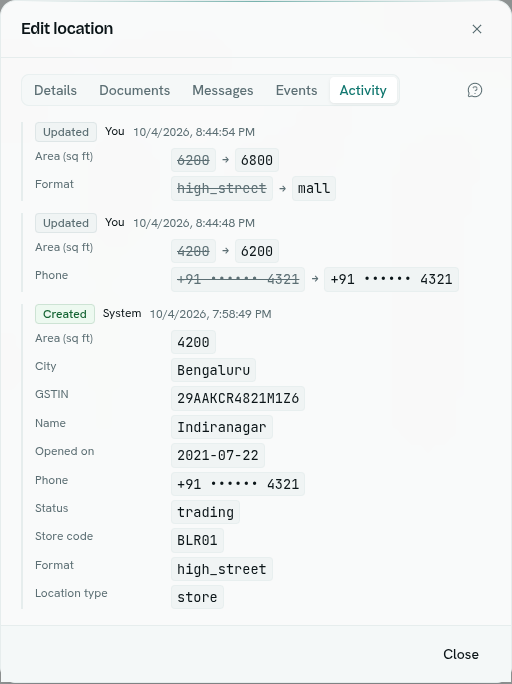
What you see
Each entry shows:
- a badge: Created (green), Updated or Deleted,
- who made the change: You for your own changes, System for automatic changes, otherwise a short code (the first 8 characters of the person's ID),
- the date and time in your local format,
- the fields that changed. For an update you see the old value crossed out, an arrow and the new value. For a creation you see the starting values. For a deletion you see the values that were removed.
Empty values appear as a dash. Yes/no values appear as Yes or No. Lists are comma-separated. Field names use the field's label.
The newest 50 entries are shown, newest first. When a record has no history you see "No activity yet. Changes to this record appear here."
What is recorded
- Every record create, update and delete, whether made on the form, by CSV import, by a flow, a function, Sheets, a form submission or Ask Axis. Changes made by a person or key are attributed to them.
- Changes with no person behind them, such as scheduled work, show System.
Good to know
- The trail is append-only. Nobody can edit or remove an entry.
- If recording an entry fails, your change still goes through.
- The app shows the trail one record at a time.
Troubleshooting
Couldn't load activity. You may not have the Audit trail permission, or the page could not reach the server. Ask a workspace owner to give you Can view.