Comments and mentions
Discuss a record with your team: comments, @mentions, attachments and following.
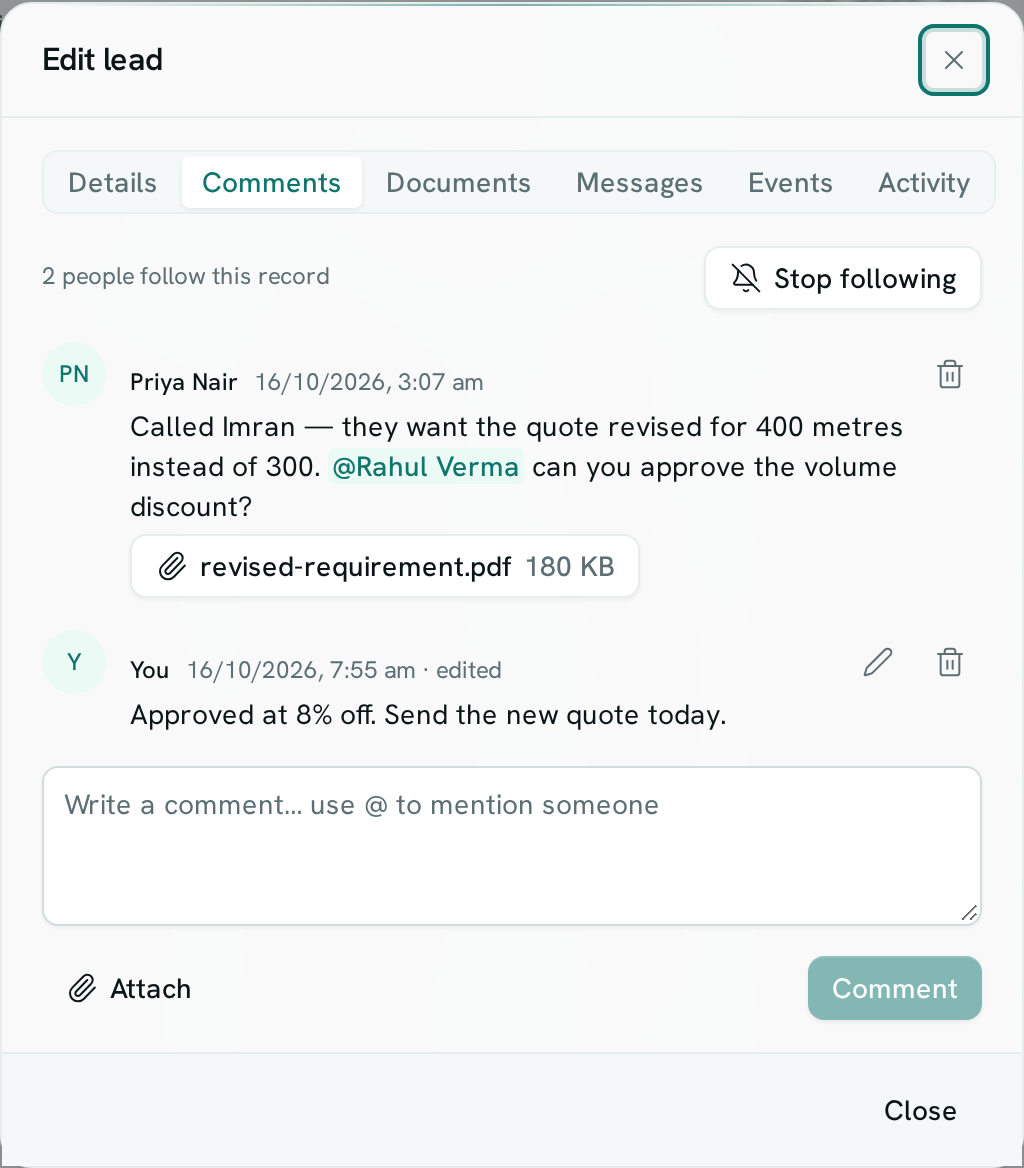
Talk about a record where it lives. Every record has a Comments tab: ask a teammate a question with an @mention, attach the file that goes with it, and follow the record so you hear when someone replies.
Before you start: anyone who can open a record can read and add comments on it. Commenting never changes the record itself.
Add a comment
- Open the record from its list.
- Click the Comments tab at the top of the record window.
- Type in Write a comment… use @ to mention someone.
- To mention someone, type
@and the first letters of their name, then pick them. Only people who can open this record are offered. - To add files, click Attach. Up to 5 files of 25 MB each.
- Click Comment, or press
Ctrl + Enter(⌘ + Enteron a Mac).
Edit or delete
- Hover your own comment and click the pen to edit it. Edited comments show · edited.
- Click the bin to delete your own comment. The workspace owner can delete any comment. Deleting a comment also deletes its files.
- Images and PDFs open in the browser; other files download.
Follow a record
The top of the tab shows how many people follow the record, with a Follow or Stop following button.
You follow a record automatically when you comment on it, created it, or are mentioned on it — unless you stopped following it earlier.
Who is told
| Who | Notification |
|---|---|
| People you mention | "Priya Nair mentioned you: …" |
| Other followers | "Priya Nair commented: …" |
You are never told about your own comments. Notifications are in the bell, under Notifications › Mentions and messages, and follow that category's email, WhatsApp and push settings. Click one to open the record on its Comments tab. Someone who can no longer open the record is not told.
Good to know
- New comments from others appear within 30 seconds while the tab is open.
- Comments stay with the record in the trash and come back when it is restored.
- Each comment, edit and delete is kept in the audit trail.