Create and edit records
Create, edit, copy the ID of and delete records, and what the record form and its tabs show.
Add a record, change it later, and delete it. These steps are the same for every record type in every app.
Before you start: You need the Business records permission. Can add & edit lets you create and edit records. Deleting needs Full control. If your role hides some fields, you do not see them on the form.
Create a record
- Open the app and click the record type in the Records group of the left rail, for example Customer.
- Click New customer (the button uses the type's name).
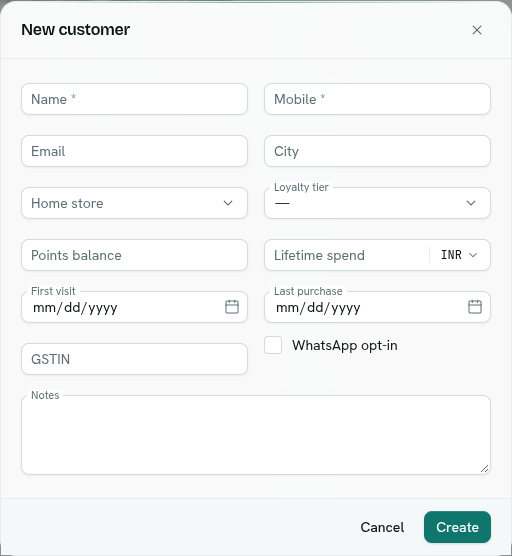
- Fill in the fields. Required fields have a
*after the label. - Click Create.
You see Customer created and the record appears at the top of the list.
If the list is empty you see "No customers yet" and a New customer button.
What the form shows
- Built-in fields first, laid out in two columns. Long fields (long text, multi-pick lists) take a full row.
- Your own custom fields underneath. When the type also has built-in fields they sit in a section called Additional properties.
- Fields with an auto-numbering pattern or a formula are not on the New form. On an existing record they show greyed out. Formula fields have a
ƒbefore the label. - Default values you set on a field are filled in already. A required date-and-time field starts at the current time.
- Types with line items show a Line items section. See Links and line items.
Edit a record
- In the list, click the row. You can also use the ⋯ button at the end of the row, or right-click the row, and choose Edit.
- The dialog is titled "Edit customer". Change what you need on the Details tab.
- Click Save. You see
Customer saved.
An emptied optional field is cleared on the record. A required field cannot be emptied. See Field rules.
Tabs on an existing record
| Tab | What it shows |
|---|---|
| Details | The form |
| Documents | PDF documents made for this record |
| Messages | Emails, SMS and WhatsApp messages sent about this record |
| Events | Calendar events linked to this record |
| Activity | Who changed what and when. See Record activity. |
The speech icon at the top right (Ask Axis about this record) closes the form and opens Ask Axis with this record as context.
Row menu
Right-click a row, or click ⋯:
- Edit
- Copy ID — copies the record's unique ID and shows
ID copied. You need the ID to put a link in a CSV file. - Delete
Delete a record
- Open the row menu and choose Delete.
- In Delete this customer?, read "The record is removed from every list. This cannot be undone from here."
- Click Delete. You see
Customer deleted.
Important: There is no undo in the app. The change is recorded on the Activity trail, but the record no longer appears in lists.
The list
- The title shows the number of records in a badge.
- Columns are the type's first six fields plus Created (the date).
- Each page shows 50 records, newest first. Use the pager at the bottom.
- To narrow or reorder the list see Find records.
Troubleshooting
<key>: required field missing or another message under the form
The form shows the first message the server refused with. Fix the field it names and click the button again. See Field rules.
a unique field already holds this value
Another record already uses that value in a unique field.
Delete failed You may not have permission to delete this record, or it was already deleted.
Records could not be loaded The list failed to load. Click Retry.
Not found — This record type doesn't exist The type was renamed or removed. Click Back to overview.