Edit, describe and delete fields
Read a field's settings, add a description for teammates and Ask Axis, and delete a field you no longer need.
Open any field to read its settings, add a description, or delete it. This page also lists what the field table shows.
Before you start: Reading the field table needs Business records at Can view or higher. Changing descriptions, formulas, auto-numbering and deleting fields need Full control. Without it the field dialog opens read-only with a Close button.
The field table
Open the app, click Settings, then the tab for a record type. Each row shows:
| Column | Meaning |
|---|---|
| Label | The name people see. The description, if any, is shown under it. |
| Key | The name used in CSV files, formulas and the API. |
| Type | See Field types. |
| Constraints | Badges: base, required, unique, immutable, auto (auto-numbered), ƒ computed. A dash means none. |
| Rules | A summary such as options: small, medium, min 0, max 100, unit INR, → customers (link target), default x, or = price - cost. |
Click a column header to sort the table.
Open a field
Click a row. A dialog opens with the field's label, key, type and badges, plus its rules in small print.
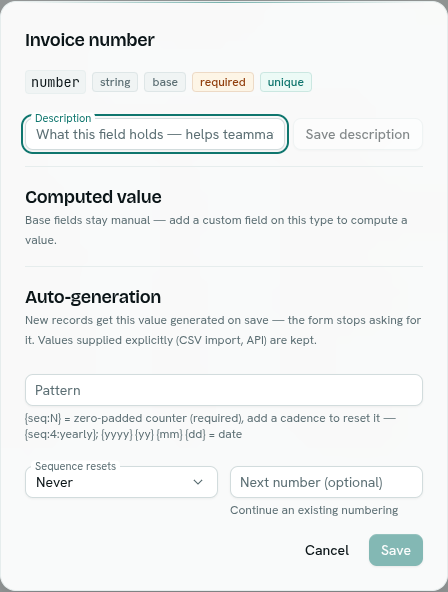
From this dialog you can:
- save a Description (see below),
- make the field computed,
- set up auto-numbering.
Add or change a description
- Open the field.
- Type in Description. The hint reads "What this field holds — helps teammates and the AI agent".
- Click Save description. The button is enabled only when the text changed.
You see Description saved. Clear the box and save to remove it. Descriptions work on built-in (base) fields too, and are up to 255 characters. Ask Axis reads them to understand your data.
Delete a field
- In the table, click the x icon at the end of the row. Built-in (base) fields have no icon because they cannot be deleted.
- In the confirmation dialog
Delete field "…"?, read the warning: All stored values of this field are wiped with it. This cannot be undone. - Click Delete field, or Cancel.
You see Deleted "…". The field disappears from forms, lists and exports.
Important: Deleting a field permanently deletes its value on every record. Export the type to CSV first if you might need the data. See Export records to CSV.
What you cannot change
- The key and the type of a field.
- The rules, flags, options and defaults of an existing field. To change them, add a new field and move your data over (export, edit, import).
- Built-in (base) fields, except for their description and auto-numbering.
Troubleshooting
Delete failed You may not have permission, or the field was already removed. Refresh and try again.
Not available for select fields (or another type) Formulas are only offered for text, long text, number, currency, yes/no, date and date-time fields. See Computed fields.