Links and line items
Link records to each other with search-as-you-type pickers and add line items to orders and similar records.
Link a record to other records, such as an invoice to its customer, and add line items to a record such as an order.
Before you start: You need Can add & edit on Business records for the type you edit, and at least view access to the type you link to.
Link to another record
Fields of type ref link to one record. Fields of type refs link to several. Their settings say which record type they point at (Points at).
- Open the record form.
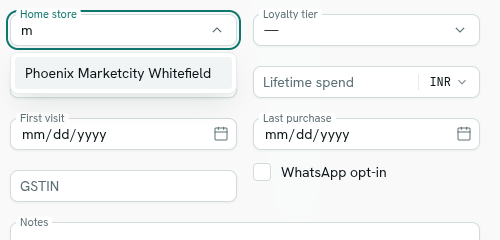
- Click the link field. The placeholder reads Search customers…, using the target type's key with underscores shown as spaces.
- Type part of the name. Results update as you type. With nothing typed you see the newest records of that type.
- Pick the record. For a multi-link field, pick several one after the other; the box is labelled Add customers….
- Click Save or Create.
If the target type has no records the picker shows "No customers records yet" (again using the type key).
How links look
- In a list, a link shows the linked record's name. A multi-link field shows a count such as
3 linked. - A link shows the best name available on the record: its
name,number,sku,label,title,carrieroremail, or otherwise its first text value. If none exists, a short ID like#a1b2c3d4is used. - A multi-link field holds up to 100 records.
- Links cannot be used as filters in the list. See Find records.
Note: AxisIQ does not stop you deleting a record that others link to. The Data quality check reports links that point at records that no longer exist.
Line items
Some record types, for example orders or shipments, hold a list of lines. Each line is its own small record that belongs to the parent. They appear in the parent's form under Line items.
- Open the parent record's form (new or existing).
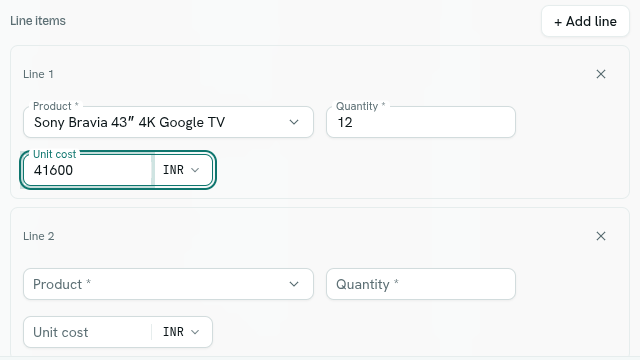
- In Line items, click + Add line. A card labelled Line 1 appears with the line's fields.
- Fill in the fields. Add more lines with + Add line.
- To remove a line, click the x (Remove line) in its card.
- Click Create or Save.
All line changes are saved together with the parent: new lines are created, changed lines are updated and removed lines are deleted. Lines with nothing filled in are skipped.
With no lines the section says "No lines yet — “Add line” for each item this record covers."
Things to know
- Line types are hidden from the left rail because you work with them inside the parent.
- Auto-numbered and computed fields of a line are not shown while you edit lines. The server fills them.
- The field that links a line back to its parent is set for you.
Troubleshooting
n/m line item changes saved — … Some lines failed (for example a required field was empty) and the rest were saved. The message names the first problem. Fix it and save again.