Data quality
Re-check existing records against your field rules, see which records break them, fix them one by one or in bulk in Sheets.
Check the records you already have against the rules on your fields, and fix the ones that no longer fit.
Rules on a field only apply from the moment you add them. A field you made required leaves older records empty, a tightened pattern leaves older values illegal, and a retired option leaves records using it. A data quality check finds these.
Before you start: Seeing results needs access to the records involved (Business records at Can view). Starting a check needs Full control on Business records. Without it Run check is disabled.
Run a check
- Open the app and click Settings.
- Open the Data quality tab, the last tab after the record types.
- Click Run check. The text reads "Checking every record against the rules on your fields…" while it runs.
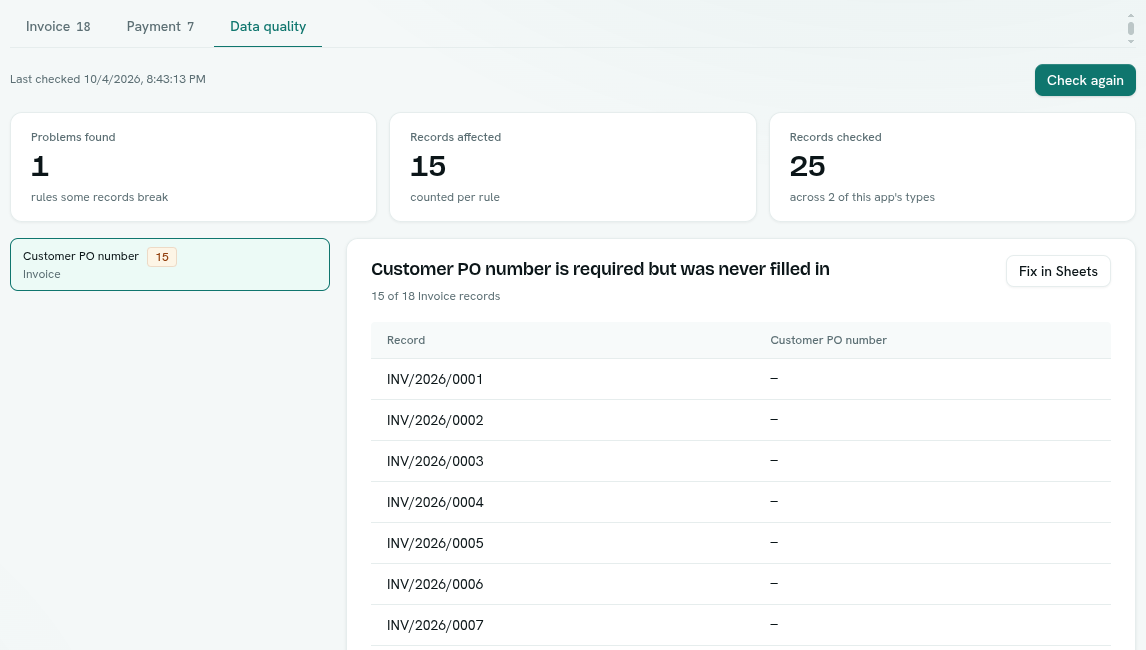
The check covers all record types of this app only. It runs in the background. When it finishes you see:
| Tile | Meaning |
|---|---|
| Problems found | The number of rules some records break |
| Records affected | Records breaking rules, counted per rule (one record breaking two rules counts twice) |
| Records checked | How many records were scanned across the app's types |
The page also says "Last checked" with the date and time. Click Check again to rerun.
If every record fits you see "Everything fits".
What is checked
The rules come from your field settings. You do not configure anything.
| Rule | A problem is reported when |
|---|---|
| Required | A required field was never filled in |
| Choices | A choice field holds a value that is no longer one of the options |
| Range | A number or amount is outside the Min / Max |
| Currency | An amount is not in the currency its field is locked to |
| Unique | Records share a value in a unique field |
| Link | A link points at a record that no longer exists |
| Format | A value fails the field's pattern, length, email or web address shape, or a list holds invalid entries |
Each problem reads as a sentence, for example "Phone is required but was never filled in", "Status holds a value that is no longer one of the choices", "Customer points at a customers record that no longer exists".
Look at the records
- On the left, click a problem. It shows the field name, the record type and a count.
- On the right you see the sentence, for example "42 of 1,200 Invoice records".
- The table lists the offending records with the current value of the field. Click a row to open the ordinary record form and fix it.
- After fixing, run the check again to refresh the counts. Records fixed since the last check disappear from the list; if all were fixed you see "These records were fixed or removed since the last check."
Only 25 records appear per page (use the pager). A problem keeps up to 500 example records. If there are more you see "Showing the first 500 records. Fix these, run the check again, and the next batch appears."
Some format checks read up to 100,000 records per type. If a type is bigger, the problem says "checked the first …" so you know it was not a full count.
Fix many in Sheets
Click Fix in Sheets on a problem. It exports the offending records into an editable workbook named Fix: <field> and opens it. Correct the values, then click Push to records. See Edit records in Sheets.
The button appears only when the problem has example records to export (up to 500).
Tips
- Run a check after you tighten a field's rules, or after a big import.
- A record breaking a rule can still be listed and opened. Required fields must be filled before an old record can be saved.
- The check reports and never changes data by itself.
- You only see problems on types and fields your role can read.
Troubleshooting
Some types could not be checked A warning at the top names why. The other types were still checked. Try again.
Run check is greyed out You need Full control on Business records.
Nothing has been checked yet This app has not been checked. Click Run check.