Find and merge duplicate records
Spot customers, vendors or items entered twice — same email, phone, GSTIN or name — and merge them into one record without losing their links or comments.
The same customer typed in twice, once as "Sharma Traders Pvt. Ltd." and once as "sharma traders", splits their history across two records. Find duplicates lists records that look like the same thing, and Merge folds them into one.
Before you start: you need permission to view the records. To merge, you also need permission to edit the record you keep and to delete the others — and to edit any record that links to them, such as orders or deals pointing at a customer.
Find duplicates
- Open the record list, for example Customers.
- Click Find duplicates at the top of the page.
- Each row is a group of records that look alike. The badges say what they share — Same email, Same phone, Same name.
Records are compared on their email, phone, GSTIN, PAN and name fields. Small differences don't hide a match: capital letters, extra spaces, a +91 or 0 in front of a phone number, and words like "Pvt", "Ltd", "LLP" or "M/s" in a company name are ignored.
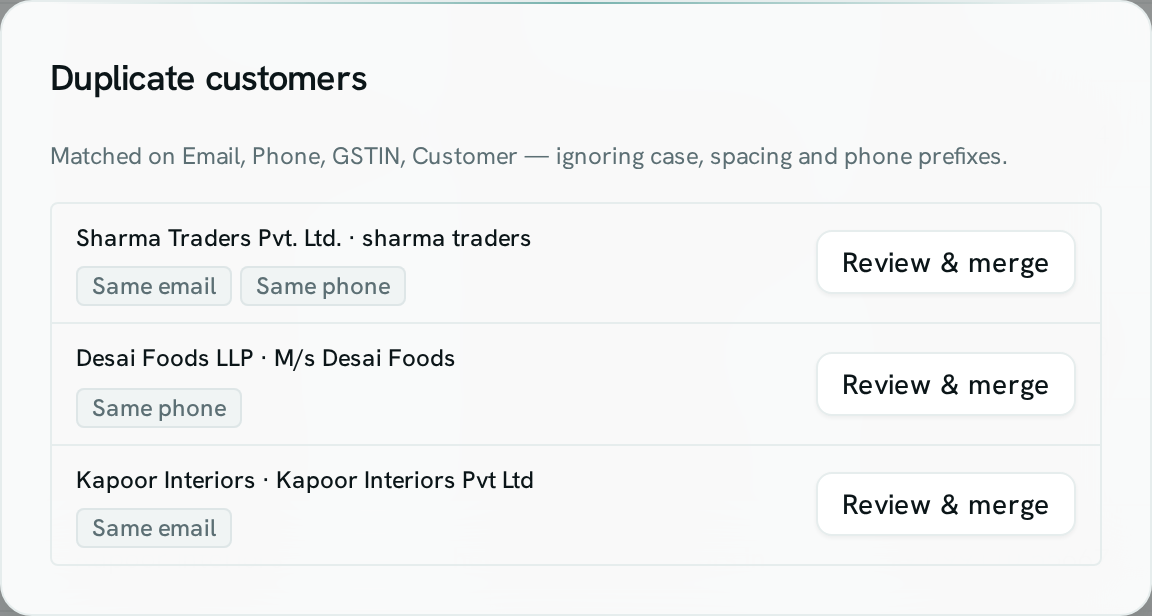
Merge a group
- In Find duplicates, click Review & merge on a group.
- Under Keep, choose the record that stays. AxisIQ suggests the one with the most details filled in.
- For each field where the records differ, choose whose value the kept record should have. Empty fields on the kept record are filled from the others for you.
- Click Merge.
The kept record gets the values you chose. The other records move to the trash, and everything that pointed at them now points at the kept record:
- records that link to them (an order's customer, a deal's contacts),
- their comments and followers.
Merge records you picked yourself
- In the record list, tick the records that are the same thing (2 to 10).
- Click Merge in the bar above the list.
- Choose the record to keep and the values, then click Merge.
Good to know
- A merge is all or nothing. If you aren't allowed to change one of the linked records, nothing is merged and you're told why.
- Issued invoices and other issued documents never change. If one names a merged-away record, it keeps that link, and the message after the merge says how many did.
- Unique fields (like an SKU) stay with the record you keep. If you want another record's unique value, keep that record instead.
- The merged-away records stay in the trash for 30 days and can be restored, but restoring one does not move the links back.
- Fields hidden from you by your role are never compared or copied.
- Very large lists are checked in part (the first 20,000 records). Merge what's found and check again.
- Work queue items, calendar events and accounting entries that name a merged-away record are not moved.