Create and edit events
Create an event, add details and a linked record, edit it and delete it.
Create an event, change it, and delete it.
Before you start: you need to be able to edit at least one calendar (your own personal calendar always works).
Steps: create
- Click New event (or press
c, or drag on the grid).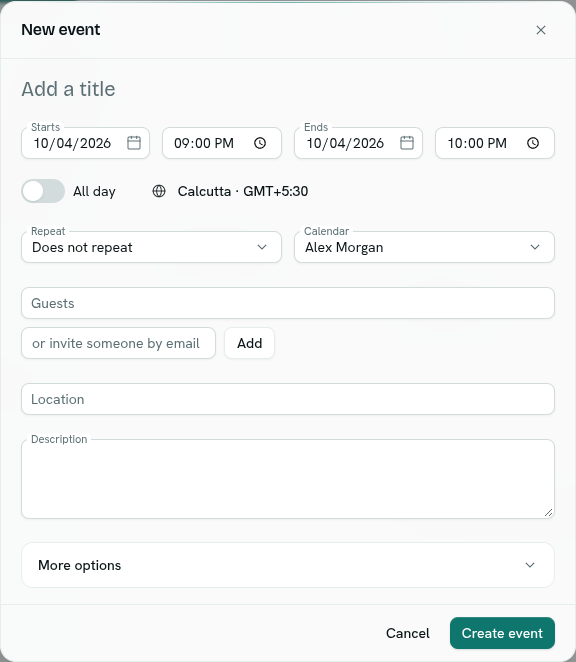
- Type a Title (required).
- Set Starts and Ends (date and time). Moving the start moves the end with it. Turn on All day for a full-day event.
- Pick the Calendar it goes on. Only calendars you can write to are listed.
- Optionally set Repeat, add Guests, a Location ("Room, address or meeting link") and a Description.
- Open More options for Reminders, Visibility, Colour and Linked record type / Record.
- Click Create event.
Fields
| Field | Notes |
|---|---|
| Title | Required. Up to 300 characters. |
| Location | Up to 500 characters. |
| Description | Up to 20,000 characters. |
| Visibility | Calendar default or Private. Private shows as "Busy" to anyone who cannot edit the calendar. |
| Colour | Calendar colour or one of the colours. |
| Reminders | Up to 5, from At start to 1 week before. A new event starts with the calendar's default reminders. |
| Linked record | Link the event to a record. It then shows on that record's Events tab. |
| Time zone | The globe button shows the zone of the times. See Time zones. |
Edit and delete
- Click the event to open it. You see when, where, guests, the calendar and badges such as Private, Tentative and Booked online.
- Click Edit to change it, or Delete.
- Deleting asks "Delete this event?". If it has guests the message says "Guests will be told it is cancelled."
- For repeating events you are asked how far the change reaches. See Repeating events.
Edit and Delete only appear if you can edit that event.
Rules
- The event must end after it starts: "The event must end after it starts."
- An event can last at most 400 days.
- If the calendar is a room or resource that can't be double-booked, an overlapping time is refused with "that time is already taken on this calendar". A note under the form tells you when a calendar works this way.
- You cannot create events on a records calendar. Create the record instead.
Events from a record
Open a record › Events tab. It lists linked events with Upcoming, Past and Repeats badges. Click Schedule to create an event that is already linked to the record. With none, the tab says "Nothing scheduled".
Troubleshooting
Give the event a title. Enter a title.
The event could not be saved. The message after it explains why, for example a taken time slot.
Create event is disabled You have no calendar you can write to.