Calendar
Personal, team and resource calendars, record-date calendars and public booking pages.
Calendar is the time layer of your workspace. Keep your own diary, run shared calendars for teams and rooms, show record dates (deliveries, due dates) on a calendar, and let people outside your team book time with you.
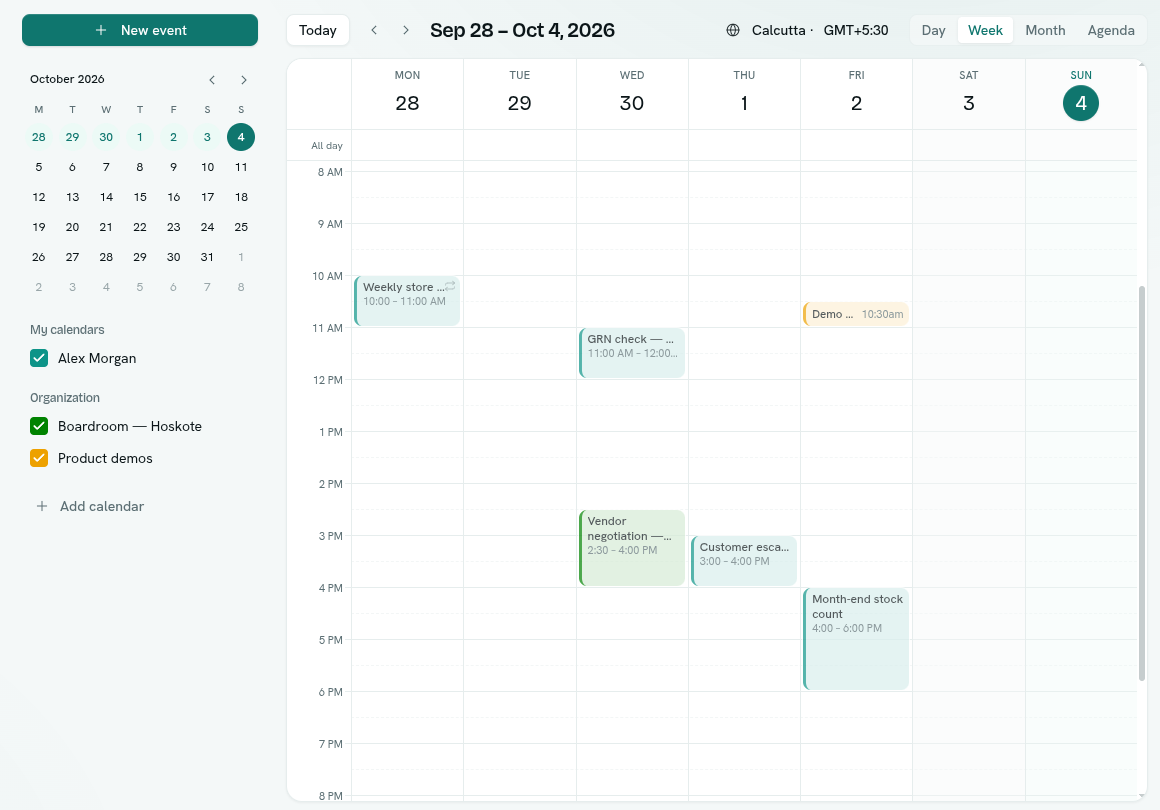
What you can do
- Find your way around — day, week, month and agenda views, shortcuts and the calendar list. Views and navigation
- Create events — one-off or all-day events with location, colour and linked records. Create and edit events
- Repeat events — daily, weekly, monthly, yearly or custom, and change one or all. Repeating events
- Invite people — teammates and outside guests, replies, reminders. Guests, replies and reminders
- Find a time — see everyone's free and busy time and get suggestions. Find a time
- Add calendars — personal, organization and records calendars. Calendars and sharing
- Show record dates — a record type as a calendar. Calendars from records
- Let people book you — a public booking page. Booking pages
- Sync with other apps — subscribe from Google, Outlook or Apple and import or export
.ics. Subscribe, import and export - Work across time zones — Time zones
- Calendar settings reference — Calendar settings
Before you start
- Everyone gets a personal calendar. You do not need a permission to use your own.
- Organization calendars follow roles. On the Roles page the app is Calendars: Can view (see organization calendars and their events), Can edit (add, move and cancel events on them), Full control (also create calendars, booking pages and subscription links).
- The calendar can be switched off in Settings › Apps. It must be on to appear.
- Sending invitations to people outside the team uses email. Teammates are told in their inbox.
Where to find it
Platform category in the launcher › Calendar. Left rail sections:
- Calendar — the main calendar.
- Booking pages — the booking pages of calendars you manage.
Key ideas
| Term | What it means |
|---|---|
| Personal calendar | Yours. You decide what the rest of the workspace can see and who it is shared with. Your primary calendar is made for you and cannot be deleted. |
| Organization calendar | A team, room or resource calendar. Access comes from roles. |
| Records calendar | A record type shown by one of its date fields. Moving an item changes the record. |
| Event | One entry in time. It can repeat. |
| Guest | Someone invited to an event. Teammates or outside email addresses. |
| Booking page | A public link where visitors pick a free slot. |