Move and delete large folders
Move, rename, delete or restore a folder of any size. Big folders carry on in the background while you keep working, with progress shown at the top of Drive.
You can move, rename, delete, restore or permanently delete a folder no matter how many files it holds. Small folders change straight away. A folder with more than 500 items carries on in the background, so you can keep working while Drive finishes it, and a progress bar at the top of Drive shows how far it has got.
Before you start: you need permission to edit the folder. To move a folder you also need permission to edit the place you are moving it to. To restore or permanently delete something from the trash, you need permission to edit where it came from.
Move or rename a large folder
- Open Drive and go to the folder that holds the one you want to move.
- Right-click the folder, or open its ⋯ menu, and choose Move to…, or Rename… to give it a new name. You can also tick several items and press Move in the bar that appears.
- Pick the destination folder and press Move here (or type the new name and press Rename).
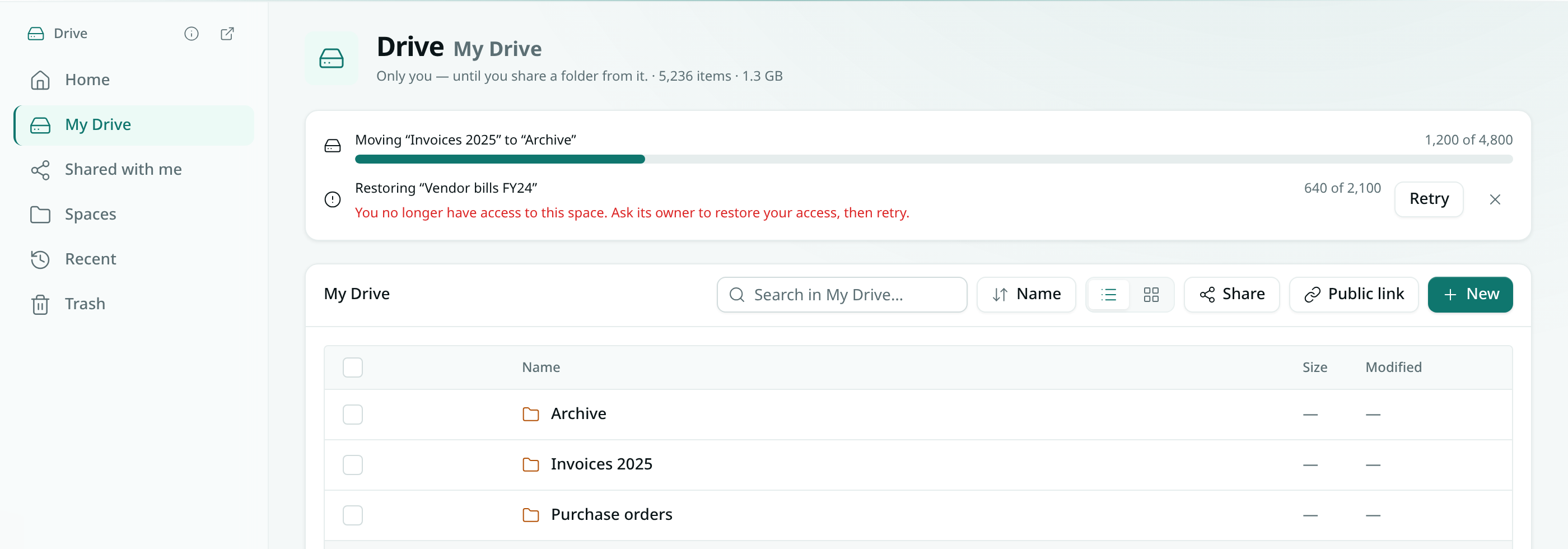
- A message tells you the folder is being moved in the background. A progress bar appears at the top of Drive, showing how many items have moved so far.
- When it finishes, you'll see a message saying how many items were moved, and the folder list refreshes.
A large folder can only move to a place where nothing with that name exists yet. If a folder with the same name is already there, rename one of them first.
Delete a large folder
- Right-click the folder, or open its ⋯ menu, and choose Delete.
- Press Move to trash to confirm. The folder is moved to the trash in the background and the progress bar shows how far it has got.
- When it finishes, the whole folder is one entry in Trash, ready to restore for 30 days.
Restore or permanently delete from the trash
- Open Drive and choose Trash.
- Press Restore on the folder, or open its menu and choose Delete forever to remove it for good. Empty trash works too.
- A large folder is restored or deleted in the background, with progress at the top of Drive.
If the folder's old place has been taken by something new, it comes back beside it as "Name (restored)".
If a job stops part way
Drive saves its progress as it goes. If a job stops — for example because you lost access to the space — the progress bar is replaced by the reason and a Retry button. Press Retry to carry on from where it stopped; nothing that already moved is moved twice. Press the × (Dismiss) to hide the message.
Good to know
- Only you see the progress of your own moves and deletes. Finished jobs drop off the list after a day.
- While a large folder is being moved, deleted or restored, other moves and deletes on that folder wait: Drive shows a message asking you to try again when it finishes.
- During a move, some files are already in the new place and the rest are still in the old one. Uploading into either folder is fine; new files in the old folder are moved along too.
- If a file with the same name turns up in the destination while a move is running, the moved file keeps both by being named "Name (moved)".
- Public links to a folder inside a moved folder keep working at the new place. Links to a single file always follow the file.
- Version history and search inside files move with the files.
- If you lose access to the space part way through, the job stops and leaves the rest where it is.
- Moves stay within one space. To put files in another space, download and upload them.