Connect an account
Connect an email, SMS or WhatsApp provider account, check it works, and set up delivery reports.
Connect a provider account so AxisIQ can send through it. AxisIQ checks the credentials with the provider before saving them.
Before you start: You need Messaging at Full control to connect an account, and you need to have an account with a provider already. Each provider's own setup text appears in the form. See Providers for what each one needs.
Steps
- Open Messaging › Channels.
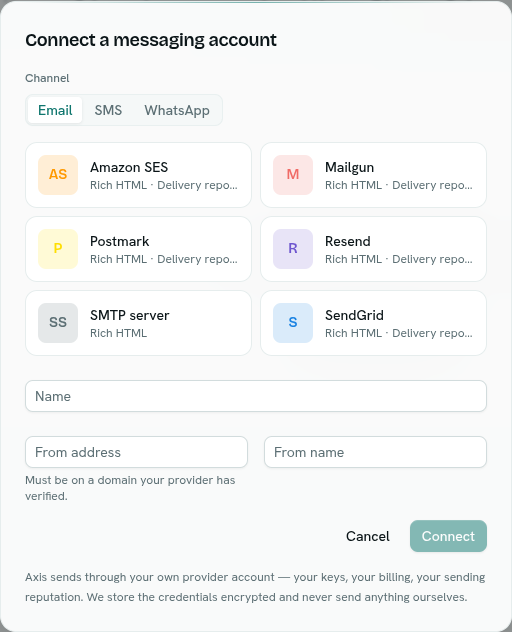
- Click Connect an account.
- Under Channel, choose Email, SMS or WhatsApp.
- Pick your provider from the cards. Each card shows what it can do, such as "Rich HTML · Delivery reports".
- Read the box Before you connect …. It says what to create or verify in the provider's own console first.
- Enter a Name, such as "Support mailbox". This is required.
- Enter the sender:
- Email: From address, on a domain your provider has verified, and an optional From name.
- SMS: From number, in international format with the country code, for example
+919876543210. - WhatsApp: Business number, in international format.
- Fill in the provider's fields. Secret fields are hidden as you type.
- Click Connect.
What happens next
- AxisIQ proves the credentials against the provider. If it works you see Connected with "We proved these credentials against … before saving them."
- If the provider reports delivery back, the dialog then shows Delivery reports: the instructions for your provider's console and a web address to paste there, with a Copy button. See Delivery statuses and reports.
- If the provider does not report delivery, the dialog says so: messages will stop at "sent".
- Click Done. The account appears under Channels.
- Credentials are stored encrypted and are never shown again.
Test, edit and disconnect
Right-click an account, or click the ⋯ on its row. Test, edit and disconnect need Full control; anyone who can view Messaging can copy the key.
- Test connection checks the credentials again. A toast says "… is working" or shows the provider's error.
- Edit changes the name, sender or settings. Secret fields show "Leave blank to keep the stored value." If you change an address-like setting, such as the SES Region or the SMTP Host or Port, you must enter the secrets again.
- Copy key copies the account's key, which flows and functions use to pick this account.
- Disconnect removes the account after you confirm. Messages already sent stay in the log, but nothing new can go out through it.
The Health column shows Checked with the time of the last check (or Working), Disabled, or the last error. If a provider rejects every message with an authorisation error, the account is marked as failing so you notice a revoked key straight away.
Tips
- Connect more than one account if you like: for example an email account and an SMS account. Give each a different name.
- Treat the delivery-report web address like a password. Anyone with it can send fake delivery reports.
Troubleshooting
… rejected these credentials (HTTP 401) The provider refused the key. Re-check it and the account's permissions.
could not reach … AxisIQ could not connect to the provider. Check the details, such as the host, and try again.
missing required setting(s): … A required field is empty. The message lists which ones.
sender address is not a valid email address / phone number Fix the From address or number.
re-enter the secret when changing the address You changed the region, host or port of an existing account. Type the secret fields again.