Set up a phone line
Connect a Twilio or Plivo number so your team can make and take calls in the browser. Which provider to pick, what to paste and what AxisIQ sets up for you.
A phone line is one phone number on your own Twilio or Plivo account. Once it is connected, your team makes and takes calls on it in the browser, and callers hear the greeting and menu you set. Calls, recordings and transcripts are billed by your provider, not by AxisIQ.
Before you start: connecting a line needs Full control on Phone & Messages. You need an account with Twilio or Plivo and a number on it that can make and receive calls.
Which provider?
| Plivo | Twilio | |
|---|---|---|
| Indian numbers (+91) and calls inside India | Yes, after Plivo approves your business documents (KYC) | No — Twilio cannot place or receive domestic calls inside India |
| Numbers in other countries | Yes | Yes |
| Buy a number from inside AxisIQ | No — rent it in the Plivo console | Yes, under Numbers on the line |
| Live transcripts during the call | No — the recording is transcribed after the call | Yes |
If your customers are in India, use Plivo. Twilio suits numbers and customers outside India.
Connect the line
- Open Phone & Messages › Channels and choose Connect a channel.
- Pick Phone calls, then Plivo or Twilio. The form shows that provider's own setup steps first.
- Give the line a Name (for example "Front desk") and enter its Phone number in international format, like
+918047182290. - Paste your credentials:
- Plivo: the Auth ID and Auth token from the Plivo console overview.
- Twilio: the Account SID and Auth token of your main account.
- Choose Connect.
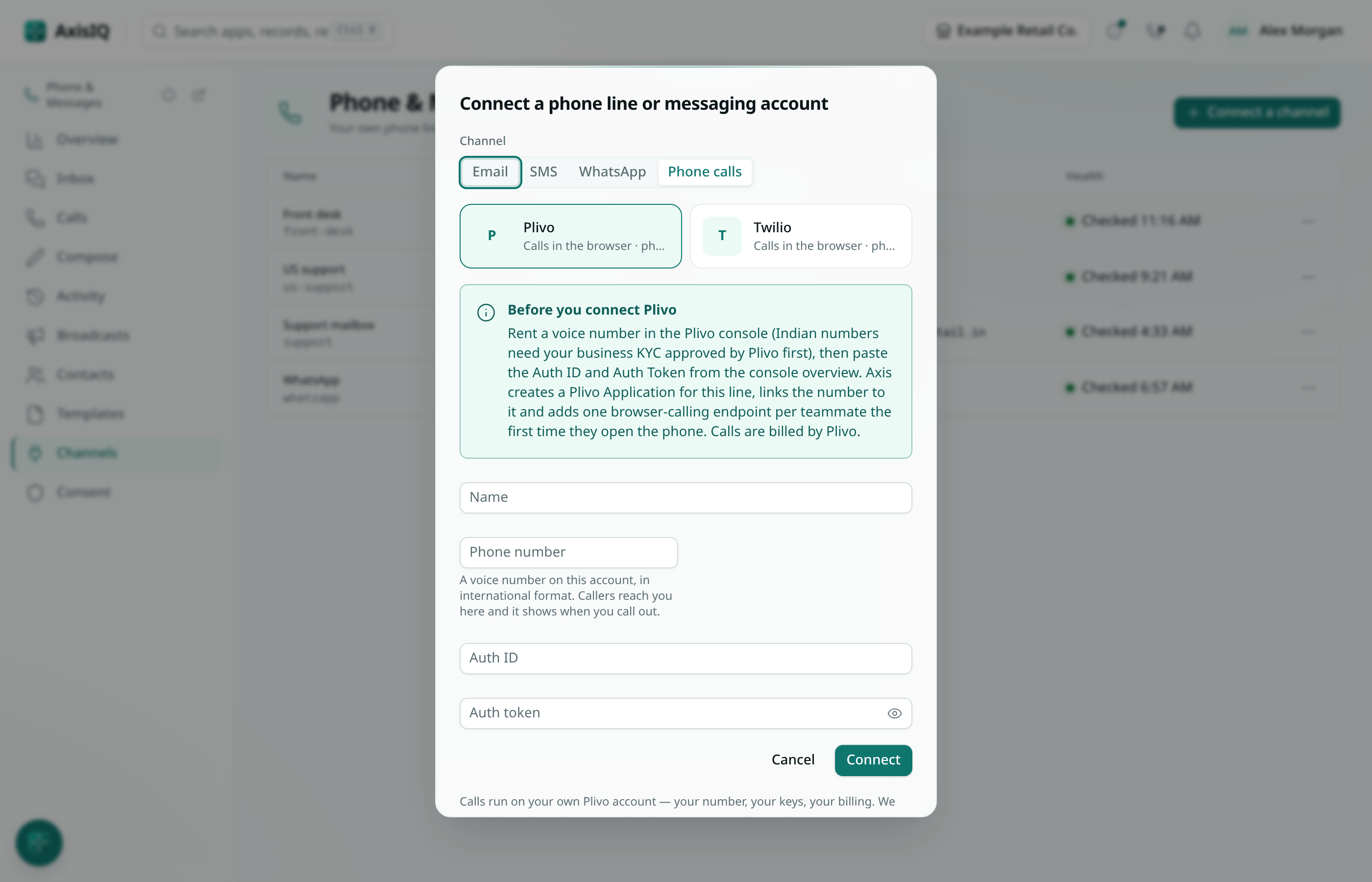
AxisIQ checks the credentials with your provider and that the number is on that account and can take calls. If anything is wrong it says so and nothing is saved.
What AxisIQ sets up on your account
So you do not have to, AxisIQ prepares your provider account when you connect:
- Plivo: an Application for this line, with the number linked to it. Each teammate gets a browser-calling endpoint the first time they open the phone.
- Twilio: an API key and a TwiML App for browser calling, and the number's voice webhook pointed at AxisIQ.
Saving the line again (Edit › Save) repairs this setup if someone changed it in the provider's console. Disconnecting the line removes the application and key AxisIQ created.
After you connect
- Open the line and go to Call routing to set what callers hear. Until you do, a call rings everyone who may take calls, and goes to voicemail if nobody answers. See Call routing.
- Give people a role with Can take calls (or higher) on Phone & Messages, so the phone appears for them and they can be rung.
- To take calls, each person switches their phone to Available. See Make and take calls.