Make and take calls
Use the phone in the top bar: switch to Available, answer incoming calls, dial a number, mute, use the keypad and call customers back.
The phone lives in the top bar, on every page of your workspace, so a call keeps going while you move between apps. It talks to your provider directly from the browser: use a headset or your computer's microphone and speakers.
Before you start: you need Can take calls (or higher) on Phone & Messages, and your workspace needs at least one phone line. The browser asks for your microphone the first time you call.
Be available for calls
- Click the phone in the top bar.
- Switch Available on.
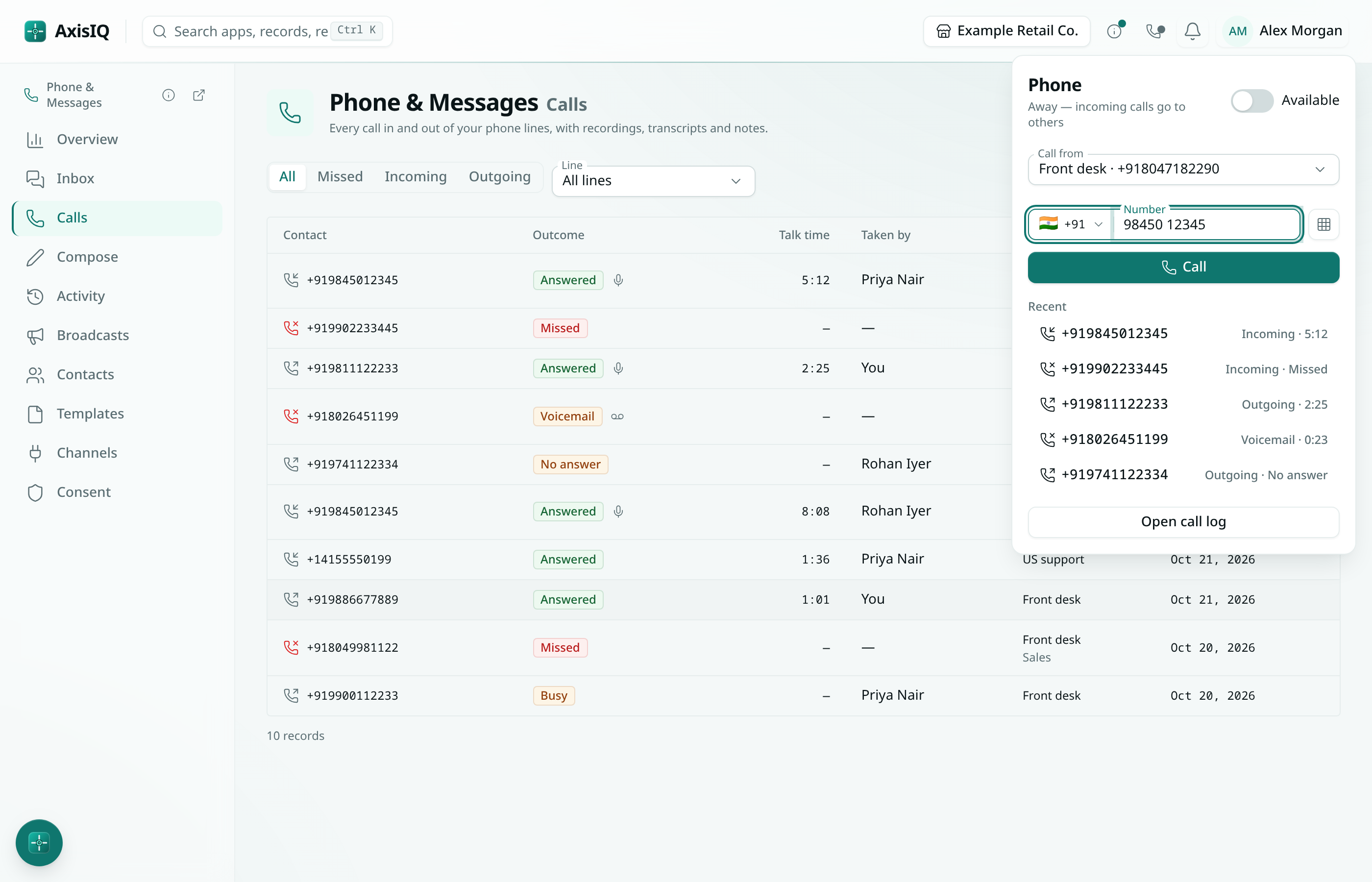
While you are available, incoming calls on your lines can ring you. The dot on the phone turns green. Switch it off — or close every AxisIQ tab — and calls go to others. You are never rung while you are already on a call.
Answer a call
An incoming call appears in the bottom-right corner with the caller's number and the line. Choose Answer or Decline. If several people are rung at once, the first to answer takes it.
Make a call
- Click the phone in the top bar.
- If you have more than one line, pick Call from.
- Type the number (pick the country, or type it with
+), or click a recent call to fill it in. - Choose Call.
The person you call sees your line's number. Numbers on your do-not-contact list cannot be called.
You can also call from:
- a contact in Contacts (Call),
- a call in the Calls log (Call back),
- a missed call or voicemail in the Inbox (Call back).
During a call
- Mute — the other person stops hearing you.
- Keypad — send digits, for example to get through another company's phone menu.
- Hang up — ends the call.
When the call ends, it appears in the call log, with its recording and transcript if your line has them on.