Customers, loyalty points and e-receipts
Find a customer by phone at the till, let them earn and spend loyalty points, and send the receipt by WhatsApp, SMS or email.
Attach a customer to a sale by their mobile number, reward them with points on what they spend, and send the receipt straight to their phone.
Before you start: setting up a register and the loyalty program needs Full control of In-store checkout on the Roles page. Selling needs Can sell. To look customers up or add new ones, the cashier also needs to view (and to add) records of your customer type. To send receipts, the cashier needs Can send on Messaging.
Set up a register for customers
- Open In-Store Checkout, right-click the register and choose Edit.
- Under Customers & loyalty, pick your Customer type (for example Customers). The other settings appear once you have chosen one.
- Choose the Phone field that holds the customer's mobile number, and optionally the Name field.
- Under Loyalty points at this register, choose Use the workspace program, Use its own program, or Off at this register.
- Click Save.
Set up the loyalty program
- On the In-Store Checkout page, click Loyalty program.
- Turn on Customers earn and redeem points.
- Fill in:
- Points per 1 spent — for example
0.01gives 1 point for every ₹100. - Rounding — Round down or Round to nearest.
- Value of 1 point — what a point pays when it is spent, for example
1for ₹1. Use0if points can be earned but not spent. - Most of a bill payable in points (%) — for example
20lets points pay up to a fifth of any bill.
- Points per 1 spent — for example
- Click Save. Every register that captures customers uses this program unless it has its own.
Sell to a customer
- On the register, type the customer's number in Customer phone and click Find. A 10-digit Indian mobile number works as typed; for other countries, start with
+and the country code. - If one customer matches, they are attached with their points balance. If several match, pick the right one. If nobody matches, type their name and click Add customer.
- To spend points, type an amount in Pay with points or click Max. The rest of the bill is charged the usual way, including split payments.
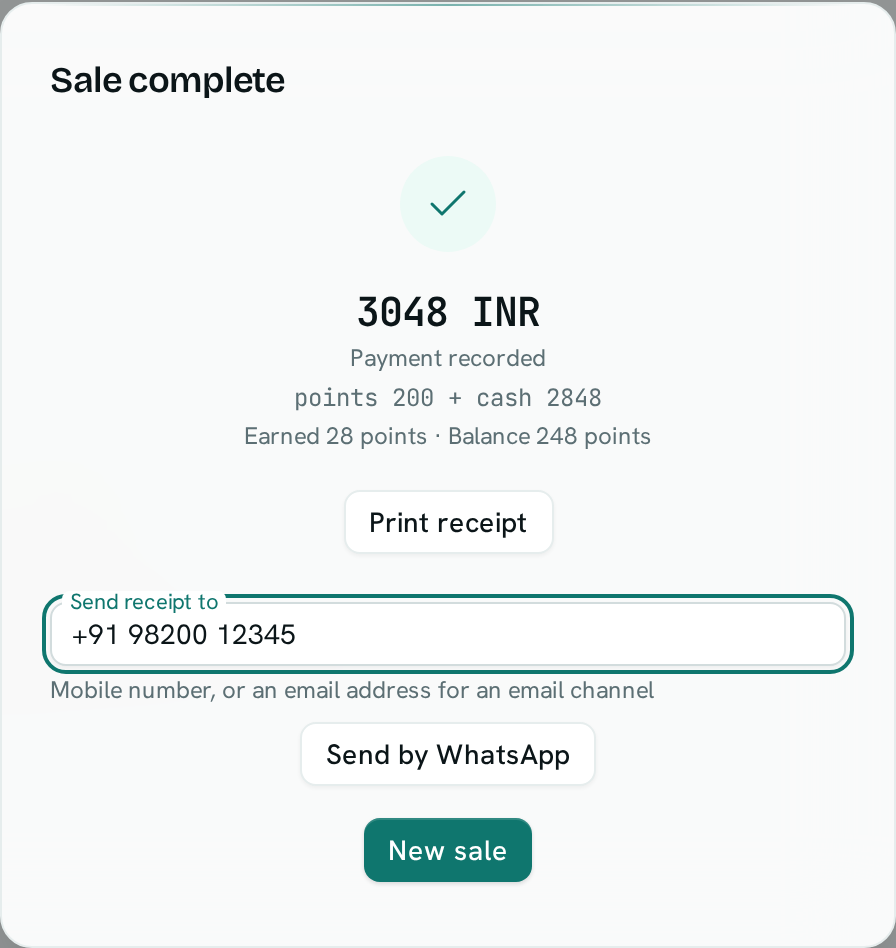
- Click the charge button (for example Charge 2848 cash). The Sale complete window shows the points earned and the new balance, and the printed receipt shows them too.
Send the receipt
- Edit the register and, under E-receipts, click Add a receipt channel.
- Pick a messaging Channel. For WhatsApp, also pick an Approved template (required); other channels can use a plain message. In the template,
{{.data.link}}is the receipt page and{{.data.total}}the bill total. - Give the button a Button label, for example Send by WhatsApp, and click Save.
- After a sale, check Send receipt to (it is filled with the customer's number) and click the button. The window says whether the receipt was sent, or why it was not.
The customer gets a link to a receipt page showing the store, items, totals, how they paid and the points earned. It does not show their phone number or points balance.
Good to know
- Points are earned only on what the customer pays in money, not on the part paid with points.
- A UPI sale earns its points once the payment is confirmed. Cancelling a sale that is still waiting for payment gives back any points it used.
- Returns take back their share of the points earned. If a return refunds the part paid in points, those points go back to the customer, not cash.
- After returning something bought with points they already spent, a customer's balance can drop below zero until they earn more.
- Points can't be spent while the register is offline. An offline sale still keeps the customer's number and earns points when it syncs, as long as exactly one customer has that number.
- Outside a 24-hour conversation window, WhatsApp delivers only approved templates. A customer who has opted out of messages is not sent the receipt.
- Points do not expire, and there are no tiers.
- A customer's points balance appears on their record.