Host a call
Keep a Relay call on track: mute people, stop a screen share, lower hands, lock the call, remove someone, hand over hosting or end the call for everyone.
Whoever starts a call in Relay is its host. The host can keep the call running smoothly: ask people to mute, stop a camera or screen share, lower raised hands, lock the call, remove someone, pass hosting to someone else, or end the call for everyone.
Before you start: you are the host of any call you start. In a channel, the channel's admins and people with Can moderate on Relay (Roles page) can use the same controls. In direct messages and group messages, only the host can.
Start or join a call
In a channel or message, click the phone button in the header for an audio call or the video button for a video call. If a call is already running, the same buttons join it.
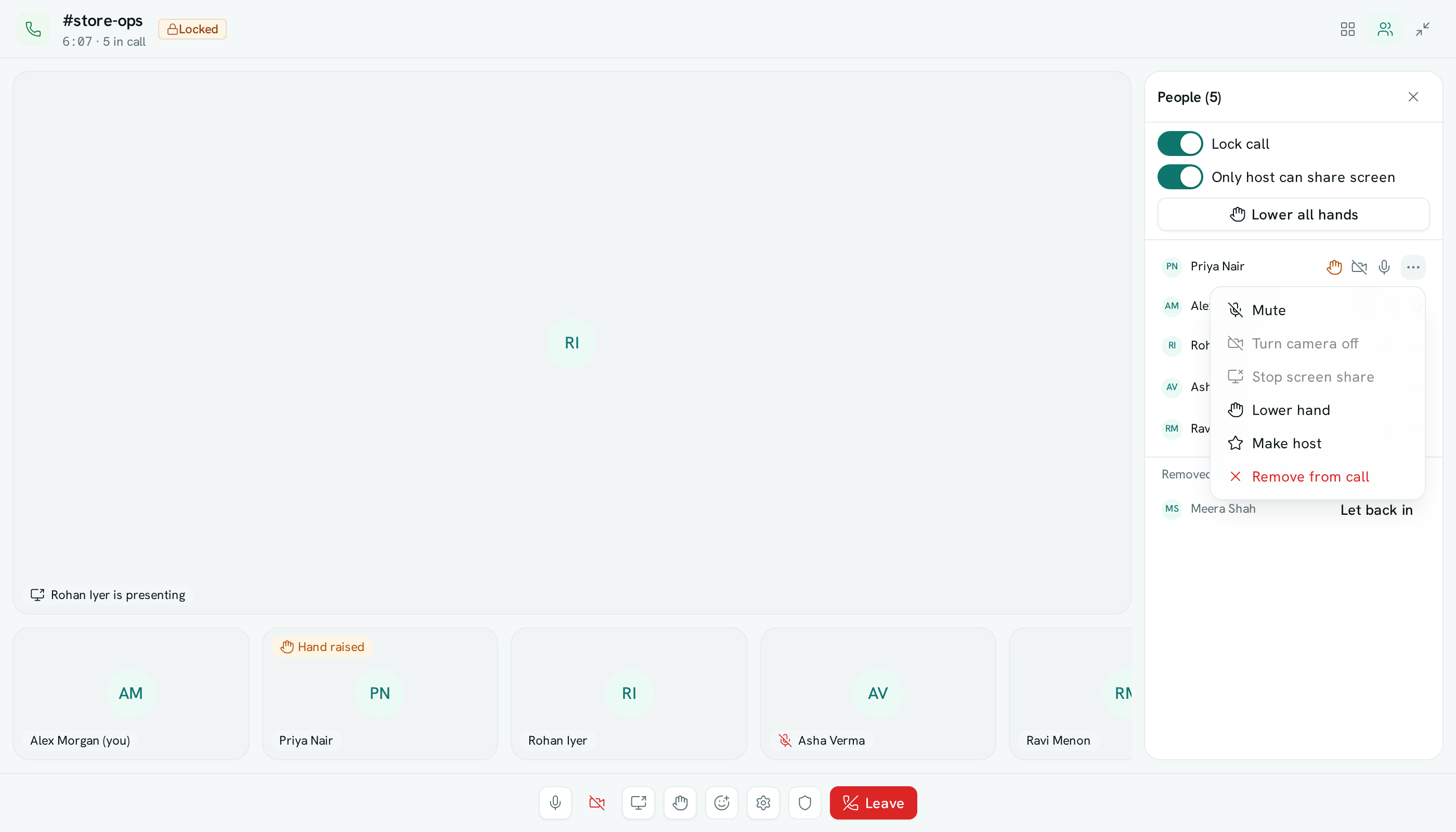
Control one person
- In the call, click the people button (People) at the top right to open the people panel. The host is marked Host.
- Next to the person, open the ⋯ menu (Host controls for their name).
- Choose one of:
- Mute — turns their microphone off. They see a message saying you muted them and can unmute themselves when they are ready.
- Turn camera off — stops their camera.
- Stop screen share — stops what they are presenting.
- Lower hand — clears their raised hand.
- Make host — hands hosting to them.
- Remove from call — takes them out of the call. Confirm with Remove.
Control the whole call
Select the shield button Host controls in the bar at the bottom of the call, or use the switches at the top of the people panel (Lock call and Only host can share screen):
- Lock call (no new people) — nobody new can join. People already in the call stay, and can reconnect if their connection drops. A Locked badge shows next to the call's name.
- Only host can share — only the host can present their screen. Anyone else who is sharing stops when you turn it on.
- Lower all hands — clears every raised hand at once.
- End call for everyone — disconnects everyone. Confirm with End call.
Let a removed person back in
Someone you remove can't rejoin that call for 10 minutes. To let them back in sooner:
- Open People.
- Under Removed from this call, select Let back in next to their name.
They can now join again, even if the call is locked.
Good to know
- You can never turn someone's microphone back on for them — only they can unmute.
- If the host leaves, hosting passes automatically to the person who has been in the call longest.
- Raise hand works for everyone: select the hand button in the call bar, and select it again to lower it.
- A removed person is kept out of that call only. Once the call ends, anyone in the conversation can start a new one.
- Calls hold up to 8 people.