Channels
Create public and private channels, join and leave them, set a topic, bookmarks and members, and archive channels you no longer need.
A channel is a conversation for a team, a project or a topic. Everyone in it sees the same messages.
Before you start: every member can create, join and post in channels. Archiving someone else's channel and removing people need the channel's admin or Can moderate on Relay.
Kinds of channel
| Kind | Who can see it |
|---|---|
Public # |
Everyone in the workspace can find it in All channels, read it and join. |
| Private (lock) | Only people who were added. It does not appear in All channels for anyone else. |
#general |
Created automatically. Everyone in the workspace is in it. Nobody can leave or archive it. |
Create a channel
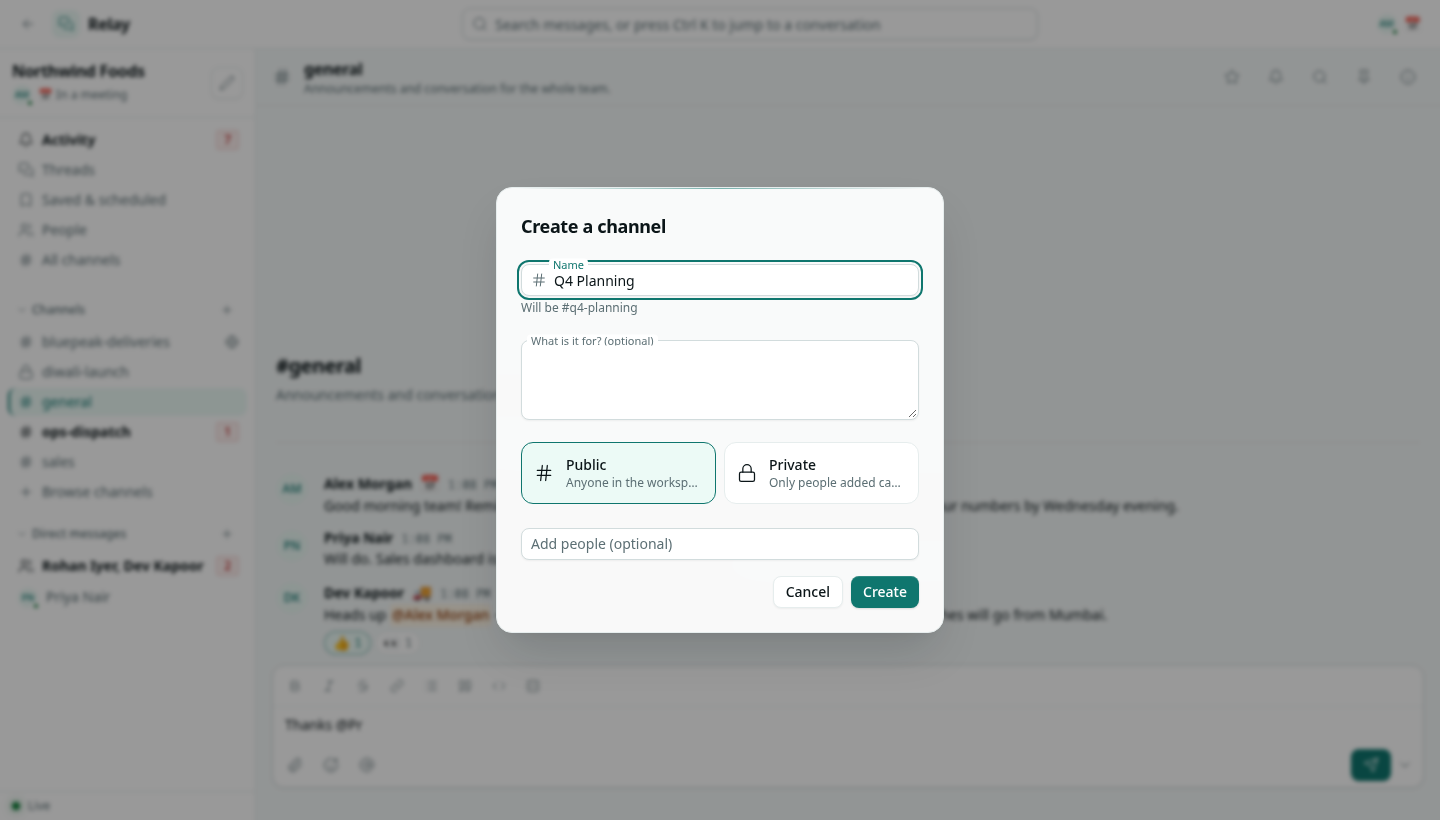
- In the sidebar, click + next to Channels, or Create channel in All channels.
- Type a Name. It is turned into a channel name: lowercase, with dashes instead of spaces, for example
Q4 Planningbecomes#q4-planning. - Optionally say What is it for? — this becomes the channel description.
- Pick Public or Private.
- Optionally Add people, then click Create.
You become the channel's admin.
Find and join channels
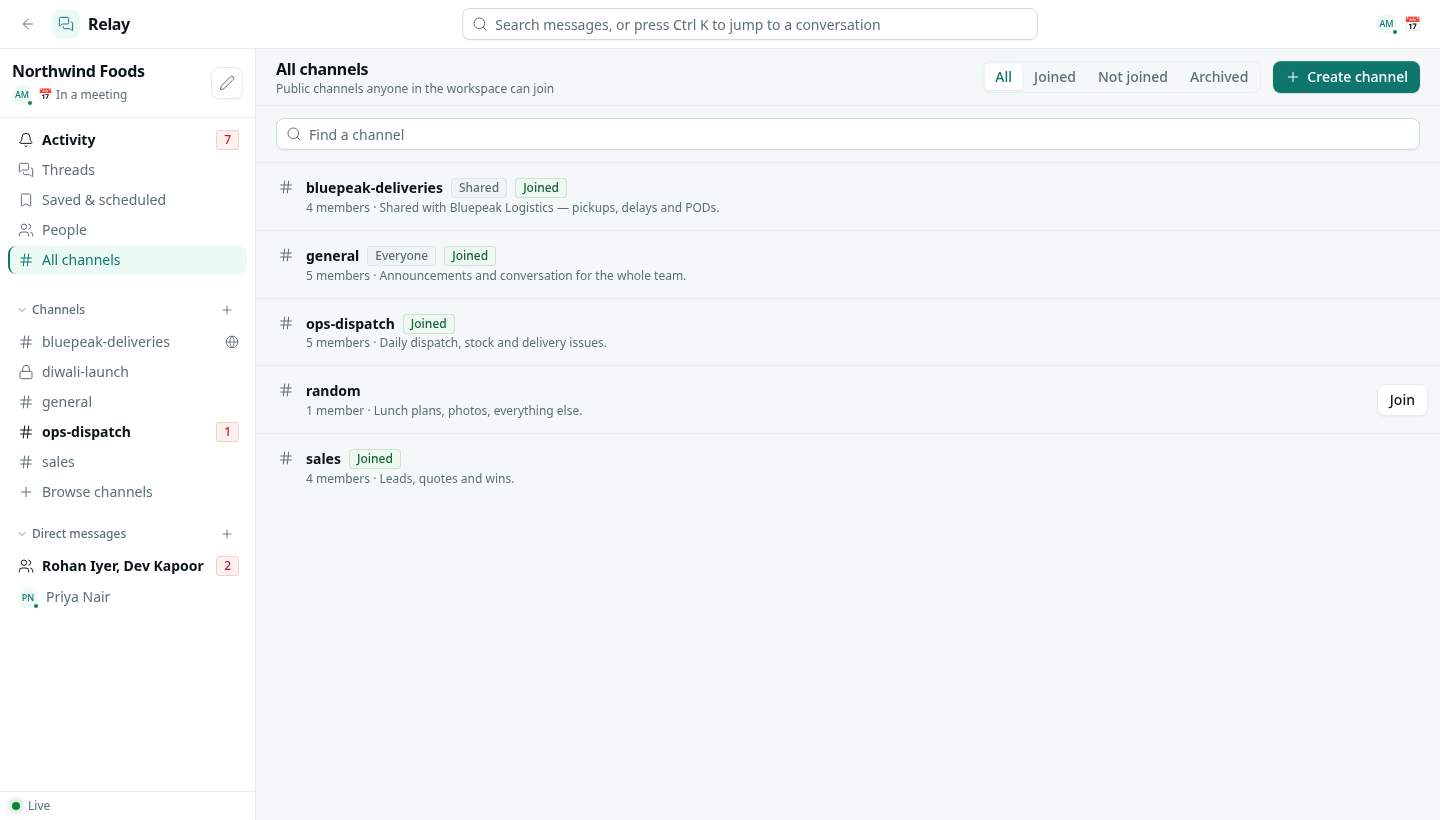
Open All channels in the sidebar. Filter All, Joined, Not joined or Archived, or type to find a channel by name. Click Join next to a public channel, or click its name to read it first.
Channel details
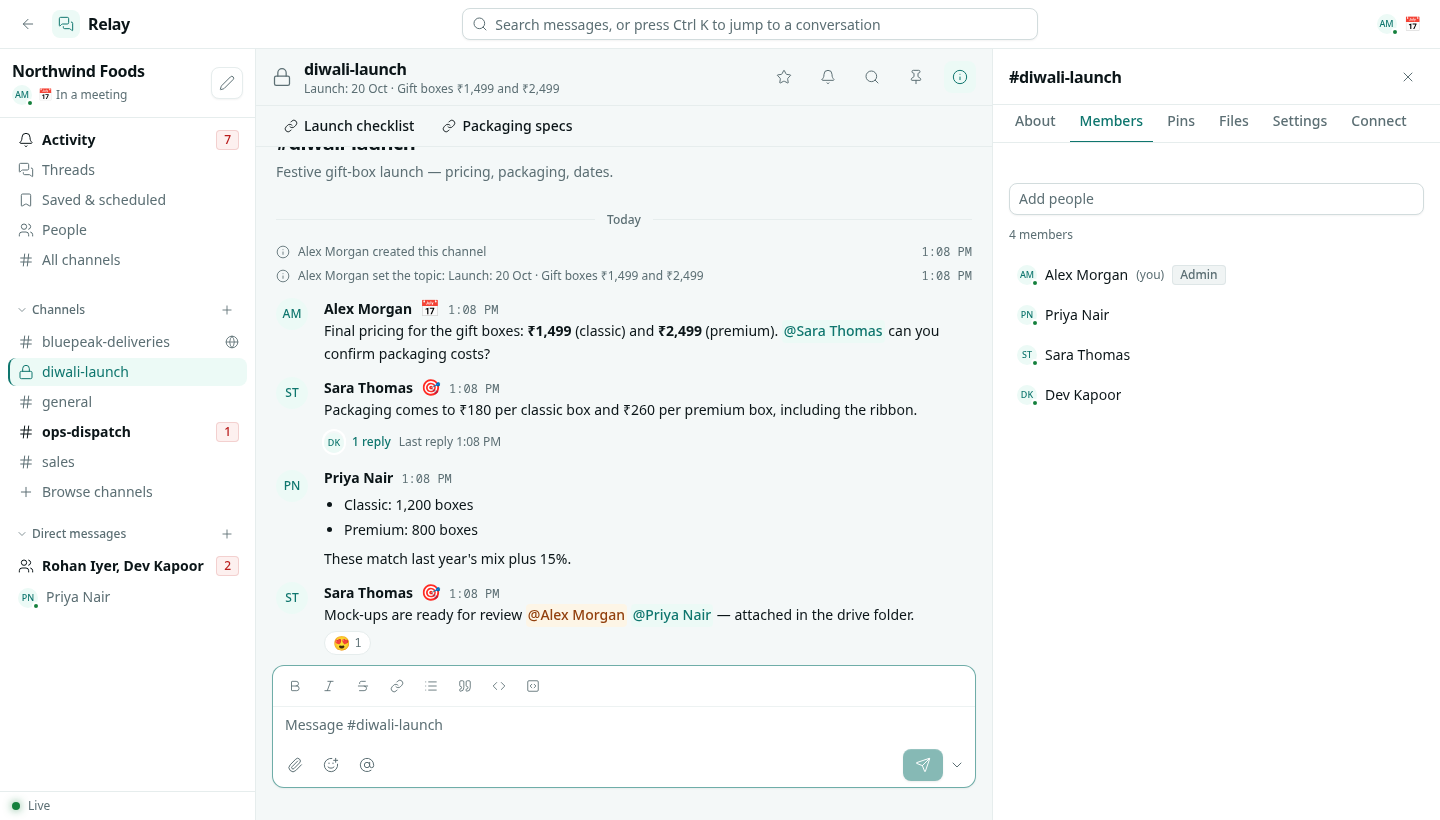
Click the i icon in the channel header to open the details panel.
| Tab | What you do there |
|---|---|
| About | Rename the channel, set its topic (shown under the name) and description, and add bookmarks — links shown in a bar above the messages. |
| Members | See who is in the channel and add people. The channel's admins and people with Can moderate can also remove people. |
| Pins | Messages pinned to the channel. |
| Files | Every file shared in the channel. |
| Settings | Your notifications for this channel, mute and star, and Leave channel. Admins also see Make private and Archive channel. |
| Connect | Share the channel with another organization. See Relay Connect. |
Make a channel private
In Settings, click Make private. Only the current members can see it afterwards. A private channel cannot be made public again.
Leave or archive a channel
- Leave channel removes you. You can rejoin a public channel from All channels; for a private channel someone has to add you back.
- Archive channel closes it: nobody can post, but the history stays readable and searchable. Find archived channels with the Archived filter in All channels, and click Unarchive channel to open one again.
Star and mute
Click the star in the channel header to keep a channel at the top of your mind, or right-click it in the sidebar and choose Star or Mute. A muted channel stays in your sidebar but does not notify you, except when someone @mentions you directly.
Troubleshooting
channel name taken Another channel already uses that name, possibly an archived or private one. Pick another name.
I cannot see a channel a colleague mentions It is private. Ask someone in it to add you.