Webhooks and slash commands in Relay
Let other tools post into a Relay channel, and run your own functions by typing /command in any conversation.
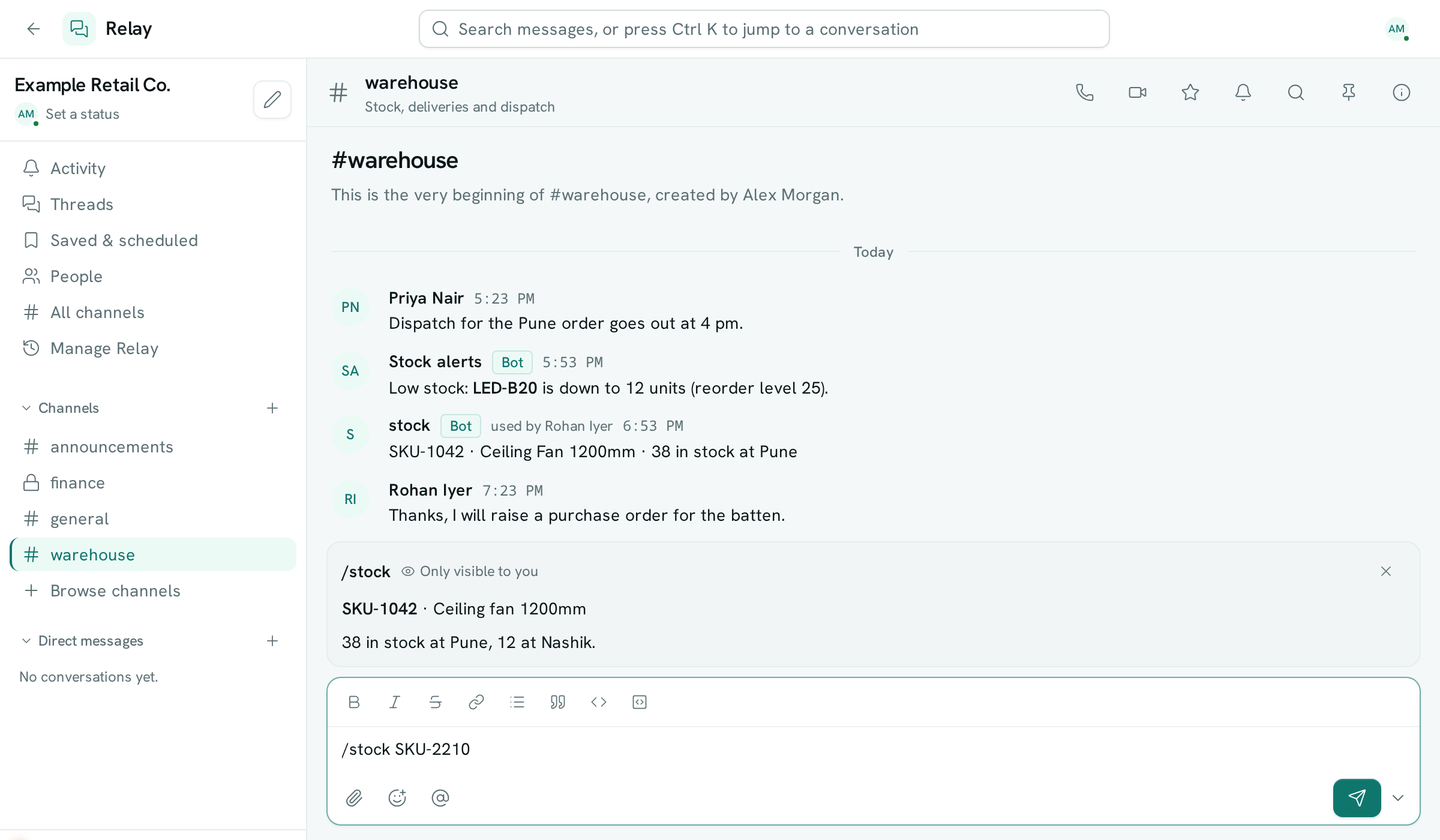
Bots bring your other tools into Relay: an incoming webhook lets an outside service post into a channel, and a slash command lets anyone run one of your workspace's functions by typing /name in a conversation. Messages from either carry a Bot badge so everyone can tell them apart from people.
Add an incoming webhook
Before you start: you need to be an admin of the channel (whoever created it is one), or have Can moderate (or Full control) on Relay on the Roles page. Webhooks work in channels, not direct messages.
- Open the channel and click its name to open Details.
- Go to the Settings tab and find Incoming webhooks.
- Type a Bot name — this is the name its messages will show — and click Add webhook.
- Copy the address in the green box with the copy button. It is only shown once. If you lose it, remove the webhook and add a new one.
- Paste the address into the other tool's webhook or notification settings.
The tool sends an HTTP POST to the address with a JSON body:
{ "text": "Build #142 passed :white_check_mark:", "username": "CI" }
text(required) is the message. It can use the same formatting as any Relay message — bold, italic, lists, links and code.username(optional) shows a different name on that one message.
Remove a webhook
In Details → Settings → Incoming webhooks, click Remove next to it and confirm. Its address stops working straight away.
Set up a slash command
Before you start: you need Can moderate (or Full control) on Relay, the Functions app switched on, and at least Can view on Custom code so you can pick a function. Write the function first in Functions. Anyone can then run the command; it needs no Relay permission beyond chatting.
- In the Relay sidebar, open Manage Relay.
- In Slash commands, click Add command.
- Enter the Command (for example
stock— letters, digits,-or_) and a short Description people will see while typing. - Pick the Function it runs.
- Choose the Reply: Only visible to the person who ran it, or Post to the conversation.
- Click Save.
What the function receives and returns
The function gets the command, what was typed after it, and where it was run:
{ "command": "/stock", "text": "SKU-1042", "channel_id": "…", "channel_name": "warehouse",
  "thread_id": null, "user_id": "…", "user_name": "Asha" }
Return a piece of text and it becomes the reply, using the Reply you chose. To decide per run, return an object instead: { "text": "…", "response_type": "in_channel" } posts to the conversation, "ephemeral" shows it only to the person.
Run a slash command
- In any conversation's message box, type
/. Your workspace's commands appear — keep typing or use the arrow keys, then press Enter or Tab to pick one. - Add anything the command needs after it, for example
/stock SKU-1042, and send. - A private reply appears above the message box marked Only visible to you; click the × to dismiss it. A reply posted to the conversation shows the command's name, a Bot badge and "used by" with your name.
Good to know
- A slash command's function only ever does what both you and the person who wrote the function are allowed to do. If one of you lacks access it needs, you get a private note saying it couldn't run — nothing is posted.
- If the function fails or takes too long, you see a private note with the reason; nothing is posted to the conversation.
- Private replies are not saved. They disappear when you dismiss them or open another conversation.
- A webhook can post about 30 messages a minute; faster sends are refused until the minute is up.
- Anyone who has a webhook's address can post with it, so treat it like a password. A channel can have up to 10 webhooks; a workspace up to 50 slash commands.
- Bot messages can't be edited. A channel admin, or someone with Can moderate on Relay, can delete them.
- Typing something that isn't one of your commands, like
/etc/hosts, just sends it as a normal message. - If Relay is switched off for your workspace, webhook addresses stop accepting messages.