Create and edit roles
Build a role app by app, start from a template, use full access or Advanced rules, and set up a role for public visitors.
A role is a set of permissions you give to people. You build it by choosing a level for each app.
Before you start: You need People & permissions at Full control. You can only grant what you hold yourself. Creating or switching a role to the visitor setting is owner-only.
Create a role
- Open Team & Permissions › Roles.
- Click New role.
- Under Start from, pick a template or Start from scratch. See the templates below.
- Enter a Role name. This is required. Add a Description if you like.
- Under What this role can do, choose a level beside each app. The heading counts the apps you have opened, for example "Access to 4 of 24 apps." Use Find an app… to filter the list.
- Click Create role.
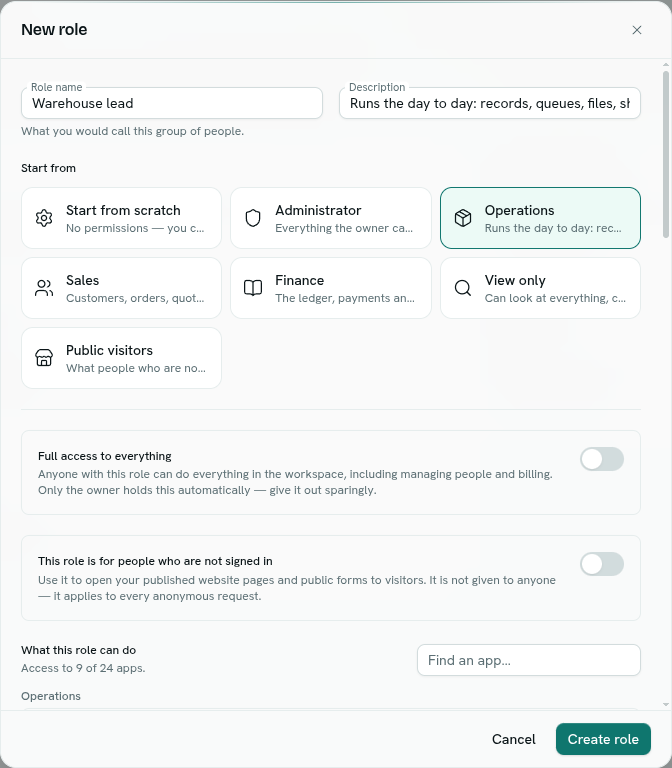
Editing an existing role works the same way: click the gear on the role's card, make changes, and click Save changes. The Start from choices only appear when you create a role.
Templates
A template is only a starting point. Once created, the role is an ordinary role you can change.
| Template | What it gives |
|---|---|
| Administrator | Full access to everything. "Everything the owner can do, except being the owner." |
| Operations | Business records Can add & edit, Work queues Can work the queue, Sheets Can edit, Files Can edit, Document templates Can generate, Automations Can run, Analytics & reports Can query & read, Ask Axis assistant Can use, Forms Can fill in. |
| Sales | Business records Can add & edit, Document templates Can generate, Messaging Can send, Collecting payments Can collect, In-store checkout Can sell, Analytics & reports Can query & read, Ask Axis assistant Can use. |
| Finance | Business records Can view, Accounting ledger Can post entries, Collecting payments Full control, Document templates Can generate, Analytics & reports Full control, Plan & invoices from AxisIQ Can view, Audit trail Can view. |
| View only | Can view on most apps, plus Online stores Can see connections, Knowledge base Can search and Ask Axis assistant Can use. Nothing can be changed. |
| Public visitors | The role for people who are not signed in: Published pages Readable by anyone and Public forms Open to anyone. |
Picking a template fills in the name and description if you have not typed them yet.
Full access to everything
Turn on Full access to everything to give the role every permission, including managing people and billing. The app list is replaced by a note that there is nothing further to choose. Only the owner holds this automatically, so give it out sparingly. Turn it off to go back to choosing app by app.
Advanced rules
Open Advanced rules at the bottom of the app list for exceptions the levels cannot express, such as "everything except deleting", "only their own records", "hide the cost price", or access to one specific space. Most roles need none. A count shows how many rules the role has.
Choose Build or JSON at the top of the section.
In Build, click Add rule and fill in:
- Effect — Allow or Deny. A deny always wins.
- Actions — one or more permissions to allow or deny, or a wildcard.
- Resources — narrow the rule to specific record types, shared spaces, content sites, forms or queues. Left on
*it applies everywhere. Org-wide actions have no resource. - + Condition — an attribute (for example
resource.amount), an operator (eq,ne,gt,gte,lt,lte,in,nin,contains) and a value (for example50000orprincipal.id). - hide — comma-separated field keys hidden from this role, such as
cost_price, margin. - only — a comma-separated list of the only fields visible. Optional.
Click the X on a rule to remove it. JSON shows the same rules as raw text; if the text is invalid you see the error and cannot switch back to Build until it is fixed.
The levels never overwrite your Advanced rules. An app row that has an Advanced rule shows a Custom rules badge.
Create a role for public visitors
- Click New role and pick the Public visitors template, or turn on This role is for people who are not signed in.
- The app list now shows only Published pages and Public forms.
- Set Published pages to Readable by anyone so your website can read what you publish in Content Studio. Set Public forms to Open to anyone so a published form can be filled in by anyone with the link. They can never read the answers.
- Click Create role.
The role card shows a Public visitors badge and "Applies to everyone who is not signed in". You cannot assign this role to a person. Only the owner can create it.
Delete a role
Click the X on the role card and confirm Delete. The dialog says how many people hold the role. They lose those permissions immediately.
What happens next
Give the role to people in People or when you invite them. See Invite and manage people.
Troubleshooting
Create role is greyed out A role name is required.
You cannot grant access you do not hold yourself The role includes something you do not hold. Reduce a level or ask the owner.
The empty page says "No roles yet" That is normal in a new workspace. Until someone has a role, they can sign in but do nothing.