Write and run a function
Create a JavaScript function, set its timeout, save it and try it with sample input.
You will create a function, test it with sample input, and read its result and logs.
Before you start: you need Full control on Custom code (the Roles page) to create or change functions, and Can run to run one. With only Can view you can read the code and the editor is read-only.
Steps
- Open Functions.
- Click New function. If you have none yet, click it in the empty state ("No functions yet").
- Enter a Name (up to 120 characters), for example "Nightly report". Add a Description if you like (up to 500 characters).
- On the Code section, write your JavaScript. A starter is filled in for you. Your code must define a global function called
handler(input). Whatever it returns is the result.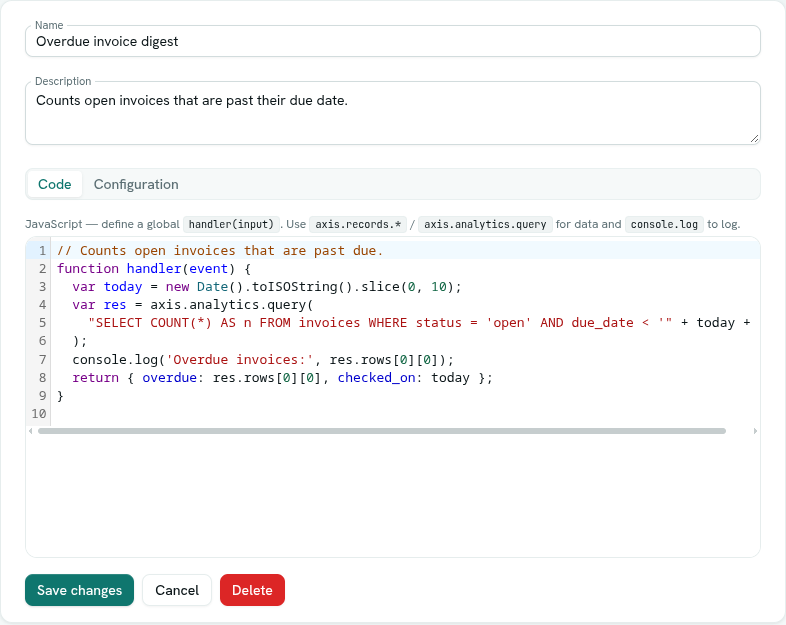
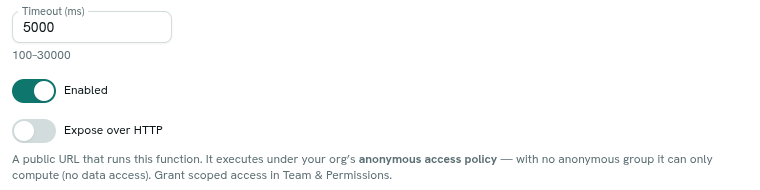
- Click Configuration to set the Timeout (ms). See the next section.
- Click Create function. It is saved and opens for editing. Create function stays disabled until the name and code are filled in.
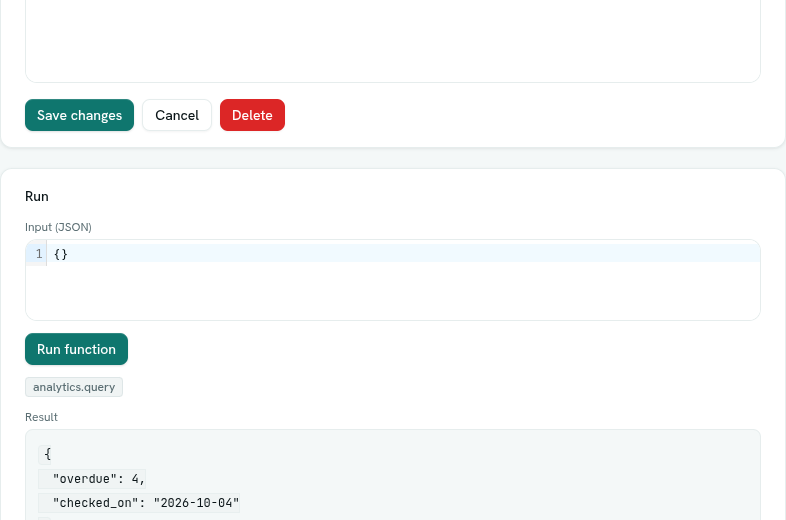
- In the Run card, type sample JSON in Input (JSON). Leave it empty for
{}. - Click Run function.
Configuration
| Setting | Notes |
|---|---|
| Timeout (ms) | How long one run may take. Allowed range 100 to 30000. Default 5000. Values outside the range are adjusted to the nearest allowed value. |
| Enabled | Shown once the function exists. Switch it off to stop all runs. A disabled function shows an Off badge in the list. |
| Expose over HTTP | Gives the function a public address. See Expose a function over HTTP. |
Reading a run
- Result — what your function returned, as formatted JSON.
- Logs — each
console.logline, shown like[log] hello. - Small badges, one per call your code made to your workspace data. A red badge means that call was refused or failed.
- Ran in N ms — how long the run took.
- A red box shows Timed out, or the error your function threw.
A function that throws or runs out of time is a normal outcome of a run. It is shown in the box, not as a page error.
Edit, disable and delete
- Change anything and click Save changes. Click Cancel (or Close if you can only view) to leave the editor.
- Delete asks you to confirm "Delete function". Anything that still points at it, such as a flow or queue stage, will no longer find it.
- Right-click a function in the list for Open, Copy ID, and, for HTTP functions, Copy public URL.
What happens next
Use the function from a flow with the Run function block, from a queue stage as a button or an on-arrival action, or as a form's target. Each of those passes its own input. See Limits and permissions for whose access the code gets.
Tips
- Start by returning a simple object, then add data lookups. Logs are the easiest way to debug.
- Keep functions short and single-purpose. The code limit is 256 KB.
- A function cannot call outside websites or use timers. To call another system, use a flow's HTTP request block and pass the result to the function.
- Changing a function's code makes you its author. This matters for the rules in Limits and permissions.
Troubleshooting
Invalid JSON: … The Input (JSON) box holds text that is not valid JSON. Fix it or clear it.
The Run function button is greyed out You do not have permission to run functions.
Timed out The run took longer than the Timeout (ms). Raise the timeout, up to 30000, or simplify the code.
memory limit exceeded (128 MB) The function used too much memory. Process less data at a time.
function is disabled Switch Enabled on in Configuration.
source exceeds 256 KB Shorten the code.