Import, export and print sheets
Bring in CSV, TSV, text, Excel, OpenDocument files or a Google Sheets link, export to any of them, and print or save a sheet as a PDF.
Sheets reads the files your team already has and gives you back clean files and print-ready PDFs — no copying and pasting between tools.
Before you start: importing into a workbook needs permission to edit it (Can edit on Sheets). Importing a whole new workbook needs Full control. Exporting and printing only need Can view.
Import a whole workbook
- Open Sheets and choose Import spreadsheet.
- Pick an Excel (.xlsx) or OpenDocument (.ods) file.
- The file opens as a new workbook with one sheet per tab. Formulas Sheets understands stay live; any other formula keeps the value the file had.
Add a sheet from a file
- Open the workbook.
- In the sheet strip at the bottom, choose Import → From a file (.csv, .tsv, .txt)….
- Pick the file. It arrives as a new sheet, with the first row as column names.
Sheets works out the separator of a .txt file for you — tabs, commas, semicolons or pipes.
Add a sheet from Google Sheets
- In Google Sheets, choose Share → General access → Anyone with the link, then copy the link. Open the tab you want first — the link points at it.
- In Sheets, choose Import → From a Google Sheets link….
- Paste the link into Sheet link and choose Import.
The tab's current values arrive as a new sheet. It's a copy: later changes in Google Sheets don't flow in — import again to refresh.
Export
- Whole workbook: in the top bar choose Export → Excel workbook (.xlsx) or OpenDocument spreadsheet (.ods). PDF of this sheet… in the same menu opens the print window below.
- One sheet: open the sheet's menu in the bottom strip and choose Export CSV or Export TSV.
Print or save as PDF
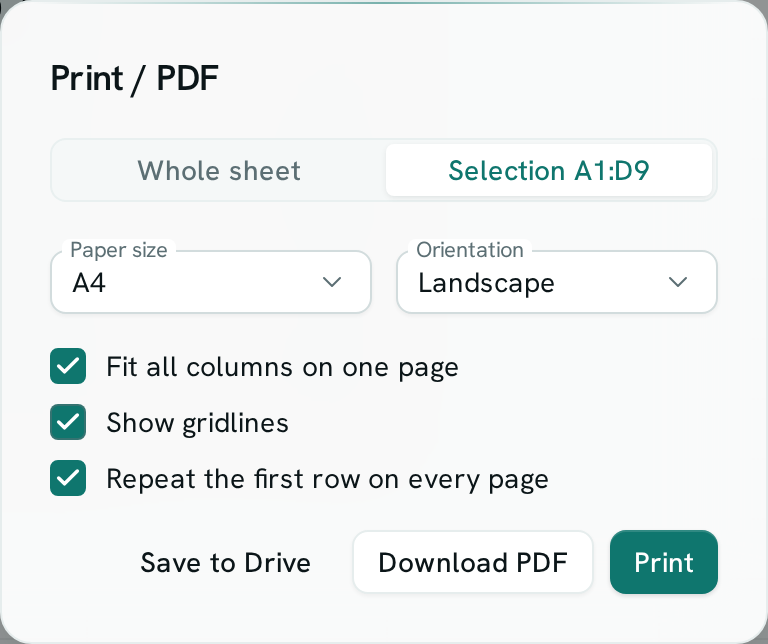
- Choose Print in the top bar, or press Ctrl+P (⌘P on a Mac). To print part of a sheet, select the cells first and right-click → Print selection….
- Choose Whole sheet or Selection, the Paper size (A4 or Letter) and Orientation.
- Tick what you want: Fit all columns on one page, Show gridlines, Repeat the first row on every page.
- Choose Print to send it to your printer, Download PDF to save the file, or Save to Drive to keep a copy in the Exports folder of your My Drive.
The PDF shows your cells the way the sheet does: number and date formats, currency, bold and italic, text and fill colours, alignment and merged cells. Every page is numbered.
Good to know
- Old Excel files (.xls) can't be imported. Open them in Excel or LibreOffice and save as .xlsx or .ods first.
- A Google Sheets link must be shared with anyone who has the link (or published to the web). A private sheet is refused.
- A linked Google sheet can be up to 20 MB; files follow your plan's row limit per sheet.
- An .ods export carries values and merged cells; formula cells carry their result. Use .xlsx to keep formulas.
- A printout leaves out hidden columns, cell borders, underline and strikethrough, and conditional colours. Cells merged down several rows print as one cell on the top row.
- Without Fit all columns on one page, columns that don't fit continue on extra pages, after all the rows of the first columns.
- Up to 10,000 rows print at once — select a smaller range for bigger sheets.