Workbook templates
Start a workbook from a ready-made template — budget, invoices, stock count, timesheet, projects or sales pipeline.
Templates are ready-made workbooks with columns, example rows and formulas already in place. Start from one and replace the example rows with your own.
Before you start: creating a workbook needs Full control on Sheets.
Steps
- Open Sheets › Templates.
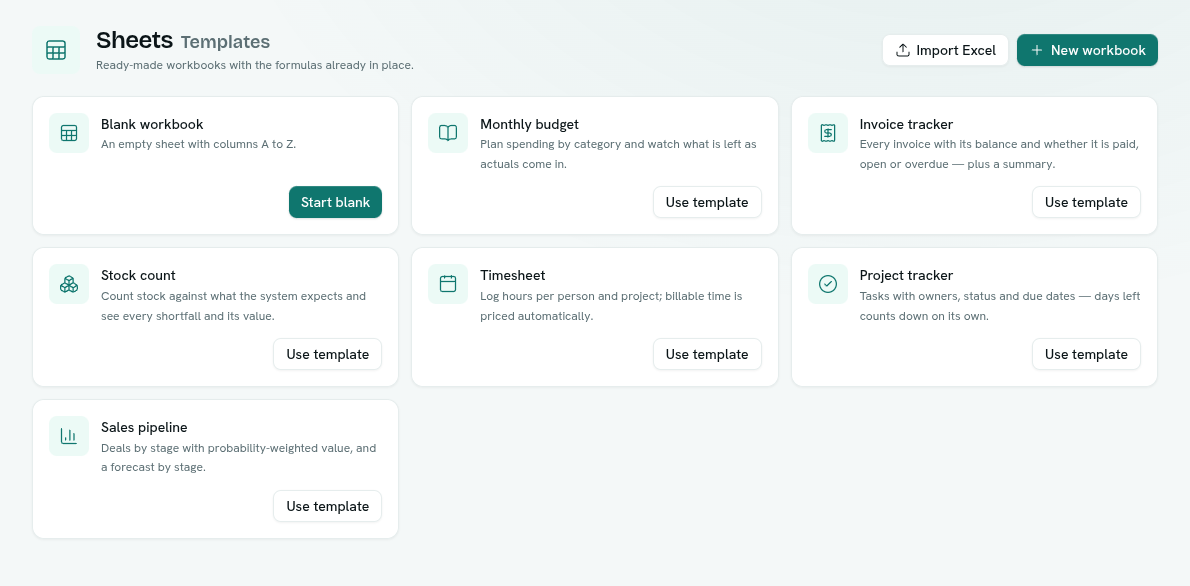
- Click Use template on the one you want (or Start blank).
- Give the workbook a name and click Create. The editor opens with the template's sheets.
You can also pick a template in the New workbook dialog, under Start from.
The templates
| Template | Sheets | What it does |
|---|---|---|
| Monthly budget | Budget | Category, Planned, Actual, Difference and % used, with a total row. Plan spending and watch what is left as actuals come in. |
| Invoice tracker | Invoices, Summary | Invoice, Customer, Issued, Due (issued + 30 days), Amount, Paid, Balance and Status (Paid, Open or Overdue, worked out from today's date). Summary totals what was invoiced, collected and outstanding and counts overdue and open invoices. |
| Stock count | Count | SKU, Item, Location, Expected, Counted, Variance, Unit cost, Variance value and Result, with totals. See every shortfall and its value. |
| Timesheet | Hours | Date, Person, Project, Task, Hours, Billable, Rate and Amount — billable time is priced automatically. |
| Project tracker | Tasks | Task, Owner, Status and Priority (pick lists), Start, Due, Days left (counts down on its own) and Done %. |
| Sales pipeline | Deals, Forecast | Deals with Stage, Value, Probability % and Weighted value; Forecast sums deals and weighted value per stage. |
Tips
- Insert rows inside the example block so totals and summaries keep counting them.
- Add your own formatting and charts — see Format cells and Charts.