Manage website users
Find, add, suspend, sign out and remove the people who have accounts on your website.
See who has an account in a pool, add people yourself, and suspend, sign out or remove them.
Before you start: you need Can manage people on Website accounts (Can view to only look).
Find people
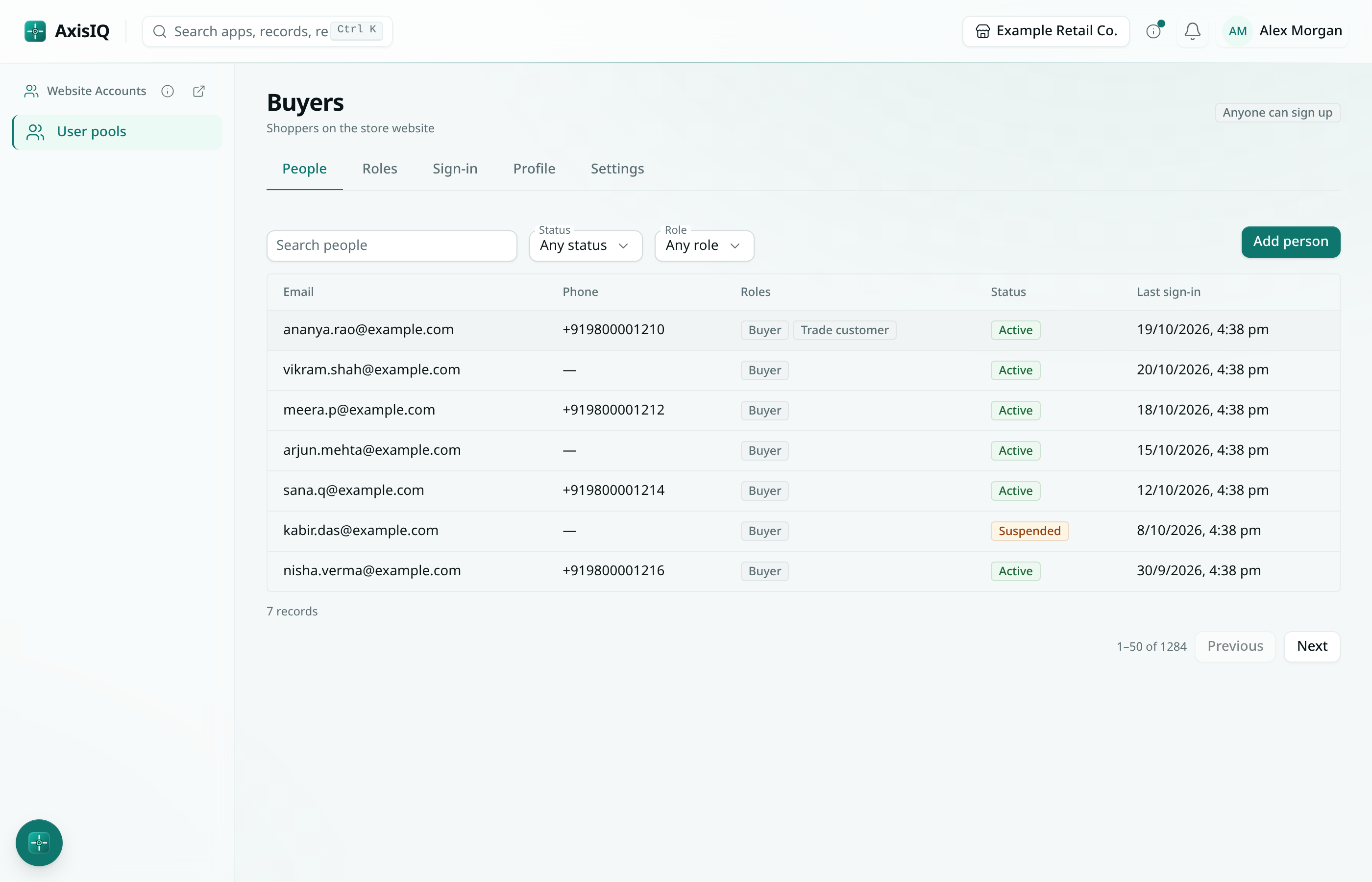
Open the pool's People tab. Search people by email or phone, and filter by Role or Status. The list shows each person's email, phone, roles, status and when they last signed in.
Add a person
- Click Add person.
- Enter an Email, a Phone (with country code), or both.
- Choose their Roles — they start with the pool's default roles.
- Optionally set a Starting password (optional), and fill in profile details.
- Click Add person.
They can then sign in with the password you set, or with a one-time code if the pool sends codes. On a pool where Only people added here can sign up, this is the only way in.
Change, suspend or remove someone
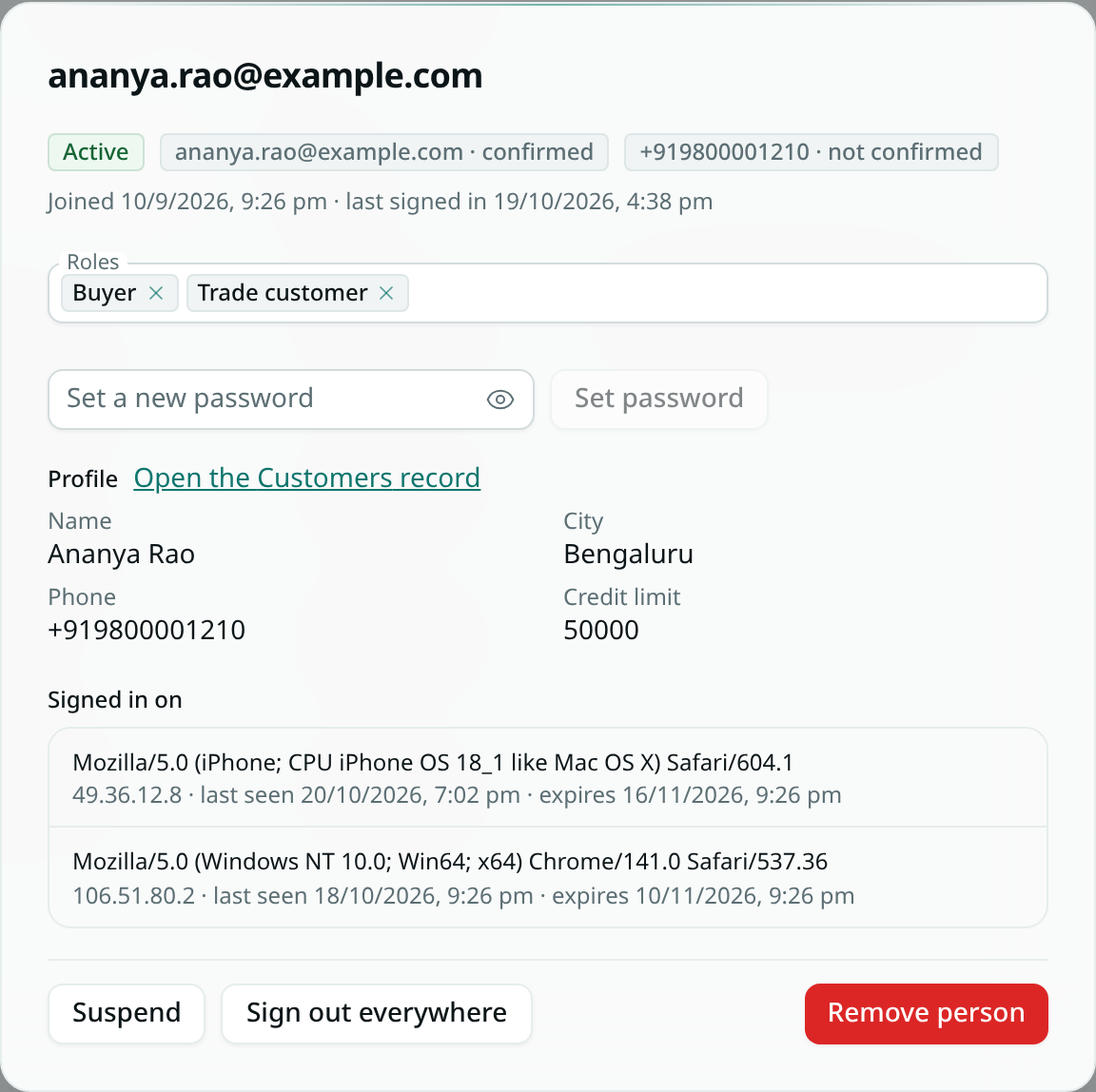
Click a person to open their details.
- Roles — change them and click Save roles.
- Set password — gives them a new password and signs them out everywhere.
- Suspend — they're signed out at once and can't sign in until you Reactivate them.
- Sign out everywhere — ends every session they have; Signed in on lists them.
- Remove person — deletes their account. Their profile record stays in your records.