Set up sign-in for your website
Create a user pool, choose passwords or one-time codes by email or SMS, and decide what people are asked when they sign up.
Create a user pool, choose how people sign in, and decide what they're asked when they sign up.
Before you start: you need Full control on Website accounts. For codes by email or text message, connect an account in Messaging first.
Create a user pool
- Open Website Accounts and click New user pool.
- Enter a Name (for example
CustomersorSellers) and an optional Description. - Under Who can sign up, choose Anyone, from the website or Only people I add here.
- Click Create pool.
A new pool signs people in with a password. Add one-time codes on the Sign-in tab.
Choose how people sign in
Open the pool and go to Sign-in.
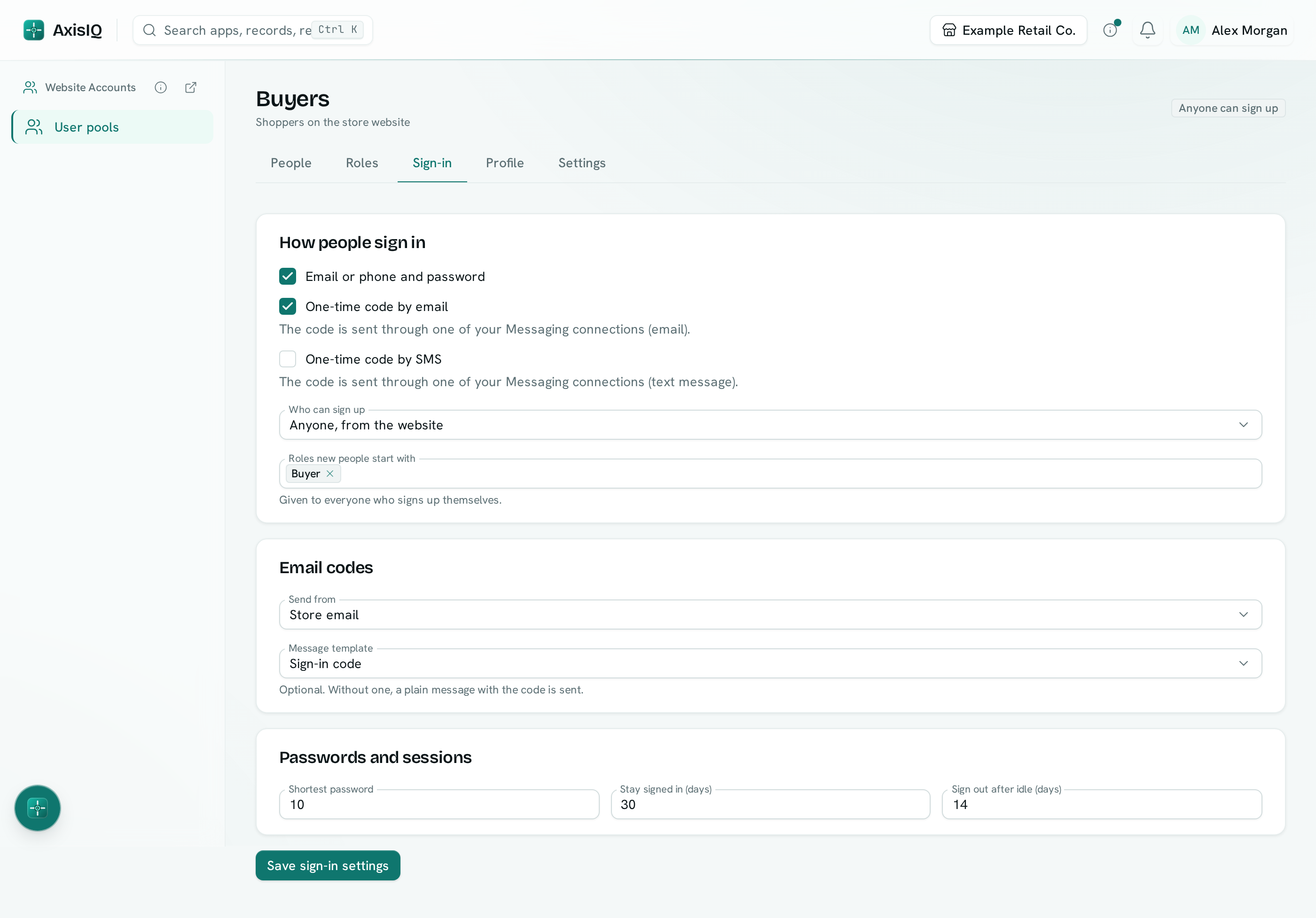
- Under How people sign in, tick one or more:
- Email or phone and password
- One-time code by email — choose the email connection under Send from, and optionally a Message template. Without a template, a plain message with the code is sent.
- One-time code by SMS — choose a text-message connection the same way.
- Set Who can sign up. With Only people added here, only people you add on the People tab can sign in; a code requested for any other address is simply never sent.
- Pick the Roles new people start with — everyone who signs up themselves gets these.
- Under Passwords and sessions, set the Shortest password (8 to 72 characters), how long people Stay signed in (days), and Sign out after idle (days).
- Click Save sign-in settings.
Codes are six digits, last 10 minutes and work once. Five wrong tries cancel a code. A new code can be requested once a minute. A message template can use {{.data.code}}, {{.data.site}} and {{.data.purpose}} (login, verify or reset).
If the pool uses passwords and has an email or text-message connection, people can reset a forgotten password with a code.
Ask for details at sign-up
Go to Profile.
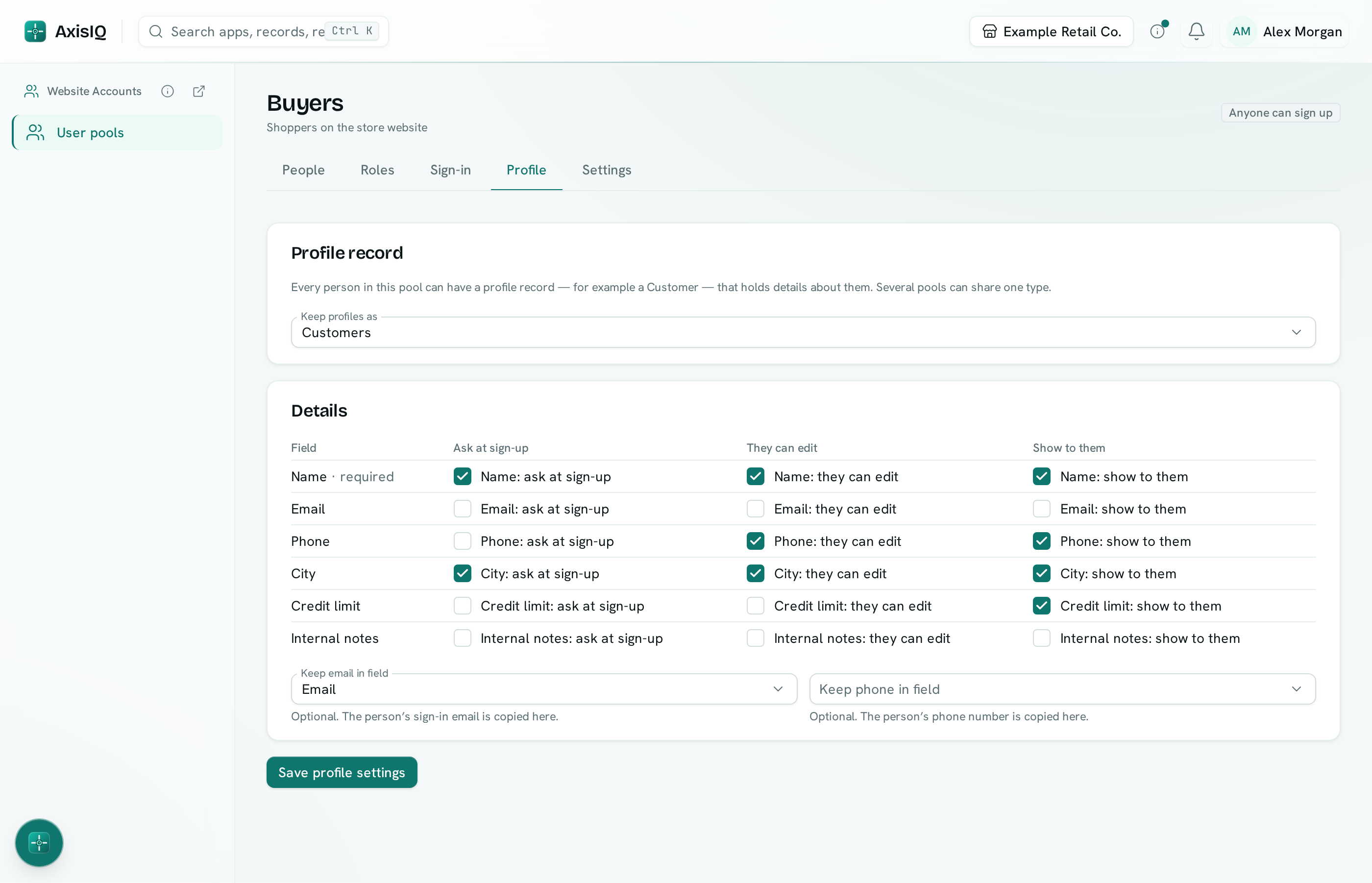
- Under Keep profiles as, choose the record type each person's profile is kept in — for example Customers. Choose No profile record if you only need the sign-in.
- For each field, tick:
- Ask at sign-up — your sign-up page can collect it. Every required field of the record type has to be asked.
- They can edit — people can change it later from your website.
- Show to them — it's included when your website shows them their account.
- Optionally choose Keep email in field and Keep phone in field, so the profile always holds their sign-in email and phone.
- Click Save profile settings.
Each profile is an ordinary record: it shows in Records, Analytics and Sheets, and the person who signed up counts as its creator. Fields you didn't tick can't be filled in or changed from the website. Removing someone from the pool keeps their profile record.
Two pools can keep profiles in the same record type — for example Buyers and Sellers both in Customers. The people stay separate; only the record type is shared.