Roles for website users
Decide which records signed-in website users can see, add, edit or remove — including only the ones they created.
A role says what signed-in people can do with your records. Each pool has its own roles, and a person can have several. Without a role, a signed-in person can't see or change any of your records.
Before you start: you need Full control on Website accounts. You can only give a role access you have yourself.
Create a role
- Open the pool and go to Roles.
- Click New role and give it a Name and What this role is for.
- Under Records they can work with, add a type of record — for example Products.
- Tick what they can do with it: See, Add new, Edit, Remove. Next to See and Edit, tick only ones they created to limit it to their own records.
- Tick Read published content if they should read members-only pages and articles from Content Studio.
- Click Save role.
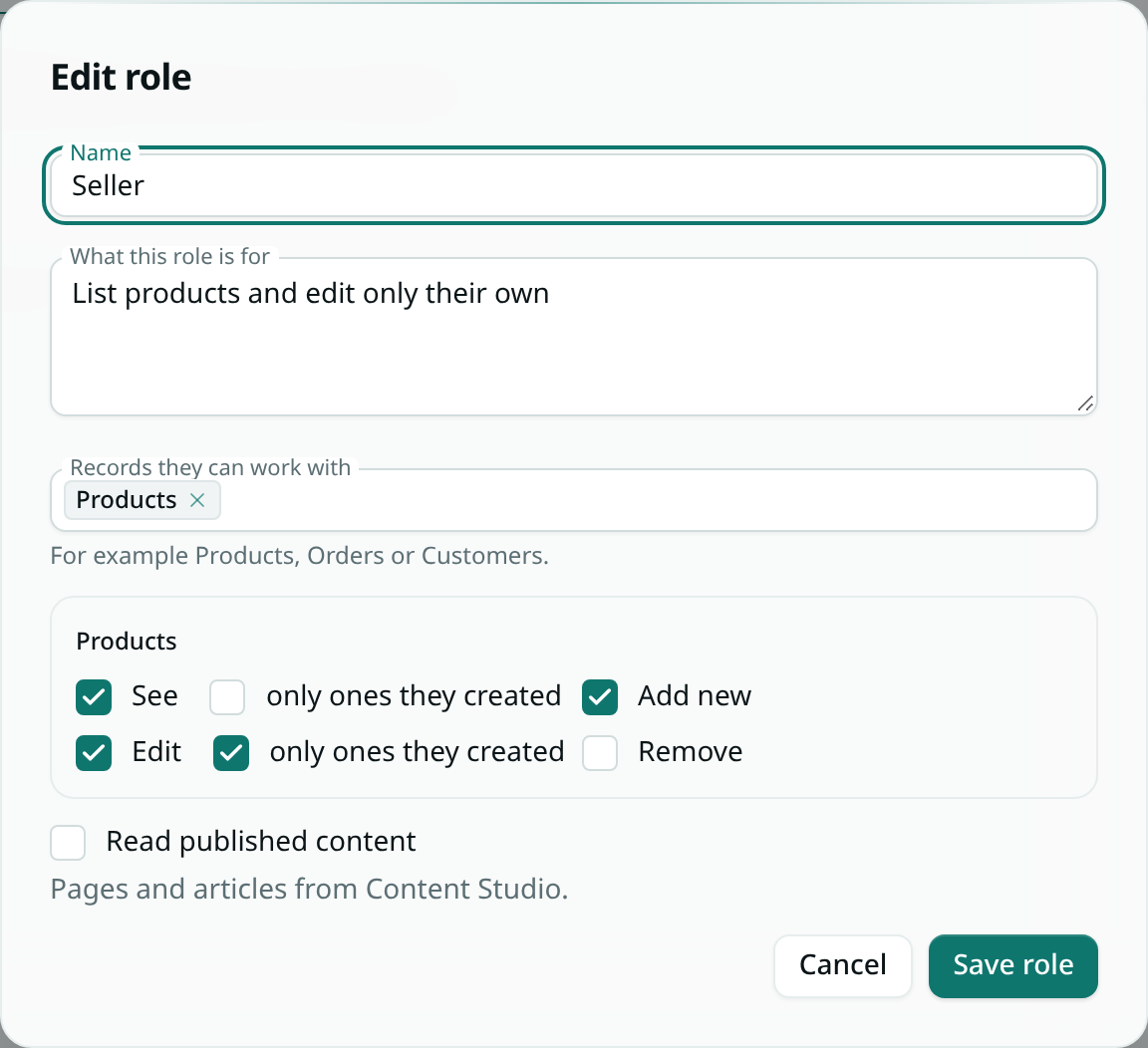
Give new people a role automatically with Roles new people start with on the Sign-in tab, or give it to someone on the People tab.
Example: a marketplace
Two pools share one Products record type.
| Pool | Role | Products |
|---|---|---|
| Sellers | Seller | See and Add new; Edit with only ones they created |
| Buyers | Buyer | See |
A seller can list a product and edit it later, but can't touch another seller's listings. A buyer can browse every listing and change nothing.
What roles control
Roles apply wherever your website reaches your records: in the functions behind your site's API routes, every read and write runs as the signed-in person and follows their roles. Records a signed-in person adds through your site count as created by them, which is what only ones they created checks.
Roles on the website are separate from your team's roles in Team — giving someone a website role never gives them access to your workspace.