Board, gallery and calendar
Show a record list as a board grouped by stage, a gallery of cards, or a month calendar by date.
Look at a record list as a table, a board of cards grouped by stage, a gallery of cards, or a month calendar. Pick the layout that suits the work: a sales pipeline reads best as a board, follow-ups as a calendar.
Before you start: anyone who can see a record type can switch its layout. Moving a card on the board changes the record, so it needs permission to edit that record type.
Switch the layout
- Open a record type's list.
- Above the list, pick Table, Board, Gallery or Calendar.
- Board is offered when the type has a dropdown (choice) field.
- Calendar is offered when the type has a date or date-and-time field.
- If the type has more than one such field, pick which one from the By … menu beside the switch, for example By Stage or By Follow-up.
Search, filters and sorting work in every layout. See Find records.
Board
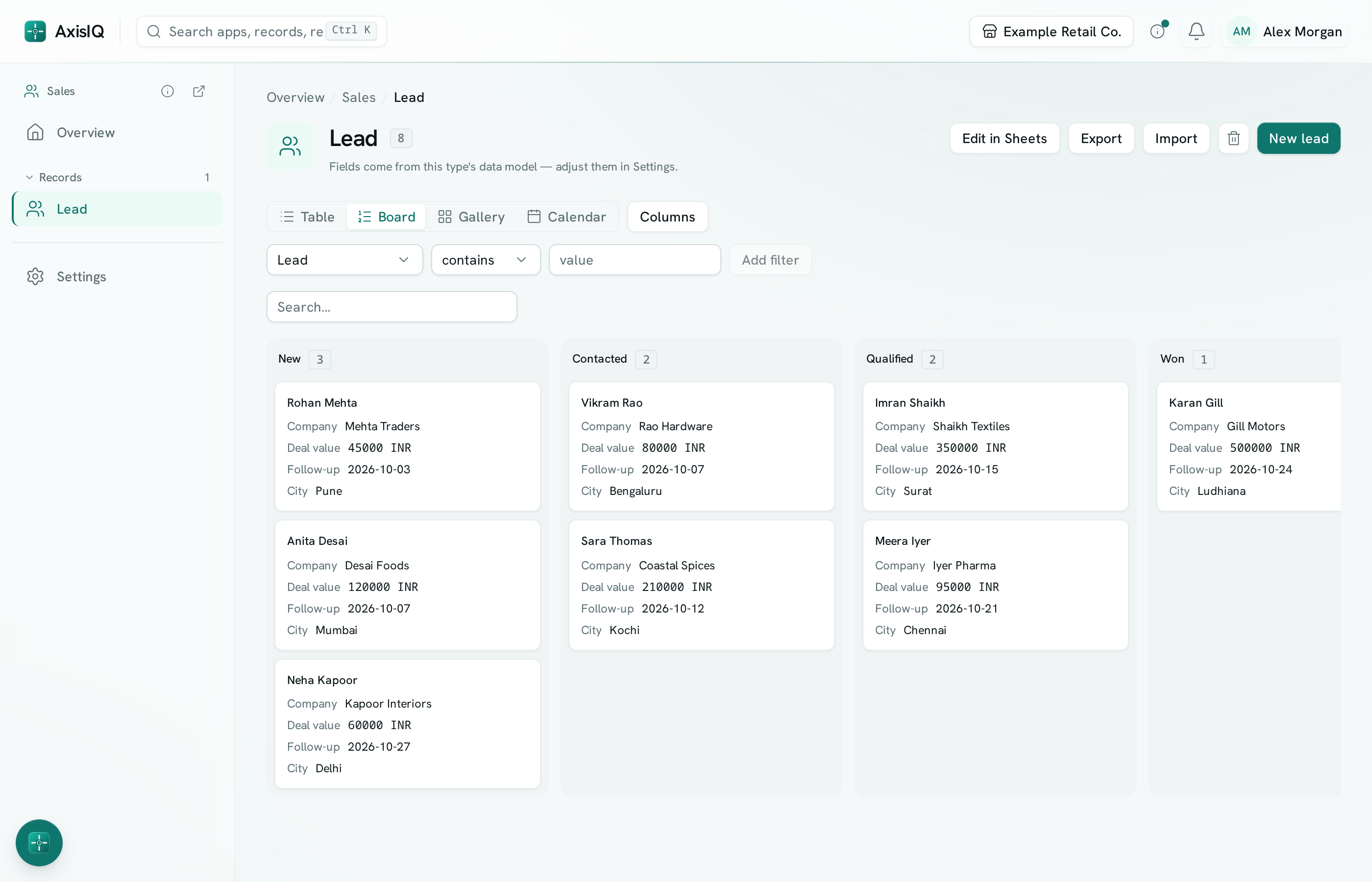
- There is one column for each option of the chosen field, plus No value for records with none. Each column shows how many cards it holds.
- Drag a card to another column to change that field. It saves the same way as the record form, so required fields, rules and permissions still apply. If the save is refused, a message says why and the card goes back.
- Click a card to open the record.
- Cards show the record's title and the columns you chose under Columns.
Tip: dragging needs a mouse or trackpad. To move a record with the keyboard, open it and change the field in the form.
Gallery
Cards in a grid, with the title and up to four of your chosen columns. When a record has a link to an image (a .jpg, .png, .webp or similar web address) in a link or file field, that image is the card's cover. Click a card to open the record.
Calendar
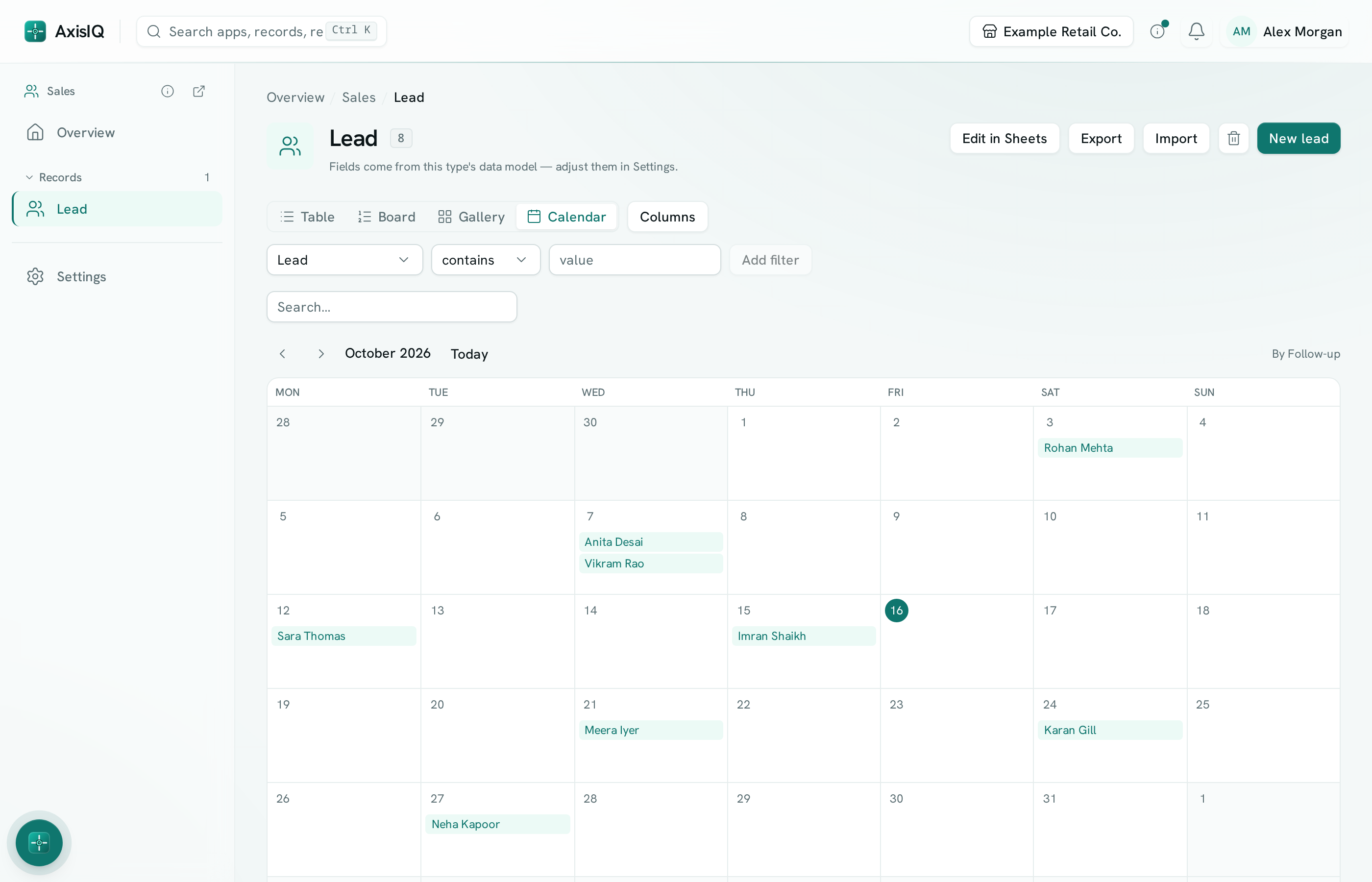
- Records sit on the day of the chosen date field. Use ‹ and › to change month, and Today to come back.
- A day with more than three records shows +N more; click it to see them all.
- Click a record to open it. Click an empty part of a day to start a new record with that date filled in.
Saving the layout
The layout and its By … field are part of a saved view, like the filters and columns. Changing them on a picked view shows Unsaved changes. With no view picked, your choice is remembered in this browser for that record type.
Limits
- Board and calendar show up to 200 records, the gallery up to 100. Past that a line says how many are shown — filter or search to narrow it down, or switch to the table.
- Selecting many records at once and editing cells in place work in the table only.
- Records can't be dragged between days on the calendar; change the date in the form.
- Export downloads the list's filters and search, not just the month on screen.