Remember how bank lines are categorised
Save a rule like "SWIGGY goes to Meals" once, and every matching bank statement line arrives with the account already filled in.
Bank rules remember how you categorised a bank statement line, so the next line like it — the same shop, the same supplier, the same monthly charge — arrives with the account, party and narration already filled in. You still check it and press Post.
Before you start: you need Can post entries under Accounting ledger on the Roles page to post lines and save rules. Can view shows the rules list without changing it.
Remember a line as you post it
- Open Accounting and click Bank reconciliation in the left menu.
- Pick the bank account and upload its statement, if you haven't already.
- In To match, click a line the books don't have yet — for example a food delivery payment.
- Under Or post it — the books don't have it yet, choose the account it belongs to (for example Staff meals). For a customer or supplier account you can pick the party; for an income or expense account you can pick a cost centre.
- Tick Remember this for lines like it (it appears once you have chosen an account). AxisIQ suggests a word from the narration (for example SWIGGY). Change it if needed, and choose Contains or Starts with.
- Click Post entry.
The entry is posted on the statement line's date and matched. From now on, any statement line whose narration contains that word, in the same direction (money in or money out), shows a Rule badge and opens with the form already filled in.
Use a rule on a new statement
- Upload the next statement as usual.
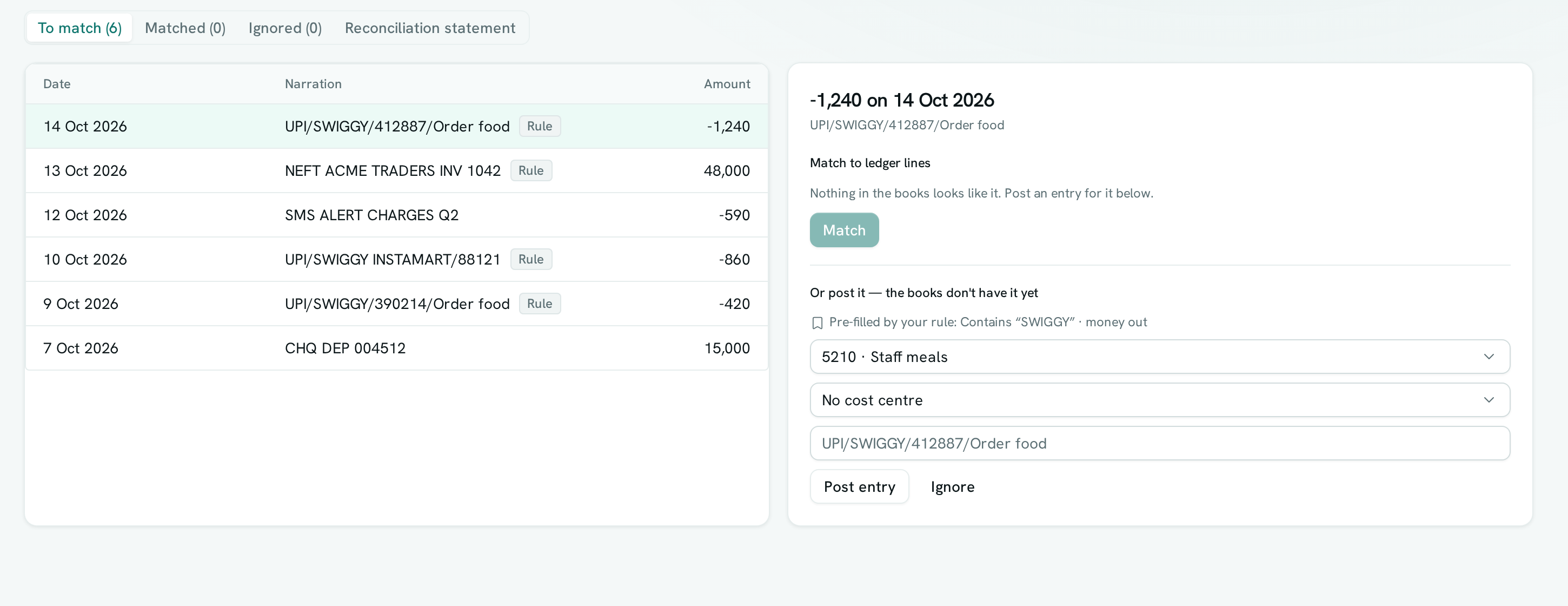
- Lines that match a rule show a Rule badge in the list. Click one.
- The account, party, cost centre and narration are already filled in, with a note saying which rule did it. Change anything you like.
- Click Post entry.
Manage your rules
- In Bank reconciliation, click Bank rules in the toolbar.
- The list shows every rule in order. The first rule that matches a line wins, so put the specific ones above the broad ones (SWIGGY INSTAMART → Groceries above SWIGGY → Staff meals). Use the up and down arrows to reorder.
- Click the pencil to edit a rule. Besides the text, you can limit it to Money in or Money out, and to a minimum and maximum amount — useful when the same payee can mean two things (a small amount is a fee, a large one is rent).
- Click New rule to add one without posting a line, or the bin to delete one.
Good to know
- A rule only fills in the form. Nothing is posted until someone presses Post entry, and the entry is posted as that person.
- Matching ignores capital letters and extra spaces. Amount limits are exact and include the amounts you type.
- A rule remembered while posting goes to the top of the list.
- If the books are locked for the line's date, posting is refused as for any other entry.
- When a line also matches an entry already in the books, the suggested match is shown first; the rule is there if you decide to post instead.
- Rules work on the Bank reconciliation screen. Bank sheets brought in through Import are categorised in the import preview instead.
- Rules are shared by the whole workspace and apply to every bank account. A workspace can hold up to 200 rules.