Move from Tally and send books to your CA
Bring your Tally Prime or Tally ERP 9 books into Accounting from an XML export, and hand your accountant one ZIP with every report for a period.
Switching from Tally doesn't mean retyping your books. Export them from Tally as XML, drop the files into Accounting, check what was read, and import. When it's time for an audit or filing, download one pack with every report your CA asks for.
Before you start: importing needs Can post entries on Accounting ledger (Roles page). To add new customer or supplier records during the import you also need permission to add records of that type. Downloading the CA pack only needs Can view on Accounting ledger.
Export your books from Tally
- In Tally, open the company you want to move.
- Go to Display More Reports → List of Accounts, press Export, choose XML (Data Interchange) and export. This file holds your ledgers, groups and opening balances (the import page calls it the Masters).
- Go to Day Book, set the period (press F2, or Alt+F2 for a range), press Export and choose XML (Data Interchange) again. This file holds your vouchers.
Import the files
- Open Accounting and choose Import in the menu on the left.
- Drop both XML files onto the page together, or choose Choose file and pick them both.
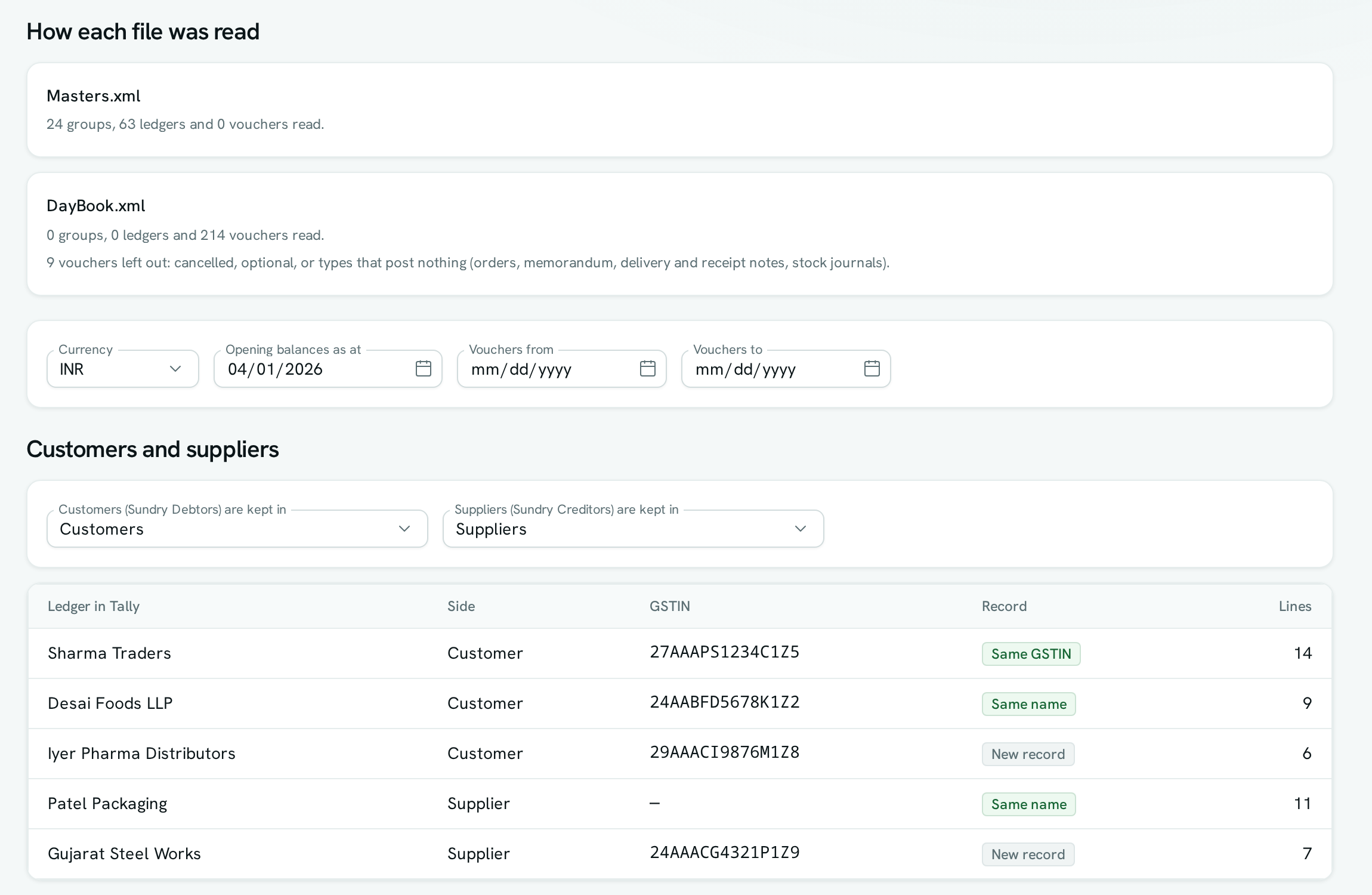
- Check How each file was read — it says how many groups, ledgers and vouchers were found, and what was left out (cancelled and optional vouchers, orders, delivery notes and stock journals never post).
- Under Customers and suppliers, pick the record type your customers are kept in and the one your suppliers are kept in. Every Sundry Debtor and Sundry Creditor is matched to a record by GSTIN, then by name; the rest become new records.
- Under Accounts, check how each ledger maps to your chart. Ledgers come in with the kind their Tally group gives them, and existing accounts with the same code or name are reused.
- If the day book is big, set Vouchers from and Vouchers to and import one quarter at a time.
- Tick I’ve checked how all accounts are mapped, choose Import followed by the number of entries, and confirm Import. Everything is posted, or nothing is.
Import again without double posting
Every voucher remembers where it came from. If you export the same Day Book again — say, with a few more weeks in it — and import it, vouchers already in your books show Imported before — skipped and only the new ones are posted.
Download the CA pack
- Open Accounting → Reports and choose CA pack.
- Pick the period — the financial year is preselected.
- Choose Download pack to save the ZIP, or Save to Drive to keep it in the Accounting space in Drive, ready to share. The page shows the file name.
The pack holds the trial balance (opening, period and closing), profit and loss, balance sheet, Schedule III (CSV and PDF), the day book, a ledger for every account with running balances, receivables and payables ageing, GSTR-1 and GSTR-3B for each month with GST invoices, and one Excel workbook with the main tables.
Good to know
- Up to 5,000 vouchers import at a time — use Vouchers from and Vouchers to for larger books.
- Opening balances are dated the day your Tally books begin. If Tally shows a "Difference in opening balances", it goes to Opening Balance Equity — correct it there after the import.
- Entries dated inside a locked period are refused and marked on their row.
- Cost centres, bill-by-bill references and stock items are not brought over from Tally — only the ledgers and their postings.
- Customer and supplier balances post to your trade receivables and payables accounts with the party on each line, so ageing works from day one.
- The CA pack covers one currency at a time and up to 50,000 entries — export a shorter period if your books are larger.
- Reports in the pack show only what you can see: accounts or names hidden from you stay hidden in the pack.
- Imported entries can't be edited. Fix a mistake by reversing the entry in the journal.