Reports
Run profit and loss, balance sheet and trial balance reports and export them as CSV.
Three reports come from your posted entries. Each is a link you can share.
Before you start: you need Can view under Accounting ledger. Reports read one currency at a time, so use the Currency selector if you have several.
Steps
- Open Accounting › Reports.
- Pick Profit & loss, Balance sheet or Trial balance.
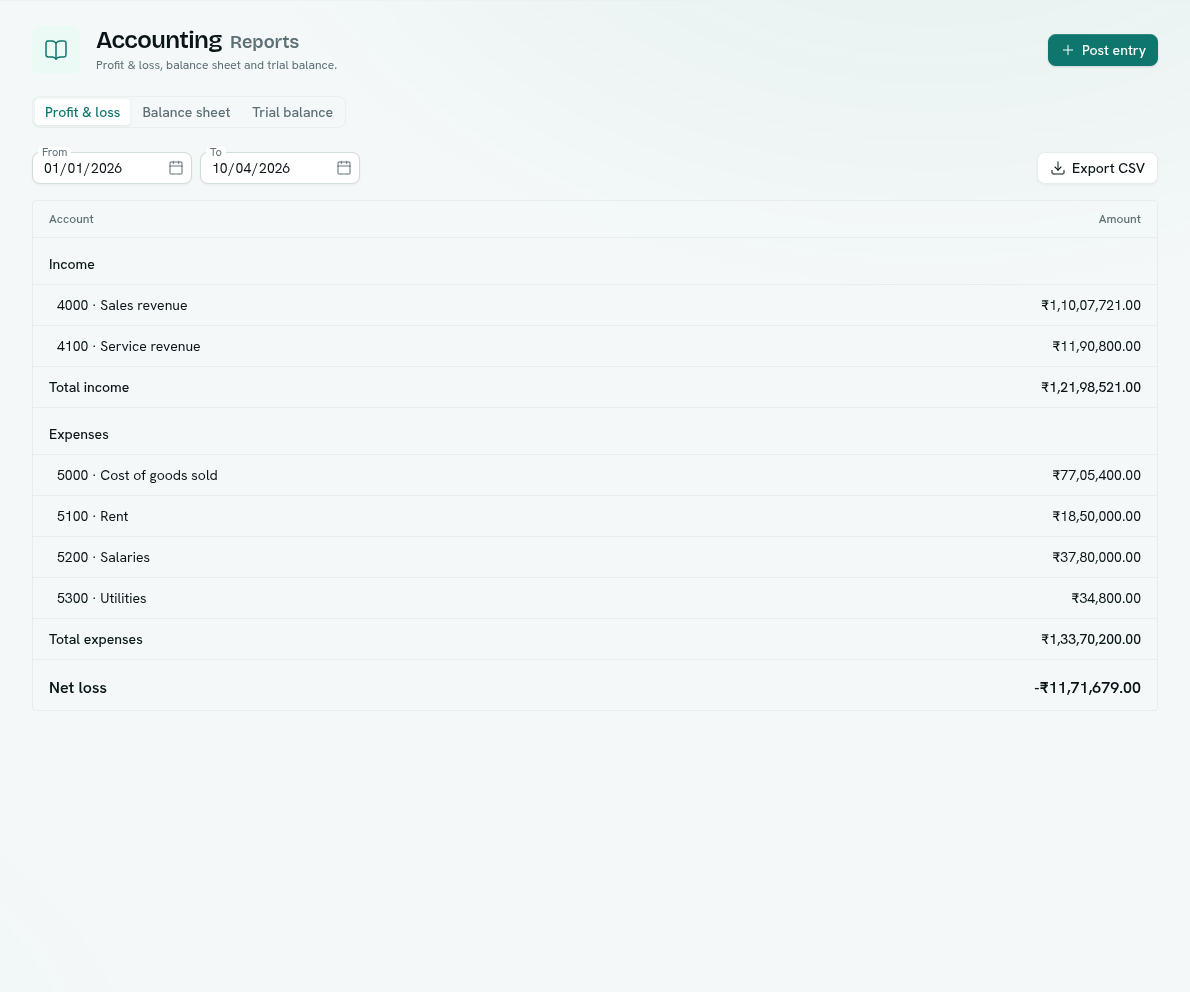
- Set the dates and read the table.
- Click Export CSV to download it.
Profit & loss
- Set From (starts at 1 January this year) and To (today).
- Shows Income, Expenses and Net profit (or Net loss).
- CSV file:
profit-loss-<currency>-<from>-<to>.csv, with columns Section, Code, Account, Amount.
Balance sheet
- Set As of (today).
- Shows Assets, Liabilities, Equity and Profit not yet closed to equity, then Liabilities + equity.
- A badge says Balances when assets equal liabilities plus equity plus that profit line, otherwise Does not balance.
- CSV file:
balance-sheet-<currency>-<date>.csv.
Trial balance
- Lists every account's total Debit, Credit and Balance to date. The totals row shows In balance when debits equal credits.
- It has no date filter. It fills in as entries are posted.
- CSV columns: Code, Account, Kind, Debit, Credit, Balance.
Tips
- Accounts without a kind are listed in a yellow warning ("N accounts have postings but no kind") and left out of the profit and loss and balance sheet. Give them a kind in the chart of accounts.
- Amounts keep their exact decimals in the CSV.
- The report you open is in the page address, such as
/apps/accounting/reports/balance-sheet, so it can be bookmarked.
Troubleshooting
"The report could not be loaded" Click Retry.
Balance sheet says Does not balance Usually an unclassified account. Fix the kind and re-run.