Write a contract
Start a contract from a template, a blank page or an Ask Axis draft, fill its blanks, and preview the PDF that will be signed.
Contracts you write in Axis live as editable text until you send them. When you send one for signature, Axis turns the text into a PDF and freezes it — that PDF is what everyone signs.
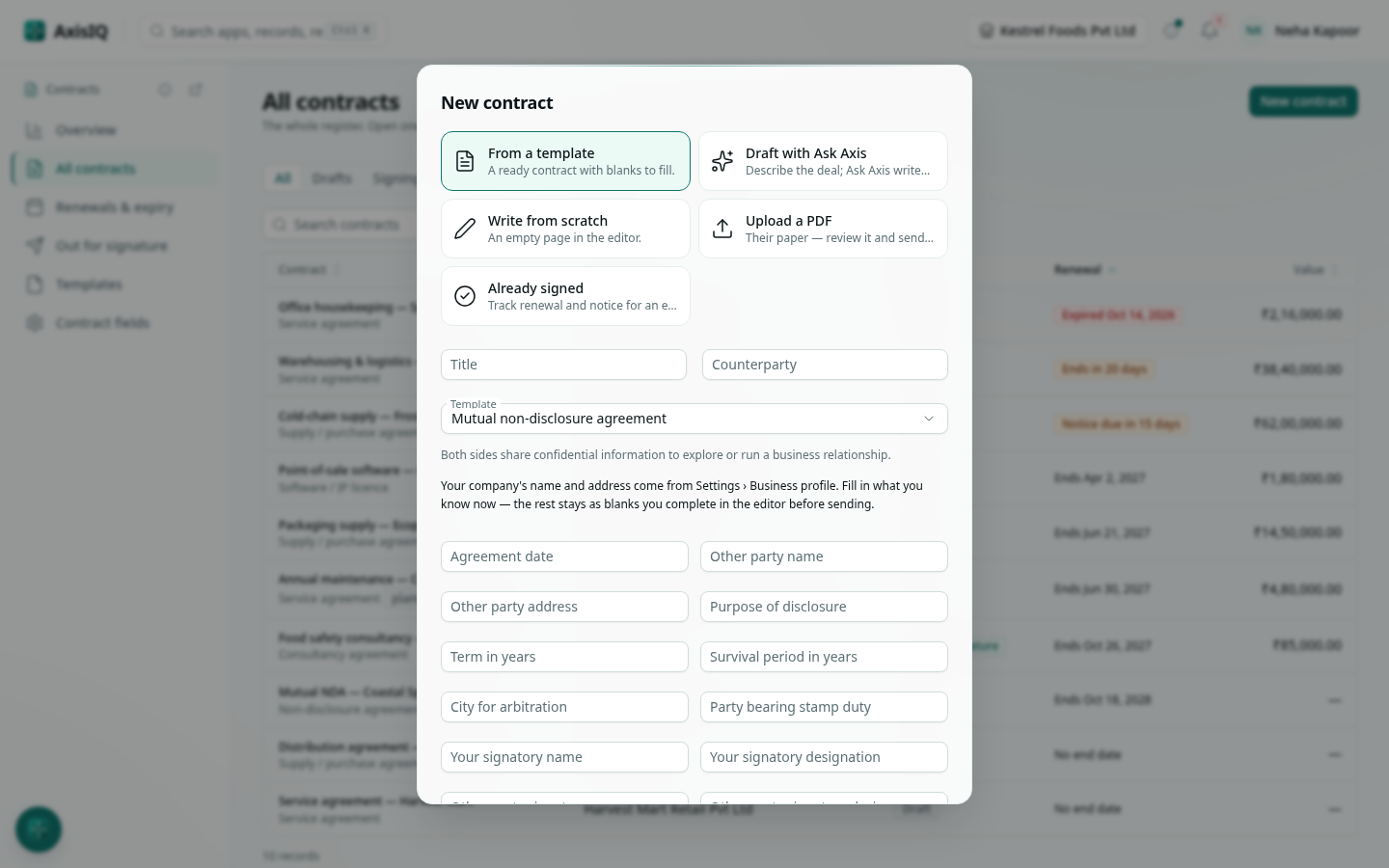
Start a contract
- Open Contracts and click New contract.
- Choose how to start:
- From a template — a ready contract with blanks to fill. Built-in templates cover a mutual NDA, service agreement, consultancy agreement, supply agreement, employment offer and a software licence / SaaS subscription. Your own templates appear in the same list.
- Draft with Ask Axis — describe the deal in a few sentences; Ask Axis writes the contract. See below.
- Write from scratch — an empty page in the editor.
- Upload a PDF — the other side's paper; you can review it and send it for signature.
- Already signed — a contract signed elsewhere that you want to track. See Register, renewals and reminders.
- Enter a Title and the Counterparty.
- For a template, fill in what you know now. Your company's name, address and GSTIN come from Settings › Business profile, so you don't type them.
- Click Create. The contract opens on its Draft tab.
Fill the blanks
A template's blanks look like {{Client name}} or {{Monthly fee}}. Every blank still in the text is listed above the editor; replace each one with the real value. A contract can't be sent while any blank remains.
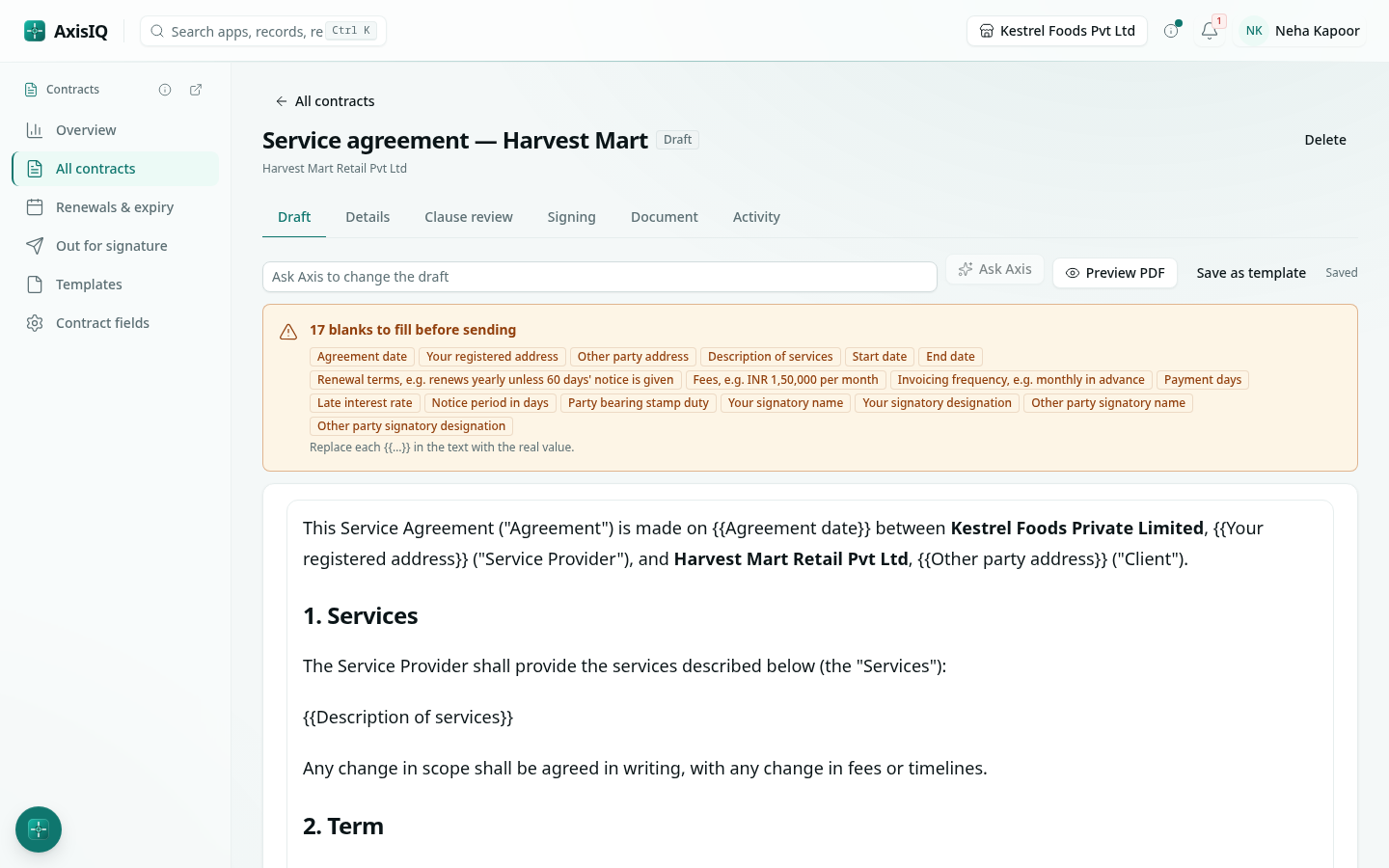
The draft saves itself as you pause. Click Preview PDF to see it exactly as it will be signed, and Save as template to reuse it.
Draft with Ask Axis
- In New contract, choose Draft with Ask Axis.
- Describe the deal: who the parties are, what is supplied, price and payment, how long, notice, and anything special. Optionally pick a template to start from.
- Click Ask Axis to draft it. Ask Axis opens and writes the contract in Contracts, section by section, while you keep working. It looks up what it can — your business profile, the counterparty's record — and leaves a blank for any fact it wasn't given.
- When it finishes, it replies with a link to the draft and the blanks still to fill.
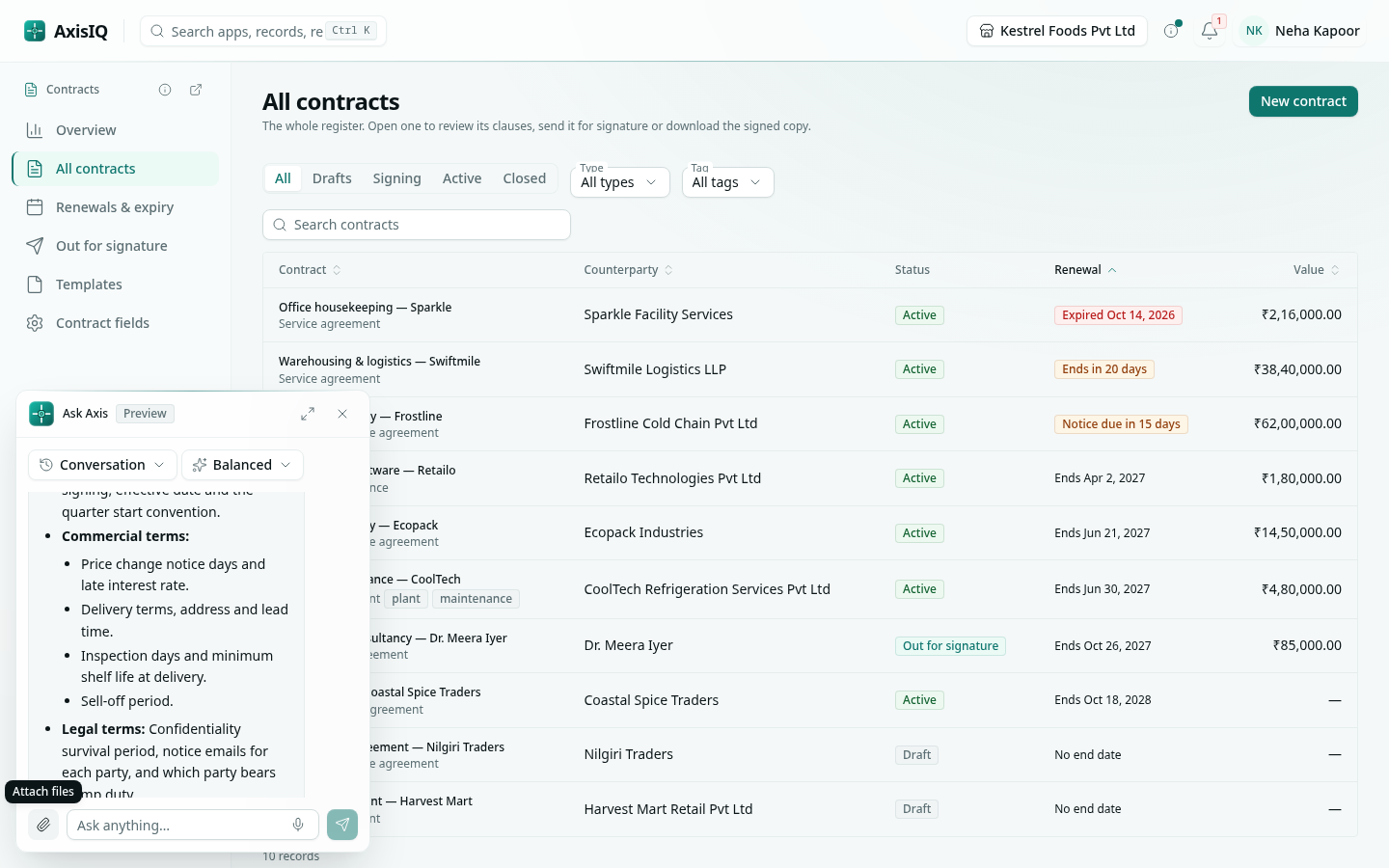
Ask Axis drafts the way a careful in-house counsel would: GST and payment terms, a liability cap, mutual confidentiality, termination for convenience and for breach, governing law India with arbitration, an electronic-execution clause and signature blocks. It never adds a non-compete that runs after the relationship ends, which is void under Section 27 of the Indian Contract Act.
Change a draft with Ask Axis
In the Draft tab, type the change in Ask Axis to change the draft — for example "make payment 45 days and add a 5% annual price cap" — and click Ask Axis. It edits only the passages concerned and the editor shows the result when it is done. You can also ask from anywhere: "In the Nilgiri distribution agreement, add a clause on returns of damaged stock".
Tip: Ask Axis can also send a contract for signature for you. It always asks you to confirm before any email goes out.
Templates
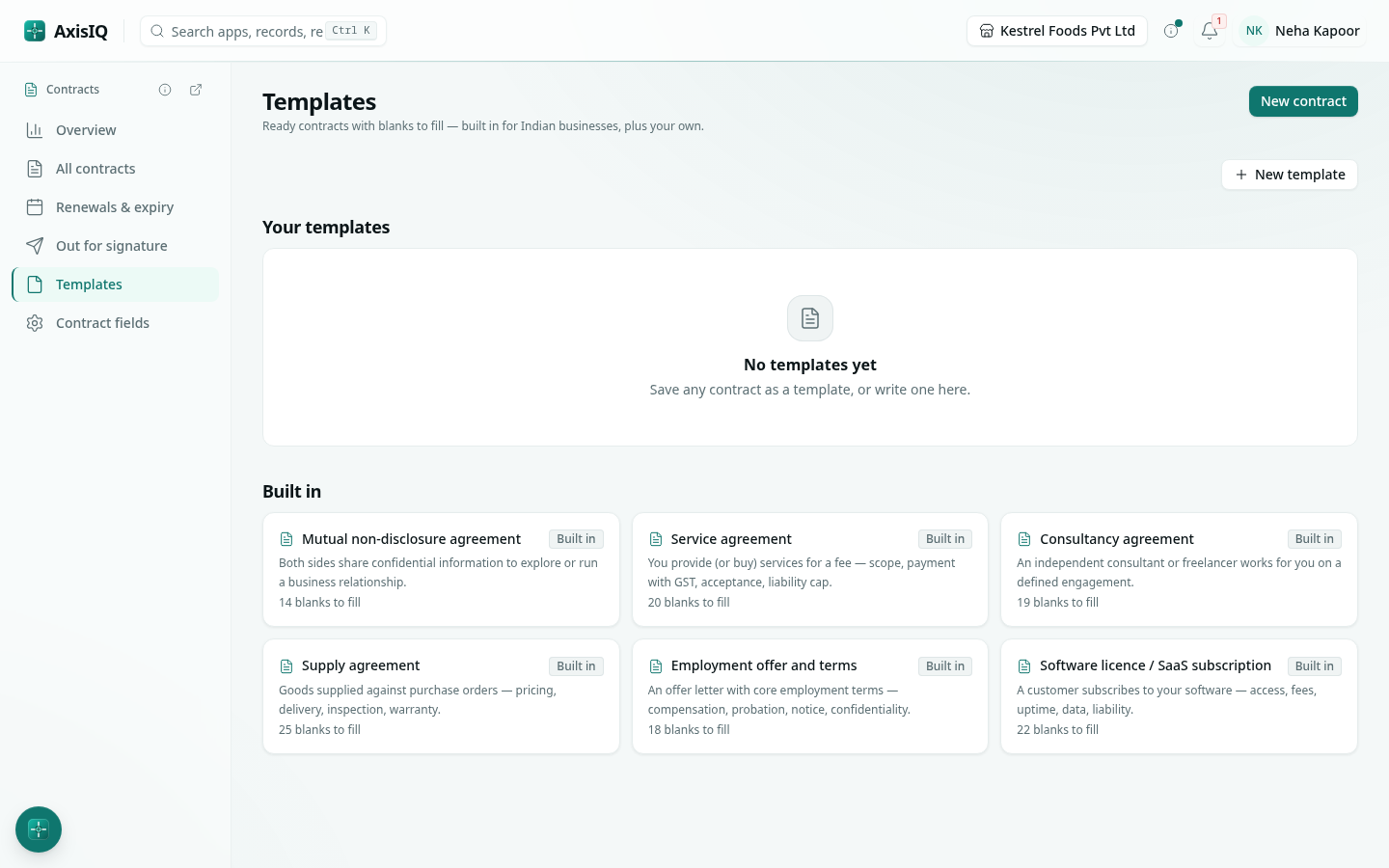
Templates in the rail lists the built-in templates and your own. Built-in templates are read-only — open one and click Save a copy to change it. To make your own, click New template or use Save as template on any draft. Write blanks as {{Label}}; the same label used twice is filled once.
Good to know
- The templates are sensible starting points written for Indian businesses, not legal advice. Run a clause review and have counsel check anything high-risk.
- Once a contract is sent, its text can't change. To change a sent contract, withdraw it, then start a new draft.
- The PDF is typeset by Axis with your headings, lists and tables; images in the text are not printed.