Build a form
Create a form from a template, from AI suggestions or from scratch, add and order questions, and set what happens after submitting.
You will create a form, shape its questions, and save it as a draft.
Before you start: you need Full control on the Forms app (the Roles page). To suggest questions with AI you need that level for all forms, not just one.
Create the form
- Open Forms.
- Click New form. If you have none yet, click Create a form.
- Enter a Name (required, up to 200 characters). The web name (URL key) is made from it. You can change it later. The Description is optional and appears above the questions.
- Choose Start from:
- Blank form starts with one required question, Name.
- Contact us, Feedback, Job application or Event signup start with ready-made questions. A preview shows them.
- Describe it and let AI suggest the questions. Describe the form under What should this form ask? and click Suggest questions. Use Try again for a new attempt.
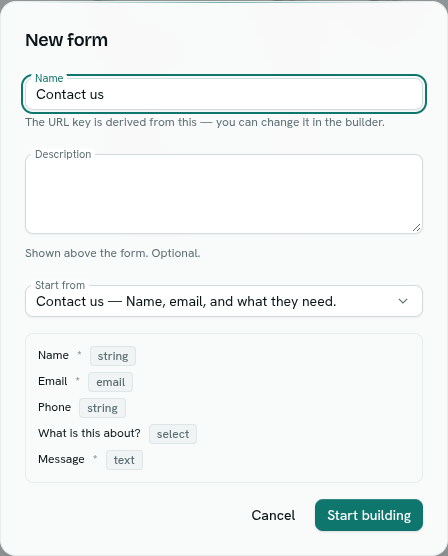
- Click Start building. The builder opens. The form is a Draft.
Shape the questions
The builder's Build tab has these cards. A Live preview on the right shows the form as people will see it.
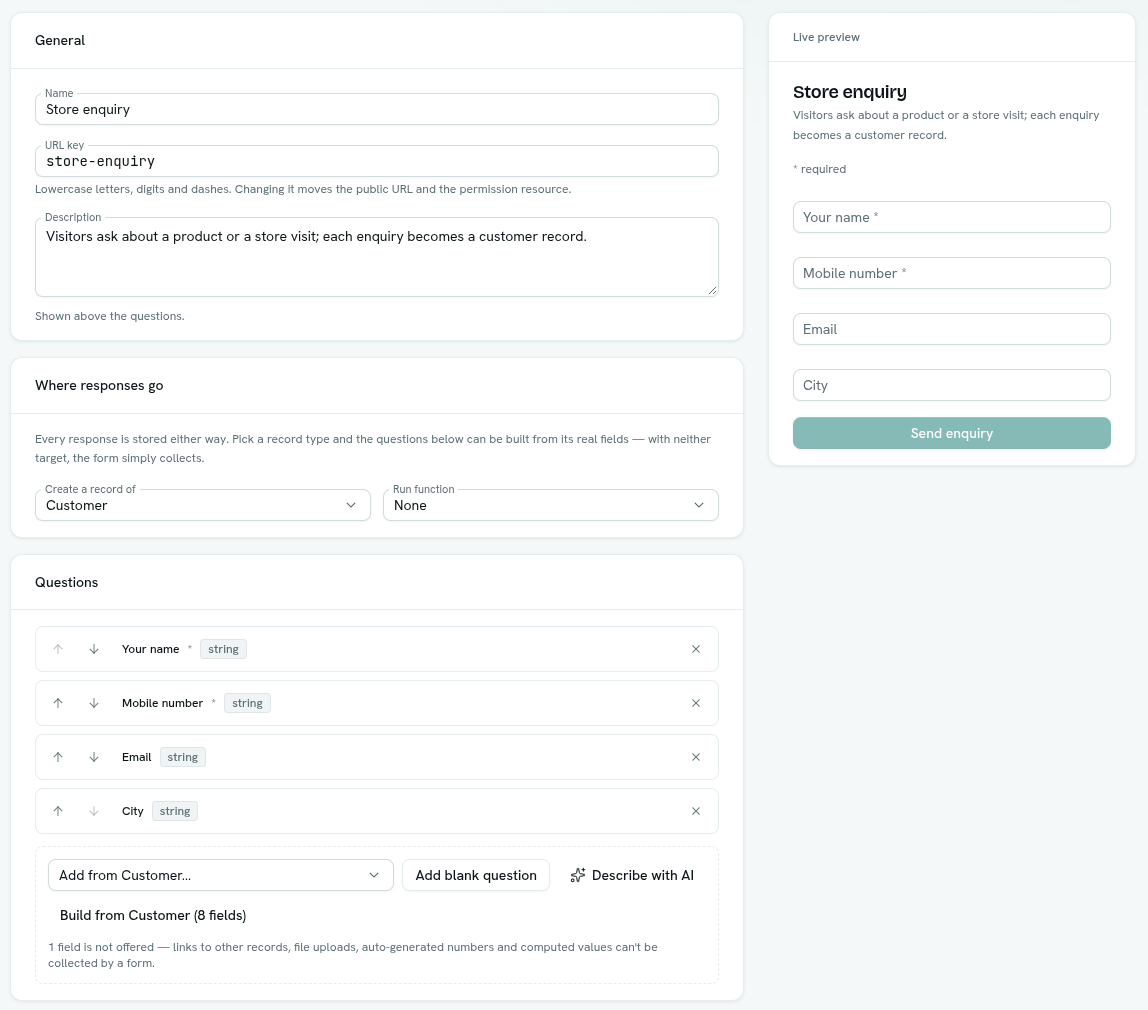
- General — Name, URL key and Description. The URL key allows lowercase letters, digits and dashes. Changing it moves the public link and the permissions that point at it.
- Where responses go — see Where responses go.
- Questions — the list of questions.
- After submitting — Submit button label (default "Submit"), Success message (default "Thanks — we've got it.") and Redirect URL. If you set a redirect, the public page sends people there instead of showing the message. It must be a full web address starting with
http://orhttps://.
Add questions
Under Questions:
- Add blank question adds one and opens it.
- If you picked a record type, the Add from … menu adds one of that type's fields, and Build from (N fields) adds all that are not on the form yet.
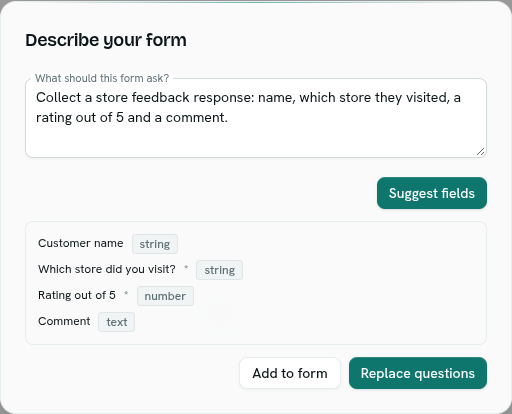
- Describe with AI opens Describe your form. Type what the form should ask, click Suggest fields, check the list, then click Add to form or Replace questions. Nothing is saved until you click Save.
A form needs at least one question and can have up to 60.
Edit a question
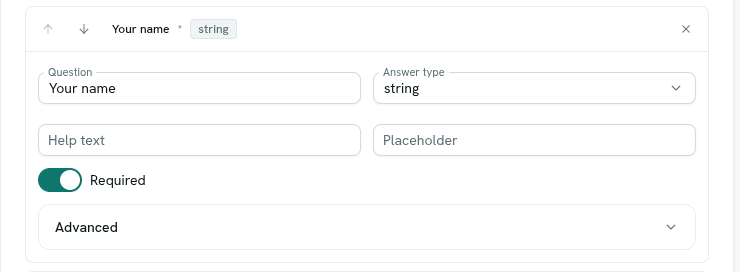
Click a question row to open it.
| Setting | Notes |
|---|---|
| Question | The label people see. |
| Answer type | See Field types. |
| Options | For select and multiselect. One option per line. At least one is required. |
| Help text | A small hint under the question. |
| Placeholder | Greyed example text in the box. |
| Required | An asterisk marks required questions. People cannot submit without an answer. |
| Advanced › Field key | The question's internal name. It is made from the question text until you change it. It must match a field's key on the record type when the form creates records. |
Use the up and down arrows on a row to reorder. Use the x to remove a question.
If the form creates records and a question's key is not a field on that type, the row shows a not on badge and an alert explains that responses will be saved but the record will not be created.
Save
Click Save. The button is disabled until you make a change. A Live form with changes you have not saved shows unsaved edits. Saved changes to a live form reach visitors within about a minute.
Other things you can do
- Duplicate a form from the list. The copy is named " (copy)" and starts as a draft.
- Right-click a form (or use ⋯) for Open, Open in new tab, Duplicate, Publish / Unpublish, Copy public link and Delete.
- Delete form asks you to confirm. It deletes the responses too. This cannot be undone.
Tips
- Name the question for people, not for the database. The key follows the text unless you edit it.
- Keep forms short. People finish short forms.
- Preview the form on the right while you edit. It is a real form, but its button is disabled.
Troubleshooting
a form needs at least one field / too many fields (max 60) Add a question, or remove some.
duplicate field key Two questions share a key. Change one under Advanced.
select fields need at least one option (or multiselect fields need at least one option) Add options, one per line.
redirect URL must be an absolute http(s) URL
Use a full address such as https://example.com/thank-you.
that form key is already in use Another form has this URL key. Choose a different one.