Publish and share a form
Publish a form, open it to the public, share the link or embed it on your website, pre-fill answers and understand spam protection.
You will make a form live, give it a public address, and put it on your website.
Before you start: you need Full control on the Forms app. For a form that anyone on the internet can fill in, someone who can edit roles must also open it to the public (step 5).
Steps
- Open the form and check it. The status next to the name reads Draft — not public.
- Click Publish. If you have unsaved changes they are saved first. You see "Form published" and the status becomes Live.
- Open the Share tab.
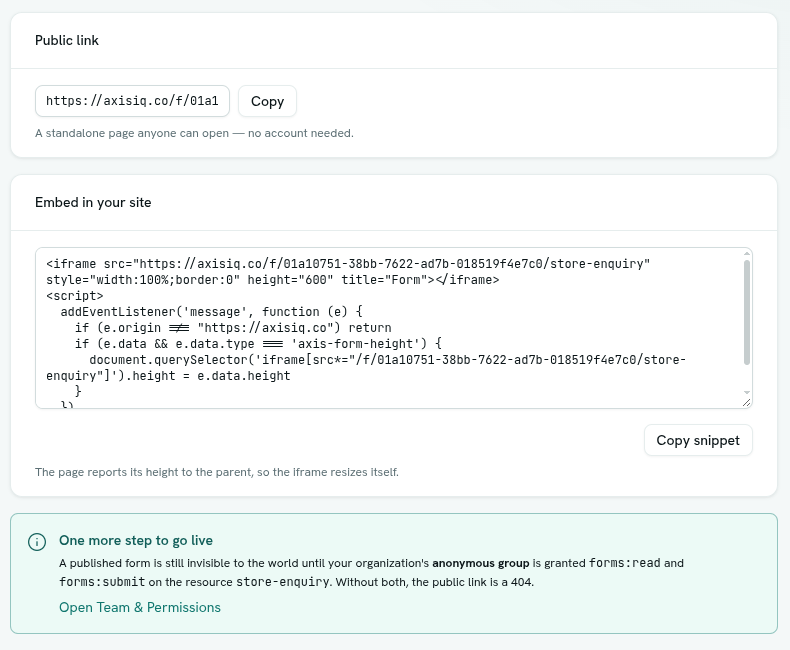
- Copy what you need:
- Public link — a standalone page anyone can open, no account needed. Click Copy.
- Embed in your site — click Copy snippet and paste it into your web page. It is a small frame plus a few lines that resize the frame to fit the form.
- Open it to the public. Go to Team & Permissions (the Share tab has a link). Edit the role that is marked "This role is for people who are not signed in" (the Roles list shows it as Public visitors). On Public forms, choose Open to anyone, and limit it to this form's key. Save. See Team and permissions.
- Open the public link in a private window to confirm it works.
Important: a live form is still invisible to the world until step 5. Without it, the public link shows "This form isn't available". Signed-in team members with permission can still fill the form in inside Axis.
What visitors see
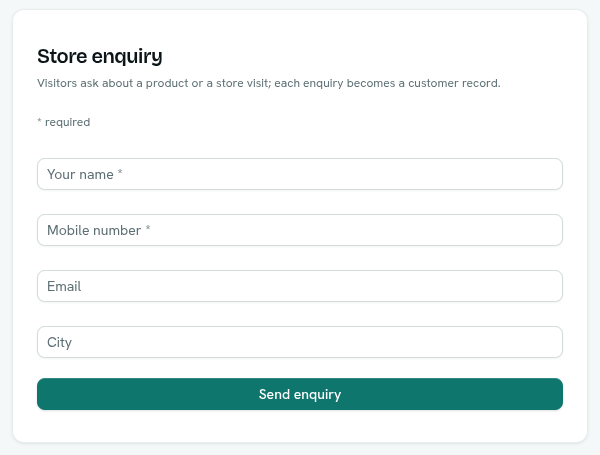
- The form name and description, then the questions, a note "* required" when any are required, and your Submit button label.
- After submitting they see "Thank you" with your Success message. If you set a Redirect URL, they are sent there instead.
- Wrong answers show a message naming the question, and they can fix it and resubmit.
- If the form is a draft, was unpublished, was deleted, or the public role has no access, they see "This form isn't available". All of these look the same on purpose.
Edits you save to a live form reach visitors within about a minute.
Pre-fill answers from a link
Add question keys to the public link. For example:
https://axisiq.co/f/<workspace id>/contact-us?email=asha@example.com&topic=Sales
- Only questions on the form can be pre-filled. Other names are ignored.
- For a bool question,
trueor1ticks the box. - For a multiselect question, repeat the name or separate values with commas:
dietary=Vegan,Halal. - Use the question's key, which you can see under Advanced › Field key.
Spam protection
- The public page has a hidden extra box that people never see. Scripts that fill every box fill it too. When it is filled, the submission is dropped, and the script is still told it worked, so it does not retry.
- Each internet address can submit up to 30 times a minute. More gets "RATE_LIMITED" (429).
- This stops simple scripts. It does not stop a person who studies your form on purpose.
Unpublish, change the key, delete
- Unpublish stops the form accepting answers. A visitor who already has the page open may still see it for up to a minute. Responses are kept. Publish again to reopen it.
- Changing the URL key changes the public link and the permission target. Save first, then copy the new link. The Share tab warns you "Save the form first — these links use the saved URL key."
- Delete form removes the form and its responses.
Tips
- Embed on your own pages for a branded experience. The form has no Axis logo or menus.
- After changing a published form's key, update every page that embeds it, and the public role's form grant.
Troubleshooting
This form isn't available Check the form is Live, the link is correct, and the public role has Open to anyone on Public forms for this form.
This form is a draft The Share tab shows "Nobody can reach these links until you publish it."