Add a form to your website
Put one of your workspace forms on a site page — contact, enquiry, order or sign-up — and every answer lands in Forms.
You can place any form you built in the Forms app on a page of your website. Visitors fill it in right on your page, and their answers arrive in the form's responses — and in its records, when the form files into a record type — exactly as if they had used the form's own link.
Before you start: you need Can edit drafts on Websites for the site (on a live branch that publishes automatically, Can publish). Forms must be switched on and the form must already exist. To publish a draft form from the site editor you also need Full control on Forms, and to open it to visitors you need permission to edit roles.
Insert a form in the site editor
- Open Sites and choose your site.
- In Files, open the page where the form should appear — for example
contact.html, or the page component in a React site such assrc/pages/Contact.jsx. - Click Insert form above the editor.
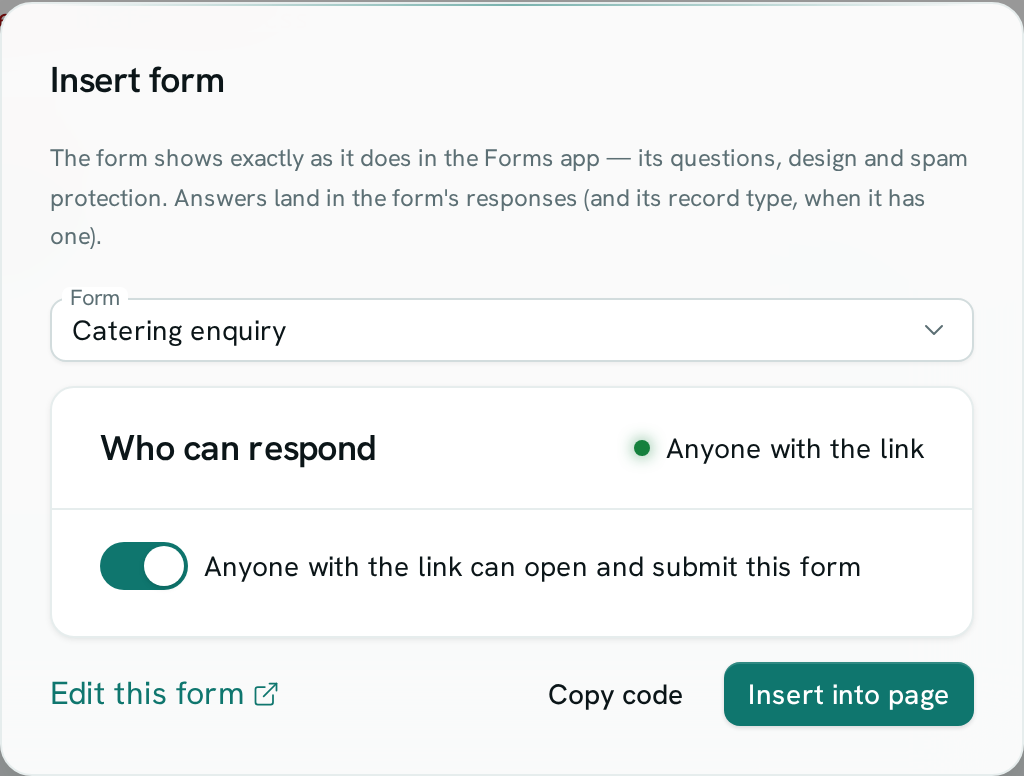
- Choose the form under Form.
- If the form is a draft, click Publish form. Under Who can respond, turn on Anyone with the link can open and submit this form — without permission to edit roles you only see its state, and someone else has to switch it on.
- Click Insert into page (HTML pages) or Add to page (React components).
- On an HTML page, the form is placed at the end of the page's main content, or at the end of the page when it has no main section. You can move it anywhere in the file.
- In a React component, an
AxisFormfile is added tosrc/componentsand the code to use it (an import and anAxisFormtag) is copied. Paste it where the form should appear in your page.
- Write a short description of the change and click Save (or Save & publish on your live branch when it publishes automatically).
The preview beside the editor shows the form once the save has finished building.
Ask Axis to add it
Click Build with Ask Axis and ask in your own words — for example "add our Catering enquiry form to the contact page". Ask Axis finds the form, makes sure it is published and open to visitors, places it on the page on a separate branch for you to review. It never puts changes live until you approve publishing.
Good to know
- The form looks and behaves on your site exactly as in the Forms app: its questions, steps, show-if logic, design, file uploads and spam protection all apply. Change the form in Forms and the site shows the change within about a minute — no site edit needed.
- The form grows and shrinks to fit its questions, so it never needs its own scroll bar.
- Anything in your page's address after
?(for example campaign tags) is passed to the form, so hidden questions can pick it up. - Visitors can only see a form that is published and open to anyone with the link. If a visitor sees "This form isn't available" in its place, check Who can respond on the form's Share tab.
- The form keeps its own colours and fonts from its Design tab; your site's stylesheet does not change it.
- The same block works on any website, not just sites hosted in Sites — click Copy code under Embed on your website on the form's Share tab. On a file that is neither an HTML page nor a React component, Insert form offers only Copy code.