Run a function on a schedule
Run a function every hour, every day, on weekdays or weekly from its own page, and pause or change each schedule.
Run a function on a repeating schedule — every hour, every morning, on weekdays — straight from the function's own page.
Before you start: each schedule is a flow, so adding one needs Full control on Automations on the Roles page, and seeing them needs Can view there. Without it the tab explains what is missing.
Add a schedule
- Open Functions and click the function.
- Open the Schedules tab.
- Under Add a schedule, pick how often it repeats: Every hour, Every day, Weekdays (Mon–Fri), Every week (then the day), or Custom (cron, UTC).
- Pick the time. Times are in your own time zone, shown at the top of the tab. For Every hour, only the minutes are used.
- Check Next runs under the form, then click Add schedule.
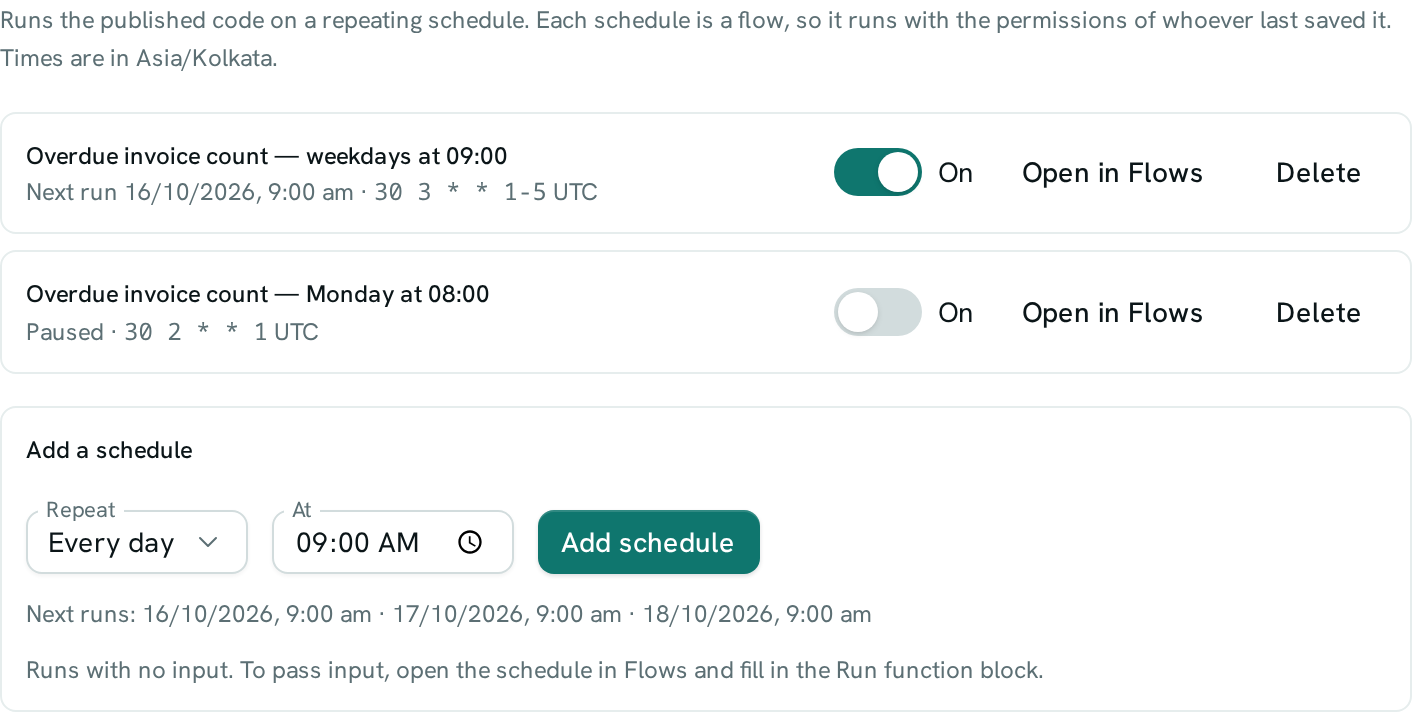
The schedule appears in the list with its next run and the timing it was saved with (in UTC).
What a schedule runs
- It always runs the published code, never a draft. See Drafts and versions.
- It runs with no input. To give the function input, click Open in Flows and fill in the Run function block.
- Each schedule is an ordinary flow named after the function and its timing. It runs with the permissions of whoever last saved it, and its runs show in Flows. See Who a flow runs as.
Pause, change or delete a schedule
- Pause: turn its switch off. Turn it on again to resume. Who it runs as does not change.
- Change the timing or input: click Open in Flows and edit the schedule trigger or the Run function block.
- Delete: click Delete and confirm. The flow moves to trash.
Custom timing
Custom (cron, UTC) takes a five-part cron expression read in UTC — for example 0 9 * * 1 is 9:00 UTC every Monday, which is 2:30 pm in India. The form says Not a valid cron expression until it can be read.
Good to know
- A time picked in your own zone is turned into UTC when you save. In places that move their clocks for daylight saving, the run time shifts by an hour after the change until you add the schedule again.
- A schedule made in Flows with a Schedule trigger and a Run function block for this function shows up here too.