Keep consent records
Record who agreed to hear from you, on which channel and for what — from forms, imports, unsubscribe links and STOP replies — and export it as evidence.
Consent records are a running log of who agreed to receive your messages, on which channel, for what purpose, and how you know — the proof data-protection rules and WhatsApp's business policy expect you to keep.
Before you start: seeing and exporting consent records needs Can view on the Messaging app on the Roles page. Recording consent by hand, importing a file, adding a consent question to a form and switching on consent checks for broadcasts need Full control.
How consent gets recorded
Every entry says which address it is for, the channel (email, SMS or WhatsApp), the purpose (Marketing or Transactional), whether consent was Agreed or Withdrawn, when, where it came from and the evidence. Entries are never edited or deleted — a change of mind is a new entry, so the full history is always there.
Axis records consent for you when:
- someone ticks a consent checkbox on one of your forms,
- someone clicks the unsubscribe link in your email and confirms,
- someone replies STOP to your SMS or WhatsApp messages.
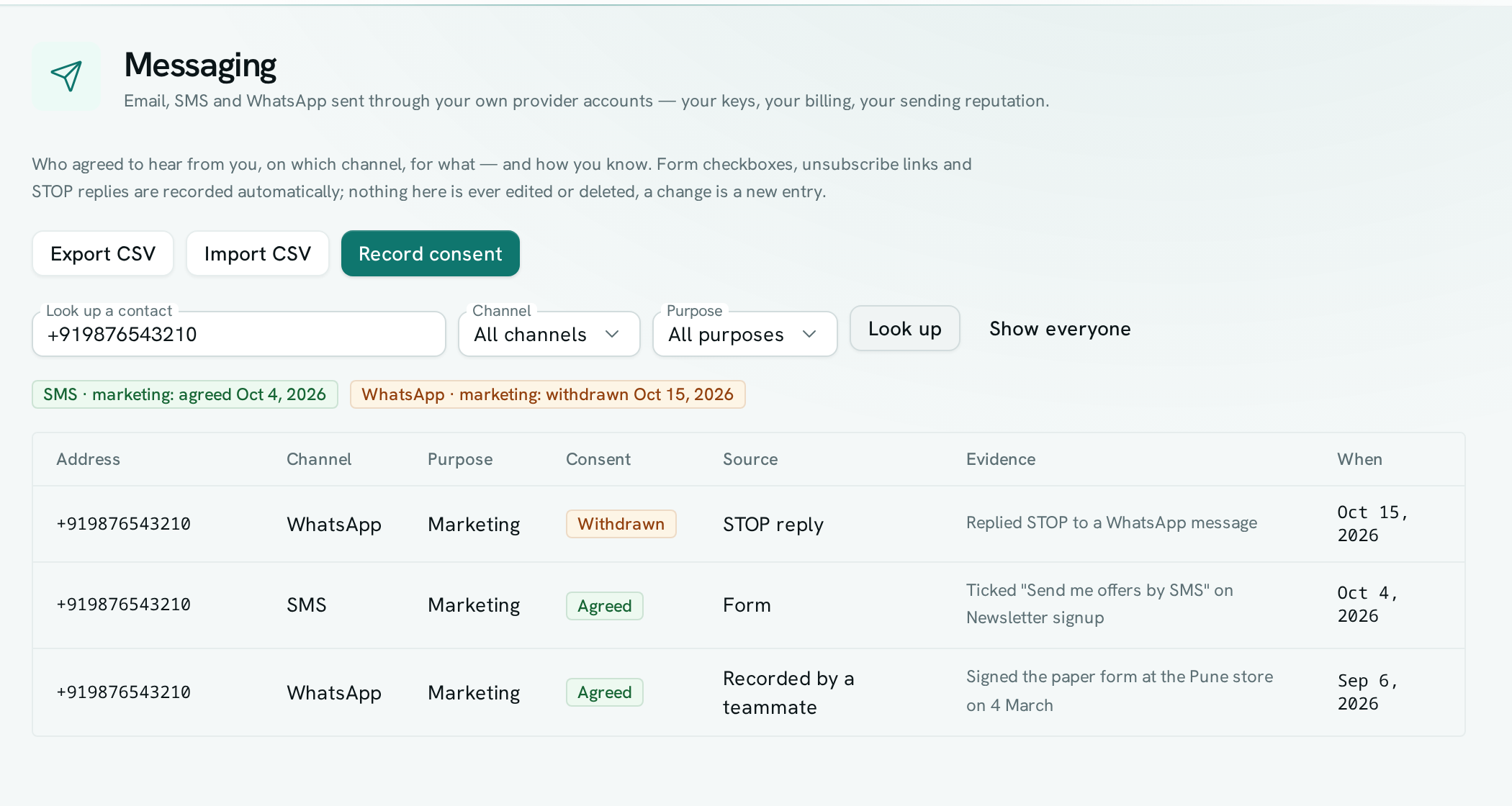
Look up one contact
- Open Messaging and choose Consent in the left rail.
- Type an email address or a phone number with its country code (for example +919876543210) in Look up a contact, then select Look up.
- The badges at the top show where the contact stands today for each channel and purpose. The table below lists every entry behind it, newest first.
- Select Show everyone to go back to the full list.
Add a consent checkbox to a form
- Open the form in Forms and make sure it asks for an email address or phone number.
- Below that question, add a Checkbox (yes / no) question — for example "Send me offers and news on WhatsApp".
- Open the question and switch on Record consent in Messaging when ticked.
- Choose the Channel, the Purpose, and in For the answer to pick the email or phone question it belongs to.
- Save the form.
Each response with the box ticked adds an Agreed entry, with the question, the form and the time as evidence. An unticked box records nothing.
Record consent by hand
- In Messaging → Consent, select Record consent.
- Pick the Channel, enter the Address, choose the Purpose, and under Consent choose Agreed or Withdrawn.
- Under How was it given?, describe the evidence — for example "Signed the paper form at the Pune store on 4 March".
- Select Record.
Import consent you already hold
- Prepare a CSV file with a header row containing
channel,address,purposeandaction, plus optionalevidenceandat(the date consent was given, like 2026-04-01). Useemail,smsorwhatsapp;marketingortransactional;grantedorwithdrawn. - In Messaging → Consent, select Import CSV and choose the file.
- If any line has a problem, nothing is imported and the lines to fix are listed. Correct them and import again.
Only send broadcasts to people who agreed
- Open Messaging → Channels.
- Open the row menu of a channel and choose Require consent for broadcasts. The channel shows Consent required.
- From now on, a broadcast through that channel reaches only people whose latest marketing consent is Agreed. Everyone else appears as suppressed in the broadcast's results, with the reason "no marketing consent on record".
Export the records
In Messaging → Consent, select Export CSV. The file contains the entries matching your current look-up and filters, in the same columns the import uses, plus where each entry came from and when it was written down.
Good to know
- The consent check applies to broadcasts only. One-off messages, scheduled messages and messages sent by flows or functions — such as invoice reminders — are not blocked by it. Unsubscribes and STOP replies still stop every message, as before.
- Unsubscribe links and STOP replies are recorded as a withdrawal for both marketing and transactional messages, because they stop all messages to that address.
- A new Agreed entry does not lift a suppression. If someone unsubscribed and later signs up again, remove them from Suppressions yourself.
- Phone numbers must include the country code, or they cannot be matched.
- STOP replies are recorded only when the shared inbox is on for your workspace.
- An import takes up to 10,000 rows at a time, and an export up to 50,000.