Passwords, watermarks and combined PDFs
Lock a generated PDF with a password such as the customer's PAN, stamp DRAFT or COPY across every page, and combine several PDFs into one file.
You can make a document open only with a password, stamp a word like DRAFT, COPY or CONFIDENTIAL across every page, and join several PDFs into one file. A password or watermark can be part of the template, so every document gets it, or you can add one each time you generate.
Before you start: to add a password or watermark to a template you need Full control of Document templates. To generate with a password or watermark you need Can generate. To combine PDFs you need Can view, plus permission to open the files in Drive and to add files to the folder where the result is saved.
Add a watermark to a template
- Open Templates and open the template.
- In the left panel, open Elements and find Watermark & password.
- Choose Watermark. It adds a line to the template that says CONFIDENTIAL.
- Change the word to the one you want, for example
DRAFTorCOPY. - Check the Preview. The word runs diagonally across every page in light grey, over the content.
- Press Save.
To change how strong the watermark looks, change opacity (from 0.05, very faint, to 1, solid). The default is 0.15.
Show the watermark only sometimes
Choose Watermark only when instead. It adds a watermark that shows DRAFT only while the record's status is Draft. Change status and Draft to your own field and value. When the condition isn't met, no watermark is printed.
Protect a template's documents with a password
- Open the template and go to Elements › Watermark & password.
- Choose Password from a field.
- Replace
panwith the field that holds the password, for example the customer's PAN or date of birth. Use Fields in the left panel to find the right one. - Press Save.
Every document generated from this template now opens only with that field's value. Tell the people who receive it which value to type.
The password must come from a field. A template can't contain a typed-in password, because it would be saved with the template for anyone who can edit it to read. If you want a password you choose yourself, add it when you generate (below).
Add a password or watermark when you generate
- Open the record and go to its Documents tab (or open the template and pick a record in the preview).
- Press the lock button next to the template, labelled Password or watermark.
- Type a Watermark (optional), a Password (optional), or both.
- Press Generate PDF. The file is saved to Drive and downloaded.
A password you type here applies to this file only, replaces the template's own password, and is never saved.
When you generate for several records at once, the same two boxes appear under Output. With A zip with one PDF per record, each file gets the password you type, or its own password from the template if you leave it blank. With One PDF with every document, the combined file has the one password you type.
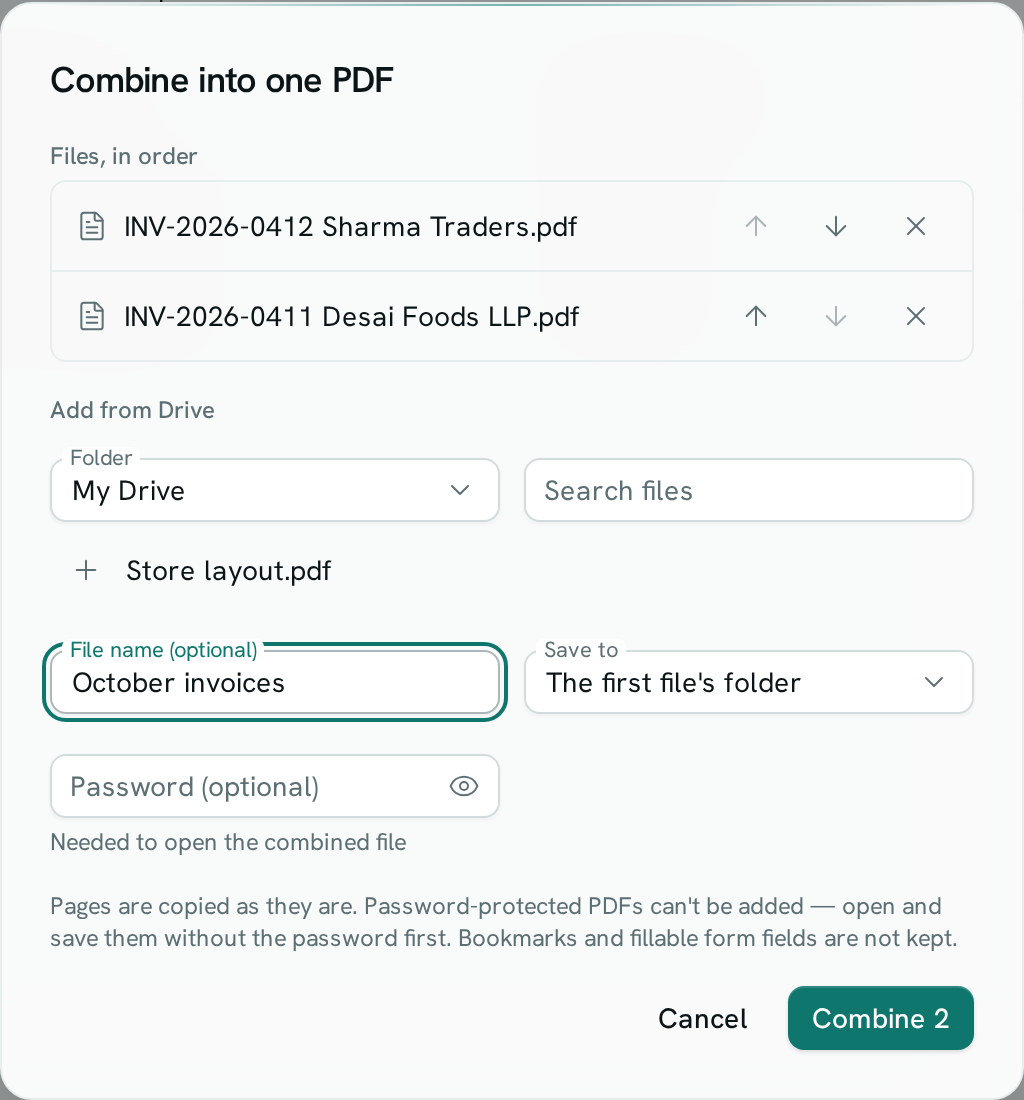
Combine PDFs into one file
- Open Templates and go to Generated.
- Tick the PDFs you want to combine, then press Combine 2 into one PDF (the number follows what you ticked). You can also press Combine PDFs without ticking anything.
- To add other PDFs, choose a Folder under Add from Drive and click the files. Use Search files to look inside subfolders.
- Put the files in order with the up and down arrows. Pages appear in this order.
- Optionally give the result a File name, choose where to Save to (the first file's folder is the default), and add a Password.
- Press Combine (the button shows how many files it will join). The new PDF is saved to Drive and downloaded.
To lock a single PDF you already have, add just that file, type a Password, and press Protect PDF.
Good to know
- The Preview in the template editor never asks for a password, so you can keep designing. The watermark does show in the preview.
- If the field a password comes from is empty on a record, that document isn't generated. You'll see a message saying the password came out empty, rather than getting an unprotected file. In a batch, that record is left out and listed.
- A password can be up to 127 characters. A watermark can be up to 40 characters.
- When you generate one combined PDF for several records whose template gives each a different password, type one password for the whole file. Otherwise the file isn't created.
- Password-protected PDFs can't be added to a combined file. Open them, save a copy without the password, then add that.
- Combining copies each page as it is. Bookmarks, fillable form fields and the table of contents of the original files aren't kept.
- You can combine up to 50 PDFs at a time, each up to 50 MB.
- A protected file opens in any common PDF reader, including Adobe Acrobat, Chrome, Edge, Firefox and Preview on Mac. Anyone with the password can print and copy from it.
- Functions can do the same:
axis.pdf.render(templateId, { record_id, password, watermark }).