GST bills and posting sales to your books
Issue GST tax invoices at the counter with CGST, SGST or IGST worked out per rate, and post every sale and return to Accounting automatically.
Turn on GST for a register and every sale becomes a numbered GST bill: each item's HSN/SAC and rate, the taxable value, and CGST + SGST (or IGST) per rate, printed on the receipt. Turn on ledger posting and each sale and return lands in your books as a journal entry, without anyone typing it in.
Before you start: you need Full control under In-store checkout on the Roles page. GST bills need your GSTIN in Settings → General → Business profile (or one entered on the register). Posting to the books needs the Accounting app to be switched on.
Turn on GST bills
- Open In-Store Checkout, right-click the register and choose Edit.
- Under GST, switch on Issue GST bills.
- Choose Prices are: Inclusive of GST (the shelf price is what the customer pays) or Before GST (added at the till).
- Enter a Default GST rate % and Default HSN/SAC for items that don't carry their own.
- Optionally set a Bill number prefix (1–3 letters or digits). Bills are numbered like
TIL/2627/00001, starting again each financial year. - If this store has its own registration, enter it in GSTIN for this counter. Leave it blank to use your business profile's GSTIN.
- Under Catalog, pick the HSN/SAC field and GST rate field so each item is billed at its own rate.
- Click Save.
If you're on the composition scheme, tick Composition scheme: no GST is charged and the receipt is a bill of supply.
Sell with GST
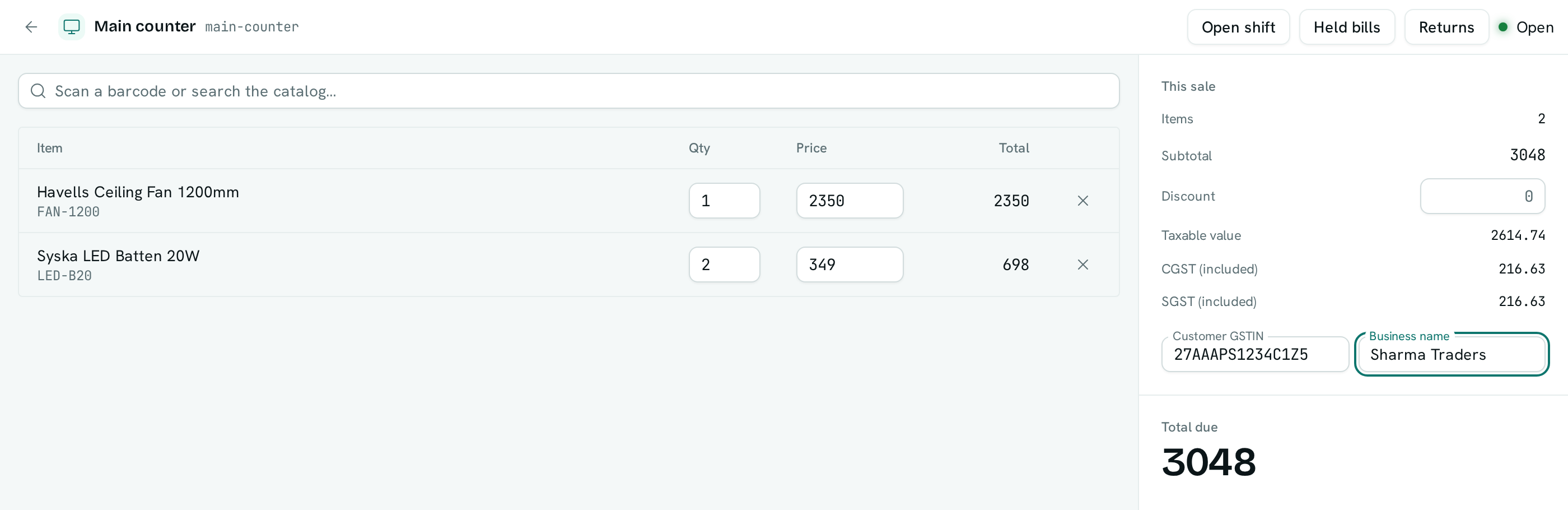
- Ring up the sale as usual. Under the subtotal the till shows the Taxable value and each tax (CGST, SGST or IGST). With inclusive prices these are marked "included".
- For a business customer, type their Customer GSTIN, then their Business name (it appears once a GSTIN is typed). The bill becomes a B2B tax invoice in their name. These boxes are not shown on a composition register.
- Take payment. The confirmation shows the bill number, and Print receipt prints a tax invoice with your GSTIN, the HSN and rate of each item, and the rate-wise CGST/SGST/IGST summary.
A return of a GST sale prints as a credit note with its own number, against the original bill. The tax given back always adds up to what was charged, even over several partial returns.
Post sales to your books
- Edit the register and, under Ledger, switch on Post sales and returns to the books.
- Pick the account for each payment method (Cash, Card, UPI, Loyalty points), for Sales, and for Output CGST, Output SGST and Output IGST. Anything you leave on Match from the chart is matched by name from your chart of accounts when you save.
- Click Save.
From then on each paid sale posts one entry: the money in to each payment account, the taxable value to Sales, and the tax to each output GST account. Returns post the reverse.
If a sale can't be posted (the period is locked, or an account isn't set), the sale itself is still recorded. In In-Store Checkout → Sales it shows Not posted; hover it to see why. Fix the cause, then click Post.
Good to know
- GST bills are in INR, in whole paise.
- The place of supply is the store's state, as for any sale handed over at the counter. A customer from another state still gets CGST + SGST.
- Registers with prices before GST need a connection to bill, because the tax is added to the total. Registers with inclusive prices keep selling offline; the bill is numbered and taxed when the sale syncs.
- Counter bills are included in your GSTR-1 and GSTR-3B under Accounting → Reports → GST returns. Composition bills are left out.
- E-invoices (IRN) aren't generated at the counter. For a large B2B sale that needs one, raise the invoice in Invoices & Payments.
- The receipt link sent to a customer doesn't show the buyer's GSTIN or name.
- Each register needs its own bill number prefix.