Print receipts on a thermal printer
Set a register to print 58 mm or 80 mm thermal receipts with your own header and footer, and reprint any past sale.
Each register can print receipts sized for a 58 mm or 80 mm thermal roll, with your shop's own lines at the top and bottom, and any past sale can be printed again from Sales.
Before you start: you need Full control under In-store checkout on the Roles page to change a register's receipt settings, and Can sell to print at the till. Can view is enough to reprint from Sales. The thermal printer must be installed on the till's computer or tablet so it shows up in the browser's print dialog.
Set up the receipt
- Open In-Store Checkout and go to Registers.
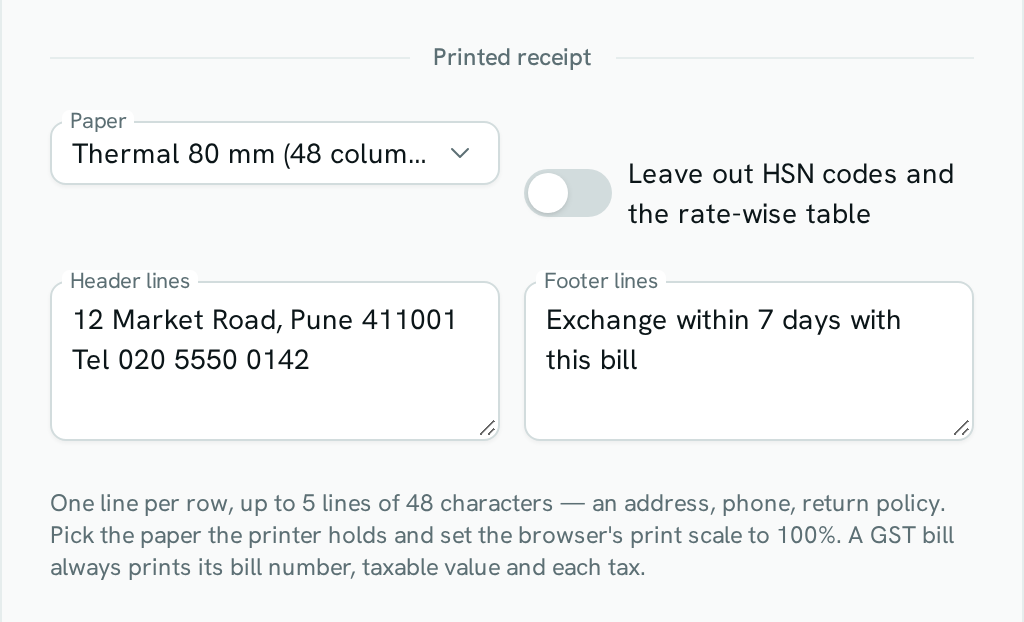
- Right-click the register (or use its ⋯ button), choose Edit, and scroll to Printed receipt.
- Under Paper, pick Thermal 80 mm (48 columns), Thermal 58 mm (32 columns), Standard slip, or Off — no printing at this till.
- Type your Header lines and Footer lines, one per row — for example your address and phone on top, and your return policy at the bottom.
- On a register that issues GST bills, turn on Leave out HSN codes and the rate-wise table if you want a shorter slip.
- Click Save.
Print after a sale
- Finish the sale at the till.
- Click Print receipt.
- In the print dialog, choose the thermal printer, set the scale to 100% (or "Actual size"), and print.
Reprint a past sale
- Open In-Store Checkout and go to Sales.
- Find the sale and click Print on its row (or right-click the row and choose Print receipt). For a return, the option is Print refund slip.
Good to know
- Up to 5 header lines and 5 footer lines, each up to 48 characters. On 58 mm paper, lines longer than 32 characters wrap.
- The receipt prints exactly what the sale recorded. A GST bill always shows its bill number, taxable value and each tax, even when HSN codes are left out.
- Printing goes through the browser's print dialog. The till does not send commands straight to the printer, so it can't open a cash drawer or cut the paper on its own — use your printer driver's auto-cut setting.
- Off removes the print button at the till. Sales can still be reprinted from Sales, on the standard slip.
- If nothing prints, check that your browser allows pop-ups for this site.