Shifts, cash drawer and Z-report
Open a shift with the float in the drawer, record cash going in and out, count the drawer when you close, and print the X-report or Z-report with sales by payment method and the over or short.
A shift is one cashier session on a register. You open it with the cash already in the drawer, every sale and refund on the register joins it, and when you close it you count the drawer. The register works out what should be there and shows whether you are over or short.
Before you start: you need permission to sell on the register to open, record cash in or out, and close a shift. Viewing shifts and reports needs permission to view registers. Opening, closing and recording cash need an internet connection.
Open a shift
- Open the register from In-Store Checkout.
- Press Open shift at the top of the register.
- Type the Opening float — the cash in the drawer before the first sale. Leave it blank if the drawer is empty.
- Press Open shift. The button at the top now reads Shift.
A register has one open shift at a time. If another till on the same register already opened one, you'll see a message and can use that shift instead.
Record cash in or out
Use this whenever cash leaves or enters the drawer without a sale.
- Press Shift at the top of the register.
- Under Cash in or out, pick the kind:
- Cash drop — cash moved from the drawer to the safe or the bank.
- Paid out — cash paid from the drawer, for example for milk or a courier.
- Paid in — cash added to the drawer, for example extra change.
- Type the Amount and a Reason. A reason is always required.
- Press Record. The movement appears in the list and the expected cash updates.
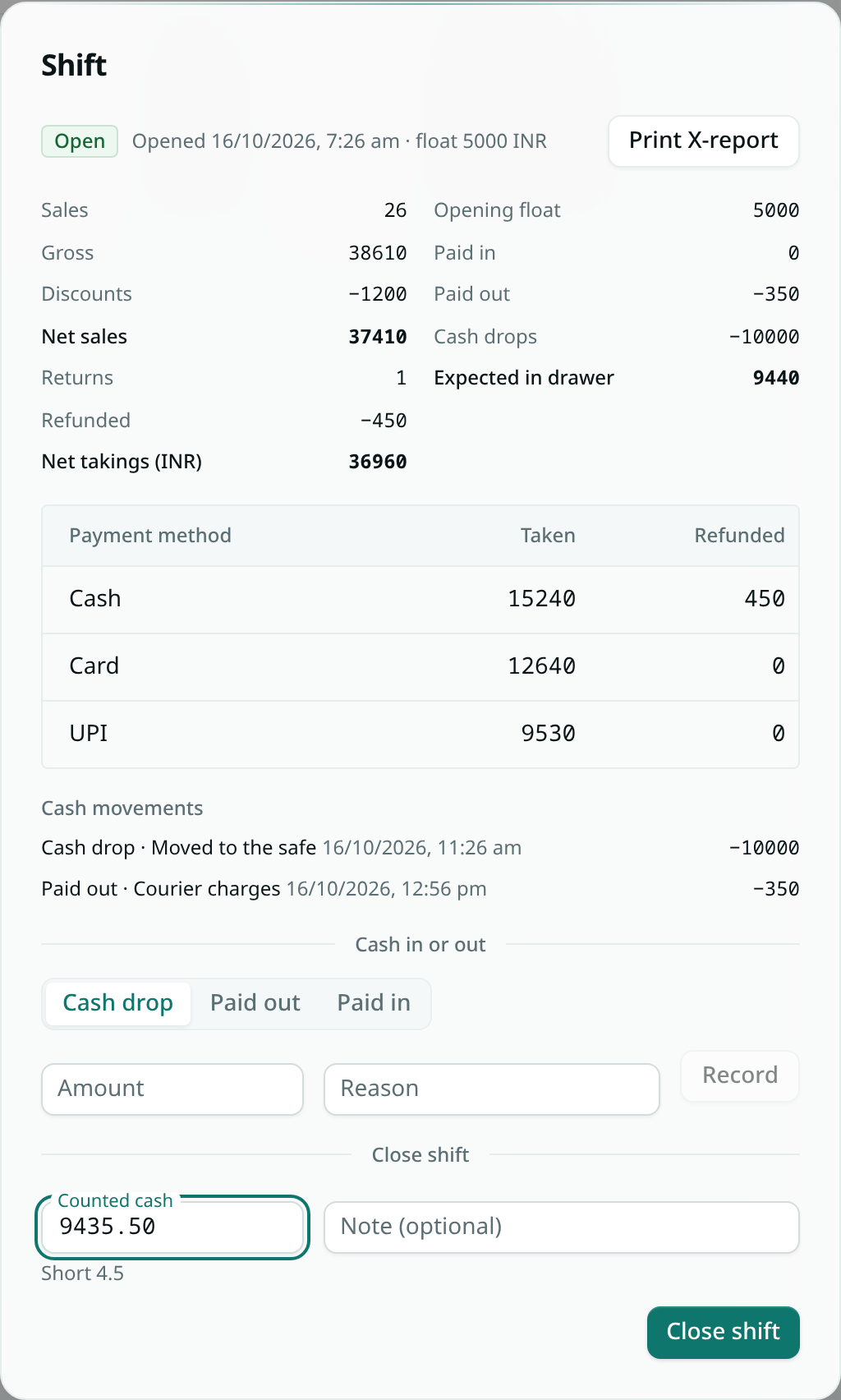
Check the X-report during the shift
Press Shift at any time to see the X-report: sales, discounts, returns, net takings, what each payment method (cash, card, UPI) took and refunded, cash movements and the cash that should be in the drawer right now. Press Print X-report for a paper copy. The shift stays open.
Close the shift
- Count every note and coin in the drawer.
- Press Shift, and under Close shift type the Counted cash. The box shows straight away whether you are over, short or balanced.
- Add a Note if something needs explaining, for example "short 10 — change given twice".
- Press Close shift and confirm. A closed shift can't be reopened.
- The window now shows the Z-report with the expected cash, the counted cash and the over or short. Press Print Z-report.
Expected cash is the opening float, plus cash taken on sales, minus cash refunded on returns, plus paid in, minus paid out and cash drops.
Require a shift before selling
- Go to In-Store Checkout, open the register's ⋯ menu and choose Edit.
- Under Cash drawer, tick Require an open shift to sell, then save. You need permission to manage registers.
On that register, Charge stays disabled until a shift is open, and the register shows a reminder with an Open shift button.
Find past shifts and Z-reports
- Go to In-Store Checkout › Shifts.
- Pick a register, or leave All registers. Each row shows when the shift opened and closed, the float, expected and counted cash, and whether the drawer was over, short or balanced.
- Click a row to see its report and print it. If a shift was left open, someone who can sell on that register can close it from here.
Good to know
- Sales and refunds join the shift that is open on the register at the moment they are rung up. Card and UPI amounts appear in the report but don't change the cash expected in the drawer.
- Sales made while the register was offline join the shift that was open at the time of the sale when they sync — even if that shift has since closed. They are added to that shift's report and listed as "synced after close"; the counted cash, expected cash and over or short recorded when the shift closed stay as they were.
- Offline sales are never refused for want of a shift. Sales made offline while no shift was open don't belong to any shift.
- UPI payments still waiting for the customer to pay are not in the totals; the report says how many are waiting.
- A shift counts money in your workspace's currency. Sales in another currency are listed as a count, not added to the totals.
- In-Store Checkout sales don't carry a tax breakdown, so the report shows totals without tax lines.
- The Shifts list shows the 50 most recent shifts.