Automate a work queue
Set simple when/then rules on a queue — move, tag, assign, comment and notify without writing code.
Automations let a queue look after itself: when something happens to an item, the queue does the next step for you — moves it, tags it, assigns it, adds a comment, updates the linked record or tells someone.
Before you start: the Automations view needs Can view on Automations on the Roles page, and creating, switching or deleting one needs Full control there. An automation can only do what the person who saved it is allowed to do.
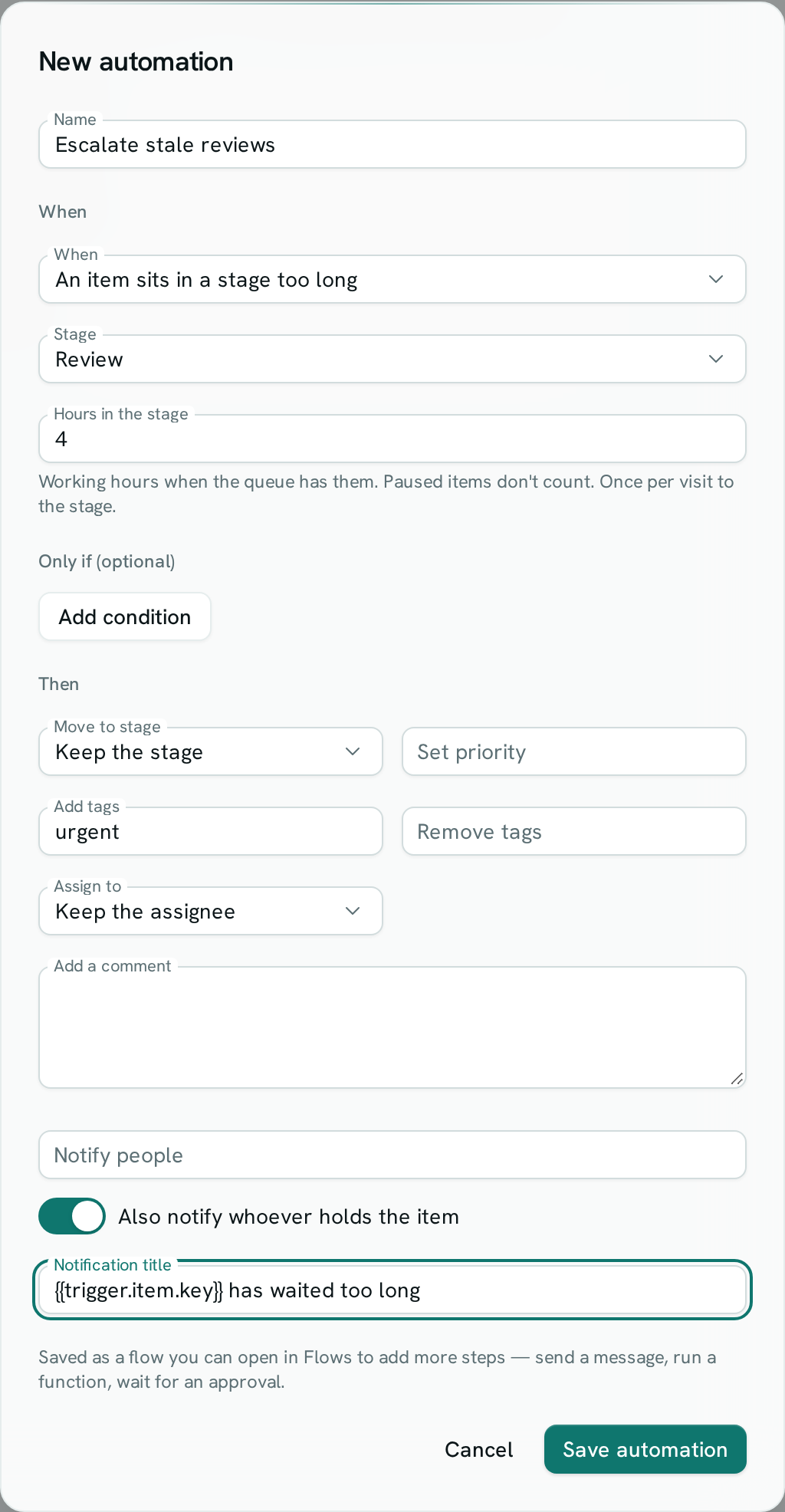
Create an automation
- Open Work Queues and pick your queue.
- Choose Automations in the view switcher above the board.
- Click New automation and give it a name, for example Escalate stale reviews.
- Under When, choose what starts it:
- An item is added or An item moves to a stage — optionally pick the Stage.
- An item sits in a stage too long — pick the Stage and the Hours in the stage.
- Priority, tags or assignee change — optionally narrow it with Which change.
- Someone picks up an item, Someone lets go of an item, Someone comments, or An item is escalated (late).
- Under Only if (optional), click Add condition to run the automation only for some items — for example Has tag vip, Priority at least 5, or a Record field of the linked record.
- Under Then, fill in what should happen. Leave anything blank to leave it as it is:
- Move to stage, Set priority, Add tags, Remove tags
- Assign to a person, Whoever did it, or Nobody (unassign)
- Add a comment
- Notify people, and switch on Also notify whoever holds the item to reach the assignee or the person working on it. Write a Notification title.
- Update the linked record — pick a Record field, type its new value and press Add (queues linked to a record type only).
- Click Save automation. It is switched on straight away.
Turn an automation off, change it or delete it
- Use the switch beside an automation to turn it off or on.
- Click Edit in Flows to open it in the flow builder, where you can add any other step — send a message, run a function, wait for an approval, ask Axis. If you can only view automations, the button says View.
- Click the bin icon to delete it. Items it already changed stay as they are.
Good to know
- An automation runs with the permissions of the person who last saved it. If that person leaves the workspace or loses access to the queue, it stops working.
- An automation never starts itself again with its own change, and a chain of automations triggering each other stops after three steps.
- "Sits in a stage too long" counts the queue's working hours when it has business hours set, ignores paused items, and fires once each time an item enters that stage. It is checked every few minutes, so it can fire up to about five minutes late.
- Automations run in the background a few seconds after the change. If a step can't be done (for example, the person can no longer be assigned), the run is marked failed and you get a failure alert.
- If the same change arrives twice, steps that are already true are skipped; a comment may appear twice.
- Each automation is a flow, so it also appears in Flows, with its run history.