Load a manifest and scan items
Paste the list of items you expect, then scan arrivals with a barcode scanner or by typing, and read each result.
Load the list of what you expect into the first stage, then scan each arrival. Every scan moves an item forward and tells you at once what happened.
Before you start: you need a queue (see Create a queue). Add items needs permission to add work (enqueue). Scan needs permission to move work (transition). See Queue permissions.
Load a manifest
- Open the queue.
- Optional: choose a name in Batch at the top to work on one batch, such as one delivery.
- Click Add items.
- In One key per line, paste your keys: barcodes, SKUs, order numbers, or anything you will scan later. Each line is one item. The box counts the keys for you.
- Choose the Stage. The default is Start stage.
- Type a Batch, for example
TRUCK-2026-07-21. It groups this load so the report can be read per delivery. - Click Add N items.
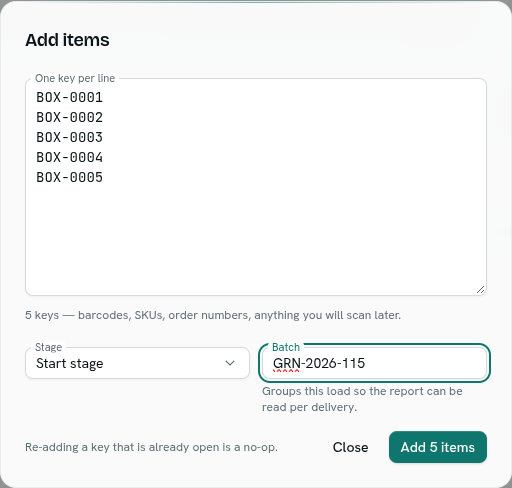
- You see "Added N items". If some keys were already open you also see "M were already open and were left alone".
Rules:
- Up to 500 keys at a time. More shows "At most 500 items per load — split the manifest."
- Empty input shows "Paste at least one key, one per line."
- Adding a key that is already open is a safe no-op. You can paste the same list twice.
- These items are marked with source import.
Scan items
- Open the queue and click Scan. The Scan station opens with the cursor in the code box.
- Scan a code with a barcode scanner, or type it and press
Enter. - Optional: change Move to from Next stage to a specific stage.
- Watch the log. Each scan adds a row with a coloured result and a message. The cursor stays in the box so you can scan continuously.
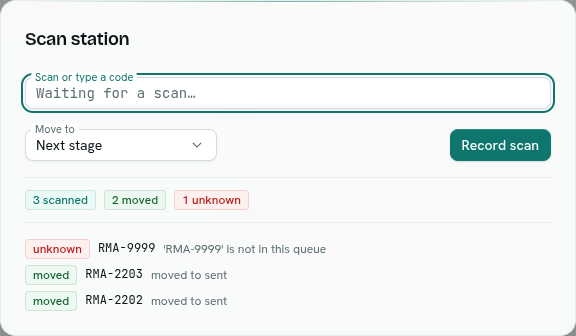
- When you finish, close the dialog. You can also use Record scan instead of
Enter.
If a batch is selected, a scan that creates a new item puts it in that batch.
Results
| Result | Meaning |
|---|---|
| moved | The item was found and moved to the next stage (or the stage you chose). |
| created | The code was not in the queue, and the queue is set to Create an item for unknown scans, so a new item was made. Such items count as Unexpected. |
| duplicate | The item is already in that stage. |
| unknown | The code is not in the queue, and the queue is set to Reject it. Nothing was changed. |
| blocked | The item was found but could not move. The message gives the reason, such as a stage that does not accept items from there, or a stage that is full. |
Above the log, badges count how many scans you made and how many of each result.
What happens next
- Moving into a Terminal stage marks the item done and closes it. A closed item no longer matches scans.
- If the stage has a function to run on arrival, it runs in the background. See Create a queue.
- Rules on the target stage, such as Accept from and a WIP limit, apply to scans just like manual moves.
- To check a delivery, open the Report and read Missing and Unexpected. See Board, items and report.
Tips
- Use Reject it when checking against a list. Anything not on the list shows unknown, which is what you want to catch.
- Use Create an item for open intake, where every scan is new work.
- The log keeps your last 200 scans for this session. The queue's own history is separate and permanent.
- If a scan fails because of a connection or permission problem, the row shows blocked with the message. The code was not recorded, so scan it again.
Troubleshooting
'KEY' is not in this queue It was not loaded, or it is already done. Check the code, or add it with Add items.
already at The item is already in the stage you asked for. Choose a different Move to stage, or leave it.
Add items or Scan are missing You need permission to add work or to move work. The Add items button needs add (enqueue). Scan needs move (transition).