Invite your team
Send an emailed invitation that gives a person access and the roles you choose.
You will invite someone by email. The link works only for that address and puts them straight into the roles you pick.
Before you start: You need the People & permissions permission at Can invite people or higher on the Roles page. Choosing roles for the invitation needs Can manage people, and you can only hand out roles that give no more than you hold yourself. The workspace must be able to send email.
Steps
- Open Team & Permissions from the launcher (or People & permissions in the workspace menu). You land on the People section.
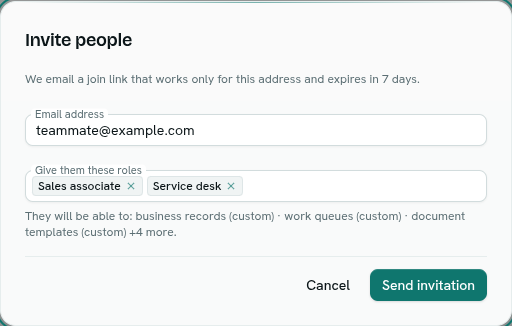
- Click Invite people.
- Enter the Email address, for example
teammate@company.com. - In Give them these roles, pick one or more roles. Under the box you see what they will be able to do. Leaving it empty is allowed: they join now and you decide their access later.
- Click Send invitation. A message confirms "Invitation sent to ...".
What happens next
- The person gets an email with a join link. It works for 7 days and only for that address. See Accept an invitation.
- Pending invitations show under Waiting to accept, with the roles and expiry date. Click Revoke (and confirm) to cancel one; the link stops working.
- Once they accept, they appear in the People table. A person with no role is flagged No role yet, and can sign in but cannot see or do anything.
- Each person holds a Full or Operational seat. Switch it from the row menu (Make Operational User or Make Full User). Seats affect billing. See Plans and pricing.
Tips
- To change roles later, use Change roles in a person's row menu. To remove someone, use Remove from workspace; they lose access at once and their account is not deleted.
- The Free plan allows up to 3 members, and a trial allows the seats it includes. See Usage and allowances.
- There is no invite code to type: the emailed link is the only way in.
Troubleshooting
This workspace can't send email yet, so invitations cannot go out. Email sending is not set up for this installation. Ask whoever set up AxisIQ.
Enter the email address to invite The address must contain an @.
The invitation is refused when you pick roles You can only give roles that grant no more than you hold. Ask the owner or someone with full control of People & permissions.
For everything about roles and permissions, see Team & Permissions.