Create a report
Create an empty report, add your first widget and save it for your team.
You will create a report page and add a chart to it.
Before you start: you need Full control on Analytics & reports to create or change reports. With Can query & read you can open reports but not edit them.
Steps
- Open Analytics & Reports. The Reports section is selected.
- Click New report. In the New report dialog type a Name, for example "Operations overview", then click Create.
- The new report opens in reading mode and says Empty report — Nothing here yet. Click Edit report, then Add widget in the header (or in the Empty report message).
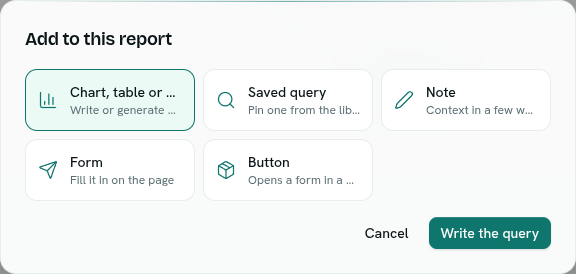
- In Add to this report choose Chart, table or metric (the default) and click Write the query. This opens the Query workspace for this report.
- Write or generate a query, click Run, pick a view such as Bar or Line, then click Add to report. The button reads Update widget when you are editing an existing widget.
- You return to the report with the widget placed. Changes are saved as you make them. The widget is placed where it reads best, or where you clicked the add button.
- Add more widgets, then click Done.
What happens next
- The report appears as a card on the Reports page with its widget count.
- Everyone who can open Analytics can see it. Other people only see data they are allowed to read.
- The query lives only on this report, unless you also click Also save as query.
Tips
- To start from a ready-made page, ask Ask Axis to build a report for you. See What Ask Axis can do.
- Rename a report any time in edit mode with the Report name box.
- Delete a report from its card (the cross icon) or right-click menu. Delete this report? removes the report and any widget queries that live only on it. Saved queries it used are not deleted.
Troubleshooting
Empty report — Nothing here yet. You opened a report with no widgets and you do not have edit permission. Ask someone with Full control, or click Edit report if you see it.
A widget query was refused when I clicked Add to report The page failed its layout checks, for example too many widgets in one row. See Arrange a report.