Chat with Ask Axis
Open Ask Axis from any page, ask for what you need, follow what it did, and come back to earlier chats.
You will open a chat, ask for something, read what the assistant did, and switch between your saved chats.
Before you start: you need the Ask Axis assistant permission (Can use or higher) on the Roles page.
Steps
- Press
Ctrl + J(⌘ Jon a Mac), or click the Ask Axis button at the bottom right. The shortcut also closes the panel. It does nothing while your cursor is in a text box, so it never interrupts typing.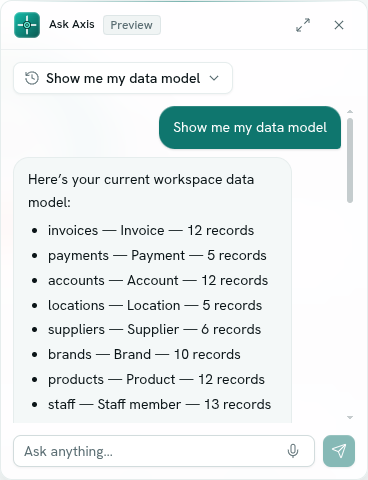
- Type in the box labelled Ask anything… and press Enter, or click Send. Where your browser supports it, a Dictate microphone button sits inside the box.
- On a fresh chat you can also click a suggestion: What can you do in this workspace?, Show me my data model or Add a new type of record to my workspace.
- Wait while it shows Thinking…. For longer jobs it shows Working… with the last few actions it finished. A long job keeps going if you leave the page.
- Read the answer. Each action it took appears as a small badge above the reply, such as "Searched invoices" or "Created field". Some badges open the thing it built.
- To give it more room, click Open Ask Axis app (the expand icon in the panel header). The full page is at Intelligence › Ask Axis. It is the same conversation as the floating panel.
- Press
Escor click Close Ask Axis to close the panel.
Switch, start and delete chats
The chat name at the top (with a history icon) is a menu.
- New chat starts a fresh thread.
- Pick any earlier chat from the list, newest first, to continue it.
- Delete this chat removes the chat you are viewing.
Chats are private: nobody else in the workspace can see them. They are saved on the server, so the same list appears on every device. Chats from older browser storage are imported once.
What you see in answers
- Analytics results — when Ask Axis runs a query it shows the result with the same Table, Bar, Ranked, Line, Donut and Metric views you get in Analytics.
- Inspectable steps — for function runs and for any failed step, an expandable section shows the Input and Output so you can see exactly what happened. Failed steps carry a failed badge.
- Answer options — when it asks you a question, answer buttons appear under its message. See Confirmations and questions.
Tips
- Ask for one outcome at a time: "Show unpaid invoices over ₹50,000 by customer" works better than a long list.
- If something you asked for is not allowed for your role, it says so instead of pretending. See What Ask Axis can do.
- Open a record and use the Ask Axis icon there to ask about it directly. See Page context.
Troubleshooting
Sorry — I couldn't reach the assistant just now. Please try again in a moment. The request failed. Send the message again; the chat keeps your thread.
Ask Axis isn't switched on yet — an admin needs to add an assistant API key on the server. The assistant has not been turned on for the platform. Tell your administrator.
You've reached your plan's AI allowance — choose a plan in Settings → Billing to continue. Your plan's AI use is used up. Open Settings › Billing to choose a plan.
The chat seems busy and does not answer. Another device or tab is still running a turn in the same chat. The chat updates by itself once that turn finishes.