Call flows
Decide what callers hear and who rings on each phone line: build the call flow visually or as XML, start from a template, fix problems before you save, or ask Ask Axis to build it.
A call flow decides what happens when someone calls one of your phone lines: what they hear, which keys they can press, who rings, and what happens when nobody answers. Every phone line has exactly one. Open Phone & Messages › Call flows and choose the line. With only one line, its call flow opens straight away.
Before you start: changing a call flow needs Full control on Phone & Messages. Anyone who can view the app can open a call flow and read it, but can't change it.
Until you save a call flow, a new line rings everyone who can take calls on it, then takes a voicemail if nobody answers.
You can build a call flow in two ways, and switch between them at any time:
- Visual — boxes and arrows you click to change. Most people never need anything else.
- XML — the same call flow written out as text, for full control. See Call flow XML reference.
Start from a template
The first time you open a new line's call flow, AxisIQ asks How should calls be answered? and offers ready-made flows:
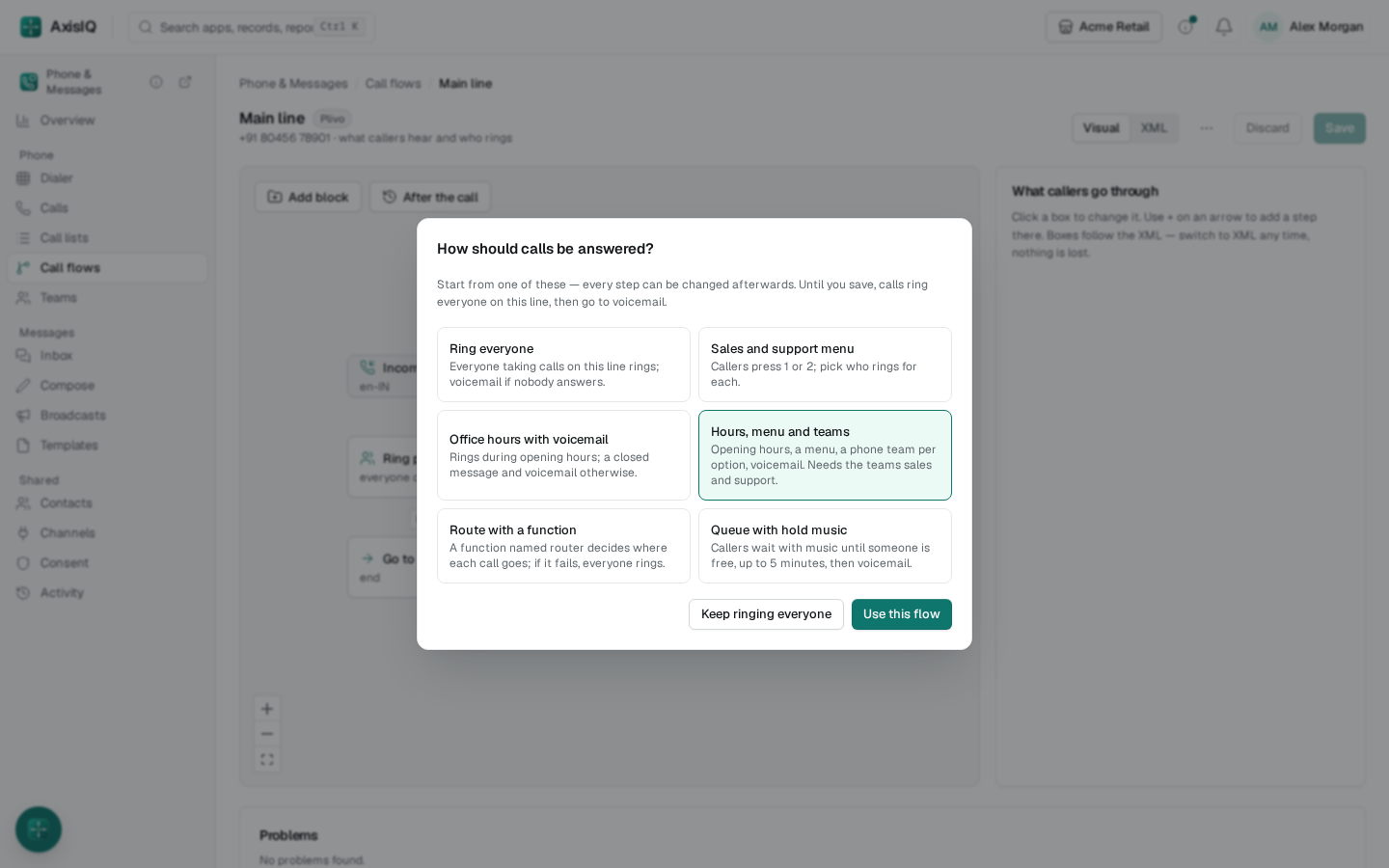
- Ring everyone — everyone taking calls on the line rings, then voicemail if nobody answers.
- Sales and support menu — callers press 1 or 2, and you pick who rings for each.
- Office hours with voicemail — rings during opening hours; outside them callers hear a closed message and can leave a voicemail.
- Hours, menu and teams — opening hours, a menu, a phone team for each option, and voicemail. It rings the teams
salesandsupport, so create those first or pick your own teams afterwards. - Route with a function — a function named
routerdecides where each call goes; if it fails, everyone rings. - Queue with hold music — callers wait with music until someone is free, for up to 5 minutes, then voicemail.
Choose one and Use this flow, or Keep ringing everyone to start from the default. Opening hours in a template use your computer's time zone. Nothing changes for callers until you Save, and every step can be changed afterwards.
To start again from a template later, open ⋯ › Start from a template…. If you have unsaved changes, AxisIQ asks before replacing them.
The visual builder
The Visual tab draws the call flow from top to bottom, in the order a caller goes through it. AxisIQ lays the boxes out for you, so there is nothing to drag or line up. Use the buttons in the corner to zoom in, zoom out or fit the whole flow on screen.
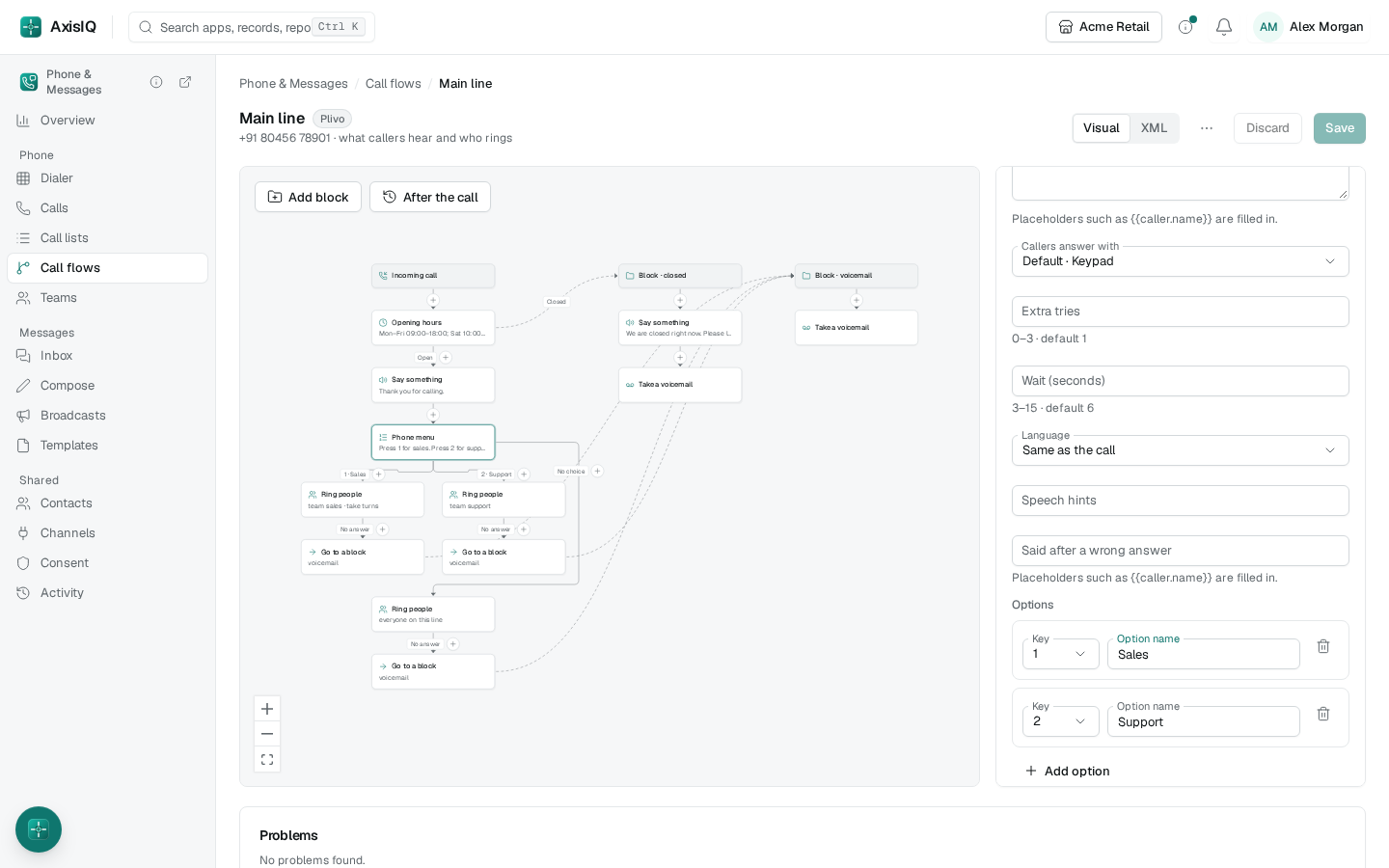
- Incoming call is at the top. Click it to change settings for the whole call: language, voice, recording and its notice, transcription, and whether outside numbers in other countries are allowed.
- Each step is a box, such as Say something, Phone menu, Ring people or Take a voicemail. The line under its name sums up what it does, for example "team sales · take turns".
- Arrows show where the caller goes next. Steps that can go more than one way split into labelled arrows:
- Phone menu — one arrow per option, labelled with its key and name (like "1 · Sales"), and No choice for callers who press nothing.
- Opening hours — Open carries on down; Closed jumps (dashed arrow) to the block you named.
- If… — one arrow for the test (Known caller or Someone available) and one for Otherwise.
- Ask a function — Result carries on; Fallback runs when the function fails.
- Ring people, Hold in a queue and Forward to a number — when someone answers, the call is theirs. No answer leads to what happens next.
- Blocks are named groups of steps, drawn to the right of the main flow (like Block · closed). A caller only gets there when something sends them: a Go to a block step, the Closed side of Opening hours, a function's answer, or a teammate transferring the call to that flow step. When a block runs out of steps, the call ends.
- After the call holds texts that go out once a call has ended as missed, gone to voicemail or been answered.
- Call ends marks a place where callers run out of steps and are hung up on. End every path with a voicemail, a ring, a forward or a hang-up if that isn't what you want.
Add a step
Click + on an arrow to add a step at that point. The steps are grouped:
- Speak & listen — Say something, Play a recording, Wait, Collect digits or words.
- Connect — Ring people, Hold in a queue, Forward to a number, Take a voicemail.
- Decide — Phone menu, If…, Opening hours, Ask a function.
- Other — Text the caller, Go to a block, Hang up, Reject the call.
A branch with nothing in it yet shows Add a step. A new step starts with example values, for example a phone menu with two options, so it works straight away. Change them in the side panel.
Two buttons at the top of the canvas add the other pieces:
- Add block — a new named group of steps.
- After the call — a section for texts sent once a call has ended. It starts with missed calls; under Run after calls that were you can also tick Went to voicemail or Answered. Then use + to add a Text the caller step.
Change a step
Click a box to open its settings in the side panel. A field you leave empty uses its default, which is shown under the field. Some steps have more:
- Phone menu — what callers hear, whether they answer with the keypad, by speaking or both, and its Options: a key, a name and, for spoken answers, the words callers may say. Choose Add option for more.
- Opening hours — the time zone, which block callers go to when you're closed, the days and hours you're open (several rows for split hours, Until midnight for late closing), and Closed dates such as holidays.
- If… — test whether the caller is in your records, or whether someone in a team (or anyone on the line) is free to take the call. Switch on Otherwise branch for a second path.
- Ring people — a phone team, people you pick, or nobody (everyone taking calls on the line), plus outside numbers, the ring order, how long each phone rings, and the skills needed. See Phone teams.
- Ask a function — which function to run, and Fallback steps when it fails.
Use Move up and Move down at the top of the panel to change a step's place, and Delete to remove it. Deleting a step that holds other steps, like a menu with its options, asks first. A block can't be deleted while a step still goes to it.
The XML tab
The XML tab shows the same call flow as text. The two tabs are two views of one call flow, so switching never loses anything:
- Switching to Visual and back without changing anything leaves the text exactly as it was.
- A change in the visual builder rewrites only the part you changed. Your comments, spacing and anything the builder doesn't draw are kept.
Use the XML tab when you want to:
- see or review the whole flow at once,
- copy a flow from one line to another,
- add comments, or set something the side panel doesn't show,
- make many changes quickly.
Insert adds a ready-made step where your cursor is. XML reference opens the Call flow XML reference, which lists every step and setting.
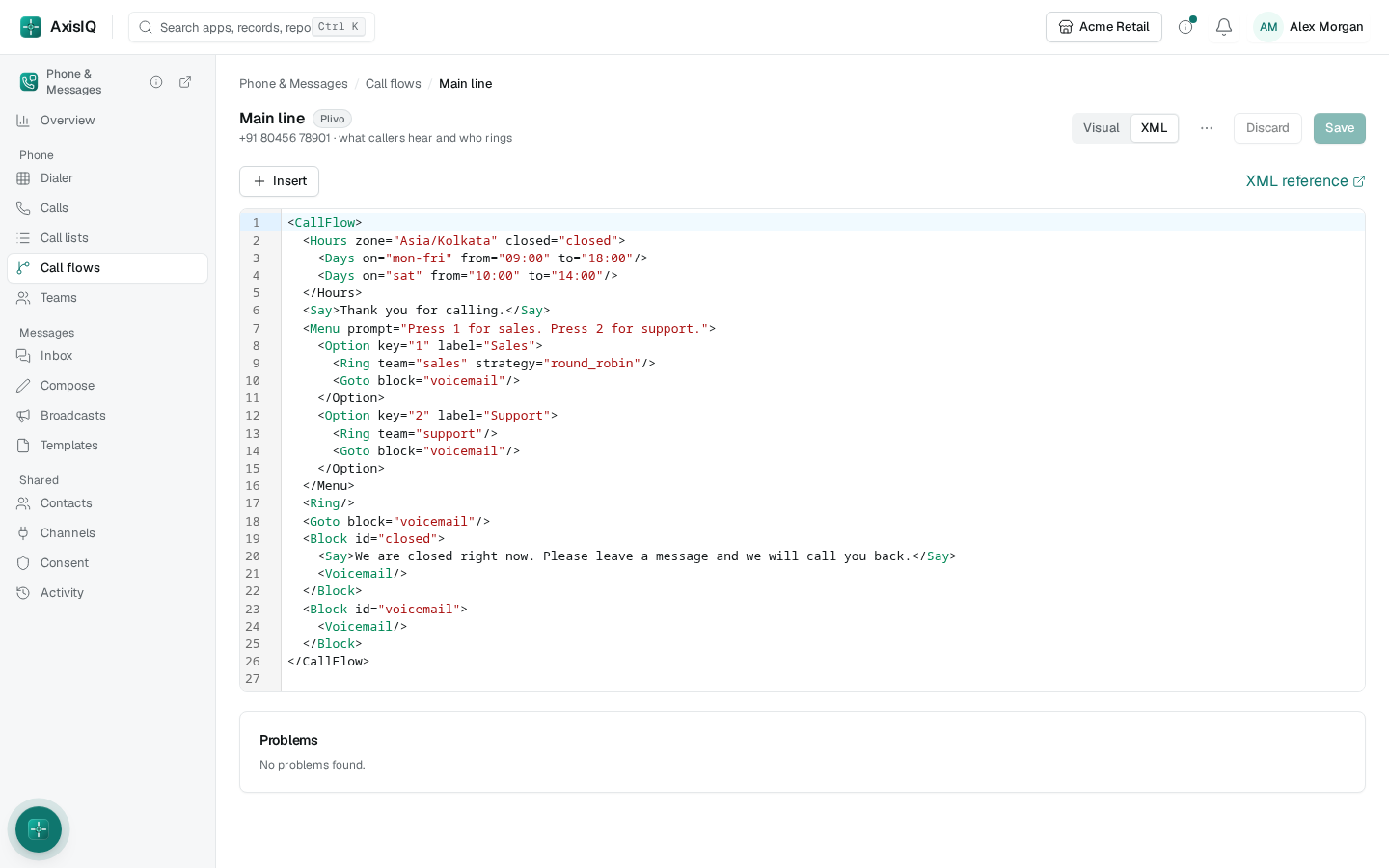
If the text can't be drawn, for example because a tag is never closed, the Visual tab says what is wrong and on which line. Choose Fix it in XML to go straight there.
Checks and warnings
As you edit, AxisIQ checks the whole call flow, the same way it does when you save, and lists the results under Problems:
- Errors must be fixed before Save works, for example a team that doesn't exist, a function you can't run, or a menu with two options on the same key.
- Warnings never stop a save. Some are about the flow itself, like a block that nothing goes to, or callers who are hung up on because a path runs out of steps. Others name your provider (Twilio or Plivo) and say what it can't do, or does differently, with this flow. For example, on Twilio callers waiting in a queue hear ringing instead of music while someone is rung.
In the visual builder, a box with a problem shows a count, and its side panel lists the problem. Choose a problem in the list to go to its box (Visual) or its line (XML). When everything is fine, the list says No problems found.
Save your changes
Choose Save. The call flow applies straight away, also to calls already in progress, from their next step. Discard throws away your unsaved changes.
- Someone else saved first. If someone else, or Ask Axis, saved this call flow after you opened it, your save is refused so their changes aren't lost. Choose Reload to see their version, then make your change again. If you had no unsaved changes, the newer version simply appears.
- No version history. Saving replaces the previous call flow. To keep a copy, copy the text from the XML tab before you save.
- Whose permissions are used. Ask a function steps and texts sent by the call flow run with the permissions of the person who saved it last. When you save, that becomes you. Adding a function step needs permission to run functions, and a Text the caller step needs permission to send from that account.
Who can do what
- Full control on Phone & Messages — edit, save and start from a template.
- Can view (or any level that includes it) — open the call flow in both tabs and click any box to see its settings. Nothing can be changed.
Ask Axis to build it
Ask Axis can write or change a call flow for you. Describe what callers should get, for example:
On the main line, play a menu: 1 for sales rings the sales team in turn, 2 for support rings everyone in support. Outside 9 to 6 on weekdays, take a voicemail.
Ask Axis reads the line's current call flow and your phone teams, writes the new call flow, and checks it the same way the editor does, fixing any errors. Before saving, it shows you what will change, including any outside numbers calls are forwarded to, functions it runs, accounts it texts from and teams it rings, and it saves only when you confirm. It can also create a phone team the flow needs, change who is in one, and tell you who would ring on a line right now.
Ask Axis works with your permissions, so saving needs Full control. If your workspace keeps Phone & Messages out of Ask Axis, it can't read or change call flows. Open Call flows afterwards to see the result in the visual builder.