Create your account
Sign up with your name, work email, a verified mobile number and a password.
You will create an AxisIQ account that you can later use to create a workspace or join one.
Before you start: Have your mobile phone to hand. AxisIQ texts a 6-digit code to confirm the number before it creates the account.
Steps
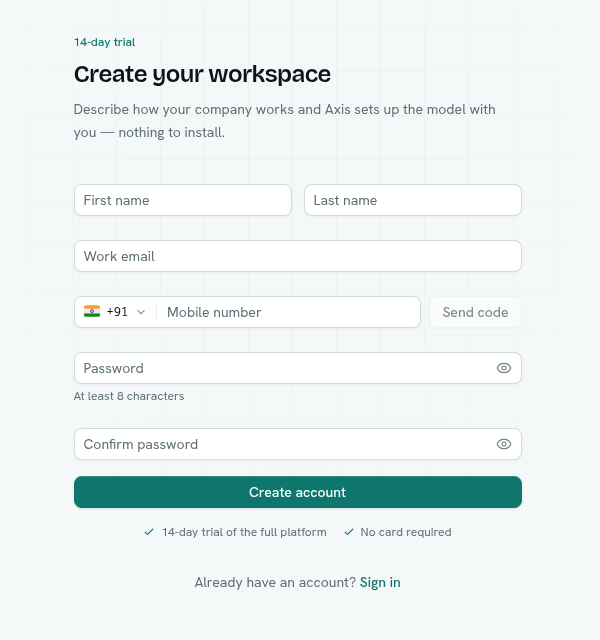
- Go to the sign-up page. It is titled Create your workspace and shows a "14-day trial" label.
- Enter your First name and Last name. Each is required and can be up to 50 characters.
- Enter your Work email.
- Pick your country code and enter your Mobile number, then click Send code.
- Type the 6-digit code from the text message. The field appears after you click Send code and reads "We texted a 6-digit code to ...".
- Enter a Password of at least 8 characters. A strength meter appears as you type.
- Re-type it in Confirm password.
- Click Create account.
If the sign-up page shows a Continue with Google button, you can use that instead of steps 2 to 8. Google accounts are asked to add and verify a mobile number straight afterwards. See Sign in.
What happens next
- You are signed in and taken to the workspace chooser. A new account has no workspace yet, so you will see No organizations yet with a Create organization button. Continue with Create a workspace.
- If you arrived from an invitation email, you go straight to the invitation instead. See Accept an invitation.
- The 14-day trial starts when you create your first workspace. It is described on the sign-up page as needing no card. See Plans and pricing.
Tips
- The mobile number is also a way to sign in later, and it is how Ask Axis recognises you on WhatsApp.
- The Send code button changes to Resend with a 30-second countdown. If you edit the number after sending, the code box disappears and you must send a new code.
- Each number can belong to one account.
Troubleshooting
Enter a valid mobile number Choose the right country code and enter the full number. AxisIQ only accepts valid international numbers.
Passwords do not match The Confirm password box must be identical to Password.
Enter the code we texted you The code box needs at least 4 characters. Click Resend if nothing arrived.
An error under the form about the email or phone being in use That email or mobile number already belongs to an account. Sign in instead, or use Forgot password.